




This article will review the dynamic processing plugin Clips by Integraudio and Sixth Sample.
Every producer needs a collection of good dynamic processors of varying colors, whether for making your vocals stand out, processing your drums to be punchier, or making sure your mix sounds loud enough. Usually, compressors and multi-band compressors do a good job of that! But sometimes, you also need that harmonic punch.
That’s where a clipper comes in! Clips is a plugin that combines the best of both worlds and brings you a 3-in-one effects processor, combining a clipper, a compressor, and a gate. With these functionalities, the plugin has a wide range of applications, as you can imagine.
So, let’s see what the plugin does step-by-step.
GUI
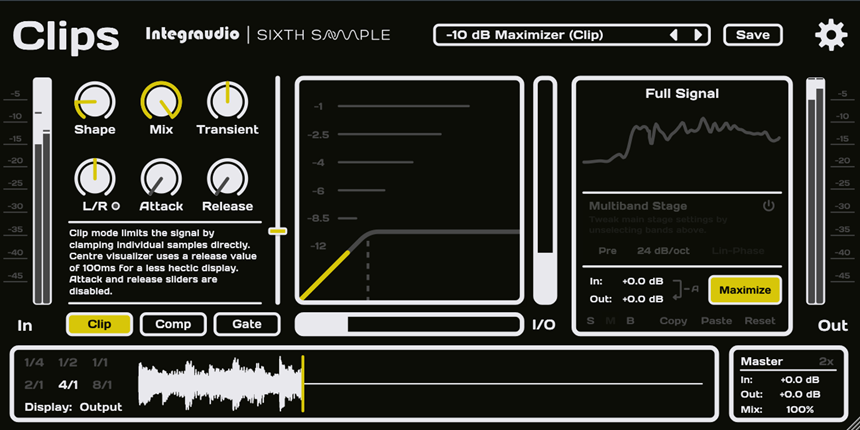
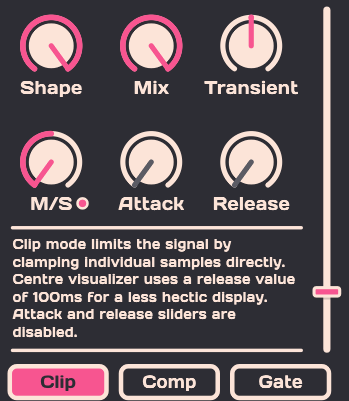
The plugin’s user interface is divided into three main sections. The first section is where you can select the effect you want, whether it is a Clip, a Compressor, or a Gate. This is also the section where you can tweak different parameters of these effects. As you can see in the image below, for each tab/effect, the plugin gives a written description of what that effect does.
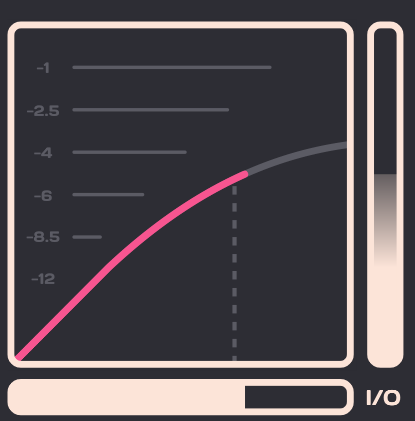
The next section is where you visualize the effect, and see where the ceiling/threshold is set and how much gain reduction is happening. You can also visualize the knee of the dynamic effect in place.
For visualization, the plugin also allows you to visualize the waveform to monitor visually what the plugin is doing to your audio. You can set this waveform to display every quarter note, half note, a bar, two bars, four, and eight bars.

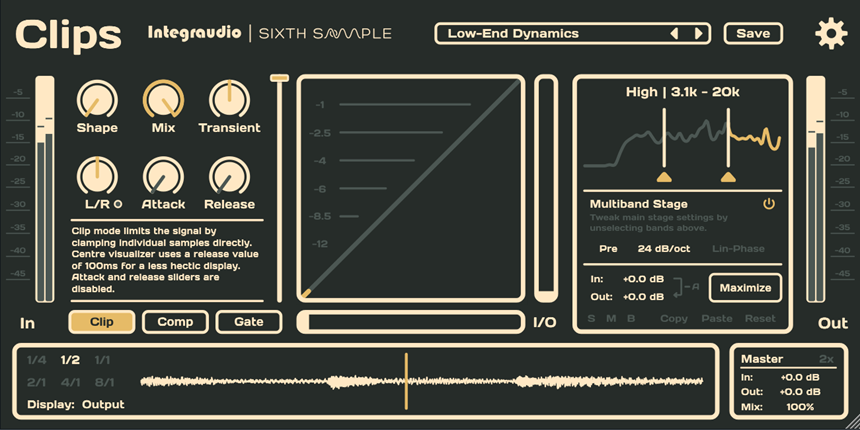
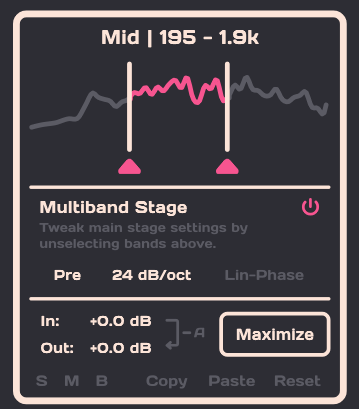
The third section in the plugin lets you see the complete frequency analysis of the audio and also lets you split it into three frequency ranges and bands so you can process each band separately. This section is very intuitive, as you can tweak any band by clicking on it. You can also turn the multiband compress on/off, solo or mute a band, and copy/paste/reset its parameter settings.
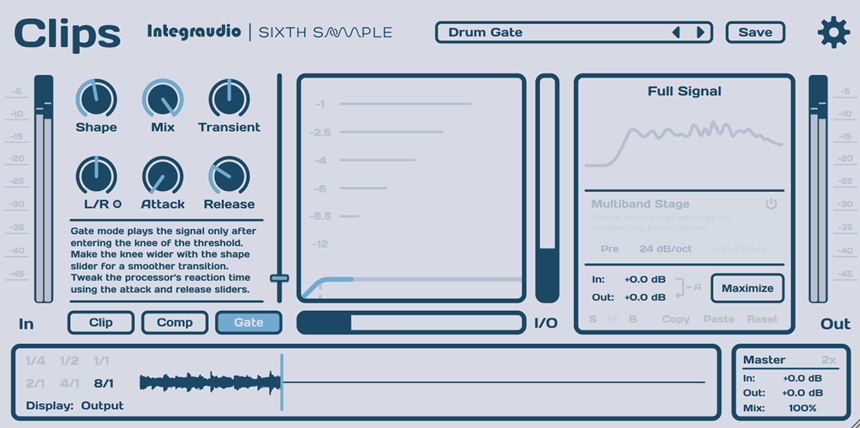
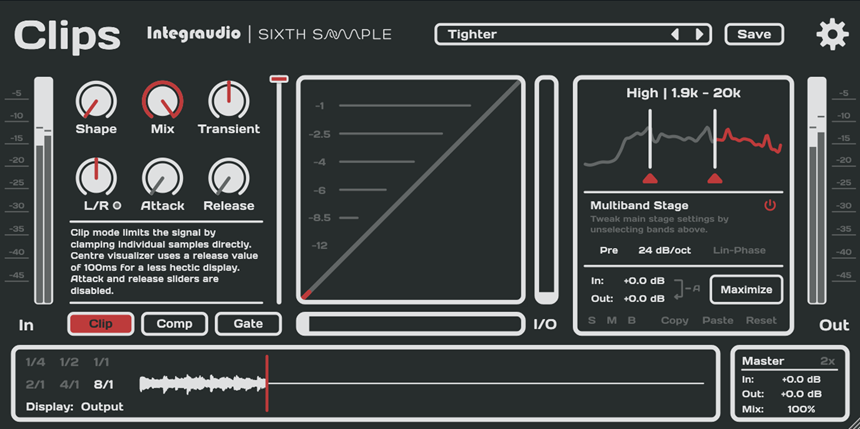
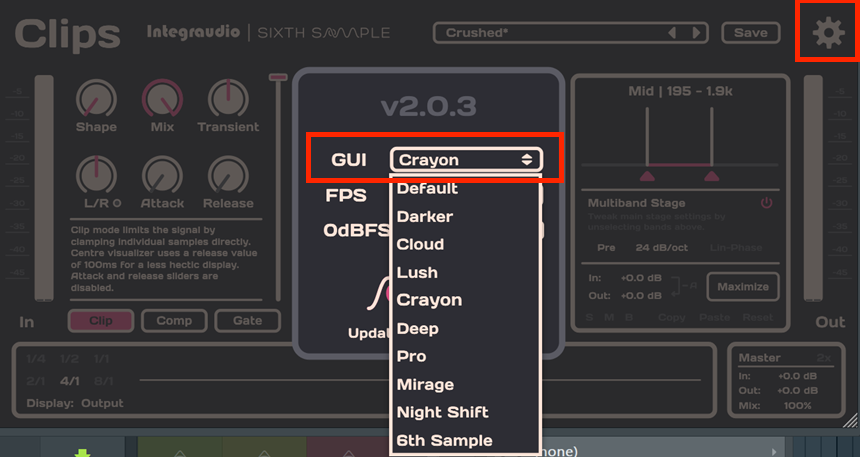
Finally, Clips lets you have a total of nine skins of different colors and vibes, which you can set based on your preference and the vibe you’re going for.
Parameters
Clip
Clip lets you customize the clipping effect you can have on your sounds. To apply this effect, you need to select the “Clip” tab and then set a ceiling by using its ceiling slider. It has a “Shape” knob that decides how aggressive the clipping is going to be by deciding the amount of time the plugin takes to clip the signal exceeding the threshold. Next, its Mix knob lets you mix the wet and the dry signal.
In simple words, these parameters will decide whether your clipping effect will be clean or aggressive. The lower the ceiling and the higher the shape, the more aggressive and crushed the effect will be. The lower the shape parameter and the higher the ceiling, the cleaner and subtler your effect will be.
Next, you can set your effect to be on the left or the right channel, and you can also set it to mid and side channels by using the Mid/Side effect. The transient knob will make the plugin sensitive to transients, so you can preserve the transients in your drum sounds.
Compressor and Gate
The same parameters we discussed above also apply to the compressor and gate tabs. Except for the compressor and gate, the ceiling parameter becomes the threshold. As you can notice, it does not have a ratio control like other compression plugins. That’s because it has a Shape control that acts like the ratio, such that at lower shape values, the ratio is less, and at higher shape values, the ratio is high. You can also use the Attack and Release parameters, which are inaccessible in the Clip tab.
Features
Multi-band capabilities
The multiband processing is available for all three units: Gate, Compressor, and Clip, and has three bands. In addition, you can turn on the linear phase for it and set the multiband stage to be pre- or post-processing at 12 dB/octave of slope. Also, for each multiband, you can set the effects parameters separately.
Maximize
You get a Maximize switch on the plugin that you can turn on or off for the entire frequency range or on a selective band when the multiband stage is on. This switch essentially pushes the peak audio level to 0 dB.
Auto output from input
You can turn on “auto output from input” if you want A/B between processed and dry sound. The plugin also lets you monitor the input and output levels with its dB meters.
Oversampling
The plugin allows you to turn on oversampling, which oversamples your output by 2x. Also, in the “master” window, you can control the input and output gain, and the mix signal as well.
Hard Clip
Clips allows you to turn on Hard Clipping at 0dBFS, which means abrupt cutting off of signal peaks, resulting in a squared-off waveform. That flattens your peaks, increases RMS loudness, and makes your sounds grittier.
Mid/side and Left/right channel processing
The Mid/Side and Left/Right switchable knobs are available for all three effects in the plugin. Using this, you can apply a particular effect, let’s say a compressor, to either the mid, side, left or right channels.
Sound
In terms of sound, Clips is quite versatile, as you can create anything from aggressive effects for genres like dubstep, metal, and punk to more subtle pop productions. The clipper is a great way to maximize volume, add more presence and sheen to your sounds, and make your drums and basslines punchier.
The compressor, on the other hand, acts like a limiter at high shape values. There are various presets for all three modules, like Crushed, High Detail, Side Presence, and Punchy in Clips; Drum Bus, Focus, and Tighter in the Compressor module; and Drum Gate, Soft Mids, and Low-End Dynamics in the Gate module.
Verdict
Clips can be used as both a dynamic processor and a coloration plugin. You can add interesting shades to your sounds and make them stand out! It has helpful visualizers, user friendly and pretty interface, and detailed customizations. The multi-band addition is a big hit for me!!!
Where the plugin fell short for me was its oversampling capabilities. I wished that the developers added higher oversampling multiplications. Upto 8x would have been great, too! Next, the preset menu could have been larger and more innovative.
Other than that, I loved its versatile sound and ease of operation. You can try the plugin, as it’s also for a free trial, which you can download here. Lastly, the GUI is scalable and can be stretched, so you can set its size as per your preference and your screen size.

The Integraudio Editorial Team consists of experienced music producers, audio engineers, and plugin enthusiasts dedicated to providing in-depth reviews and guides for music production software.