
In less than two years, Zoom has achieved a milestone of 300 million active users daily. You might be one of those geeks. Have you ever encountered the Zoom app freezing and crashing on Windows 10? Let us discuss and solve this crashing issue on Zoom.
Zoom is a widely used video conferencing app that revolutionized remote communication. It’s user-friendly interface and robust features make it the go-to choice for virtual meetings, webinars, and online collaborations. With high-quality audio and video, screen sharing, and interactive chat options, Zoom has become an indispensable tool for professionals, educators, and individuals seeking online connections.
While using Zoom on Windows 10, you might face that application is freezing and not allowing you to use it effectively. The freezing issue on Windows 10 is caused by the Zoom app itself or any malfunction in your operating system. This post will address the possible causes and the solutions to overcome the Zoom app freezing and crashing issue on Windows 10.
Why Does Zoom Keep Freezing & Crashing on Win 10?
Zoom users usually face freezing and crashing issues on Windows 10 because of the internet connection or the Zoom service being down from the backend. Other causes include hardware incompatibility, outdated Zoom app, browser’s cache, or the associated drivers with hardware.
Like other digital communication platforms, Zoom has some measures to use, i.e., hardware compatibility, stable internet connection, updated app, and drivers. If the users do not take precautionary measures, the Zoom app will ultimately freeze and crash. Let us look at these factors and the solutions to them:
Internet Connection
A poor internet connection results in audio/video distortion, frozen screens, and disconnections. These continuous disruptions caused by poor internet connection keep Zoom crashing and freezing. Thus, an internet connection is a primary aspect to consider and fix (if necessary). Let’s do it:
- How To Fix It?
A stable internet connection ensures uninterrupted audio and video communication, minimizes lags or delays, and provides a seamless user experience. If the internet is not working smoothly, try changing the connection or restarting the internet-providing source (modem/router).
If you are sure, the internet device/router is working fine and still facing the issue. Then, it is time to troubleshoot the internet connections. Go to the following path “System > Troubleshoot Settings > Additional troubleshooters” and initiate a troubleshooting request by clicking on the Run button in front of the Network and Internet:

Zoom Service Status
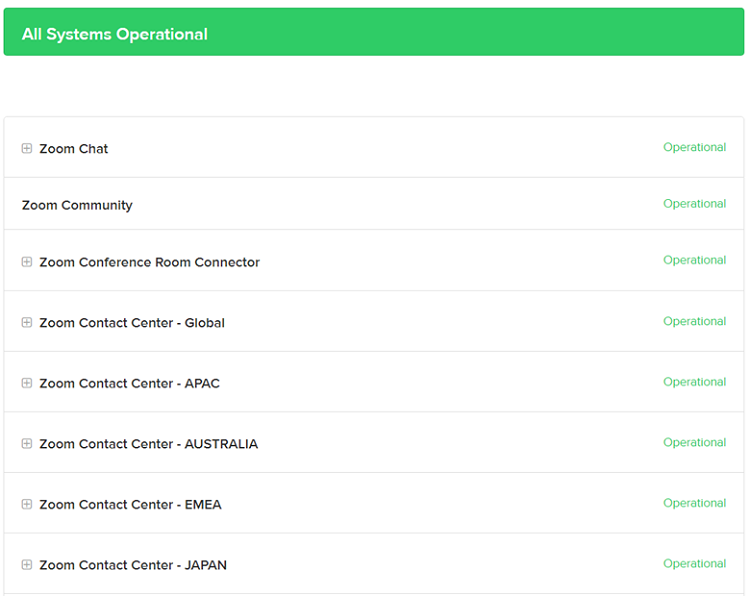
Zoom service status is the online status-checking platform of Zoom, where you can check whether the Zoom components are working fine. If the Zoom service is down from their backend, you won’t be able to enjoy the Zoom smooth working, resulting in a freezing and crashing issue.
- How To Fix It?
The Zoom service is managed through the back end, and the end users have no control over that. Thus, if the Zoom app is freezing because of the service status issue, then you have to wait for a specific time until the Zoom contributors fix the problem. Click here to track the Zoom status:
Hardware Acceleration
Hardware acceleration in the Zoom app on Windows 10 utilizes the hardware resources, i.e., GPU, to optimize video rendering and improve overall performance. However, hardware acceleration can contribute to the freezing and crashing of the Zoom app. Thus, it is suggested to turn the hardware acceleration off.
However, if you do not want to compromise the quality (hardware acceleration), you must either update the hardware system or update the GPU drivers. Let’s explore these.
- Fix 1: Turn Off Hardware Acceleration
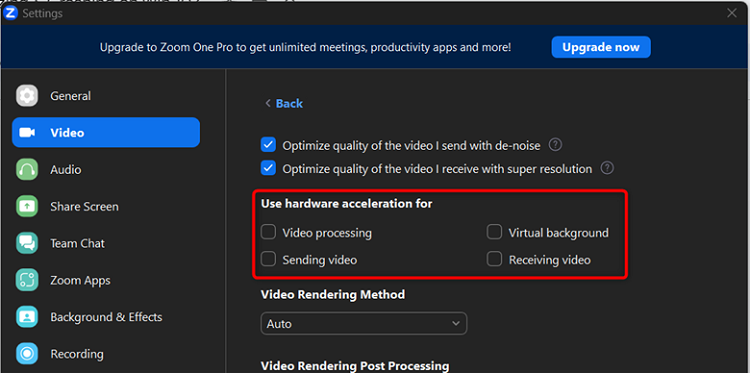
The first and foremost solution to fix the hardware acceleration is to turn it off from the Zoom app settings. By turning the hardware acceleration off, the video rendering method will be optimized automatically as the hardware acceleration of Video majorly refers to processing (receiving and sending) the videos.
Open the Zoom app, follow the path “Settings > Video > Advanced,” and turn off all the hardware acceleration support for the video feature. The rendering-related aspects of Zoom will also be turned off here:
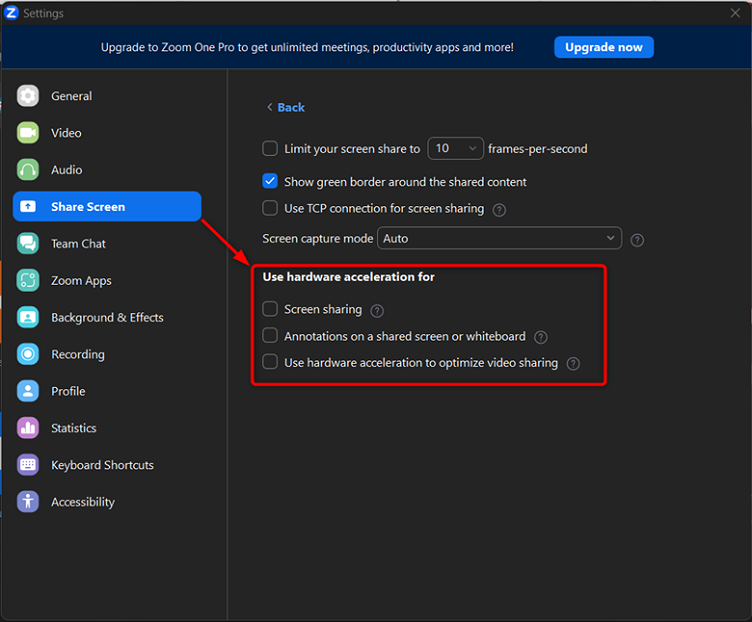
Similarly, Zoom utilized hardware acceleration for screen sharing as well. To turn it off, open the path “Settings > Share Screen > Advanced” and turn off all the hardware acceleration for three features of screen share as shown below:
- Fix 2: Update GPU Drivers
If you do not want to compromise the hardware acceleration feature, you must update the GPU drivers on your Windows 10 from the device manager’s settings. The other option is to look for the drivers of your GPU. It is recommended to let the system do it for you, as it will automatically search for the best-supported drivers.
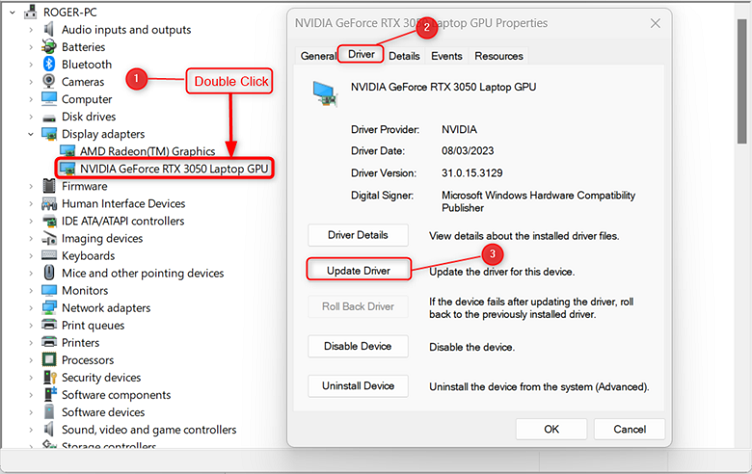
Search for the Device Manager in the search bar and open it. Go to the Display adapters and locate your GPU. Double-click on it, which will open a new window, click on the Driver tab, and then on the Update driver option. All these steps are illustrated in the image below:
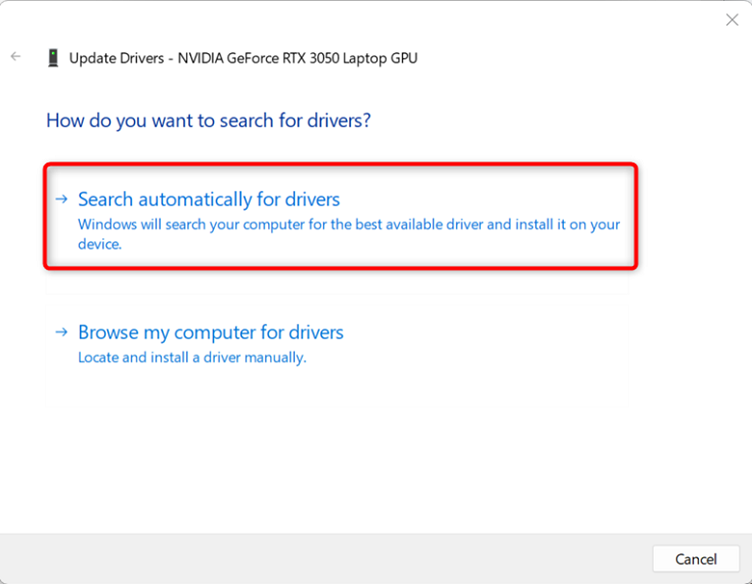
A new window appears, where you must choose the Search automatically for drivers. After that, follow the on-screen instructions (if any), and the system will automatically update the drivers (if available any):
Browser Cache/Browsing Data
The browser’s cache overloads the browser unnecessarily and consumes more resources. If the cache is not in control and you are using Zoom, your Zoom app will keep freezing/crashing on Windows 10. Thus, cleaning and tracking the browser’s cache will fix freezing/crashing off Zoom.
- How To Fix It?
The Browser’s cache and the browsing data are built up daily. It can be cleaned up from the browser’s settings (and depends upon the browser you are using). Most of the browsers on Windows 10 (Chrome, Firefox, Opera, Brave) have the common hotkey (CTRL + SHIFT + DELETE) to invoke a clear history menu.
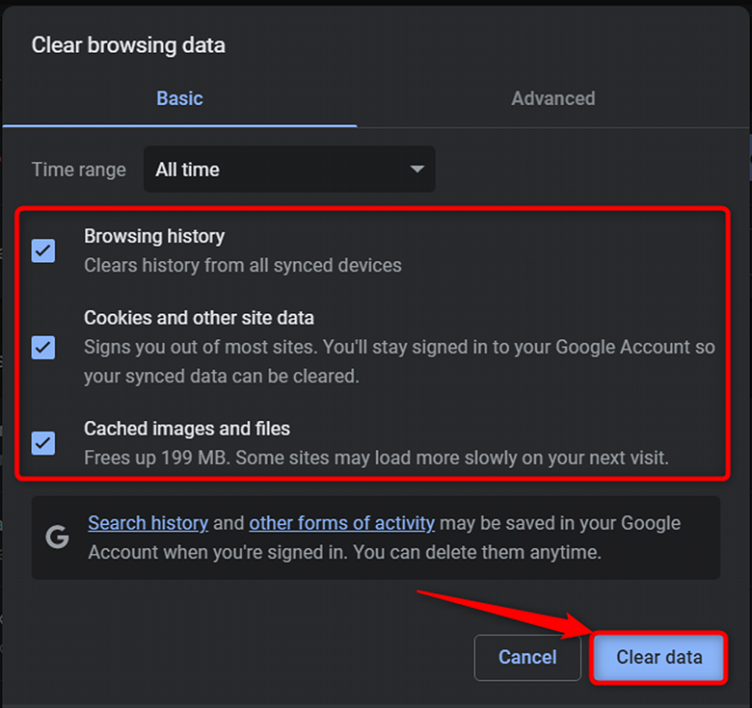
Use the shortcut key to observe a window like the one shown below. Here, you have to choose the options to clean up wisely. It is suggested to mark the following checkboxes and click on the Clear data button:
Outdated App
The outdated app lacks the features offered in the updated versions. Thus an outdated app does not function properly, and when the components/features of the Zoom app do not function properly, Zoom keeps crashing and freezing on your system. Thus, it is suggested to update Zoom to a newer version.
- How To Fix It?
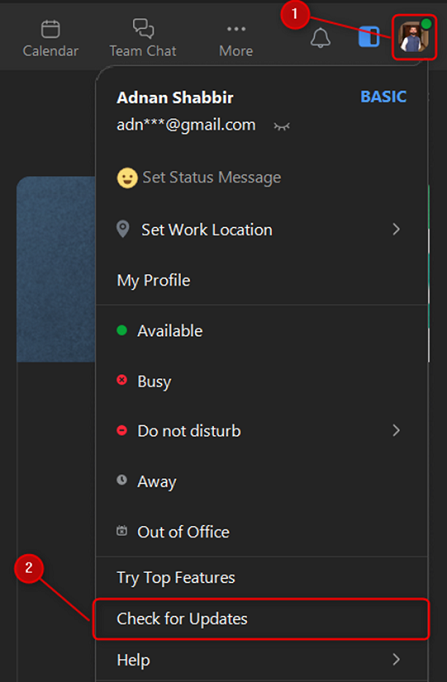
To update the Zoom app on Windows, you must check for the updates and proceed with the on-screen instructions. Open Zoom and click on the profile icon. A drop-down menu will appear; click on the Check for updates option as shown below:
This option will start checking for updates (if any). If updates are encountered, Zoom will automatically start loading resources, and a window will appear below. Click on Install to proceed:
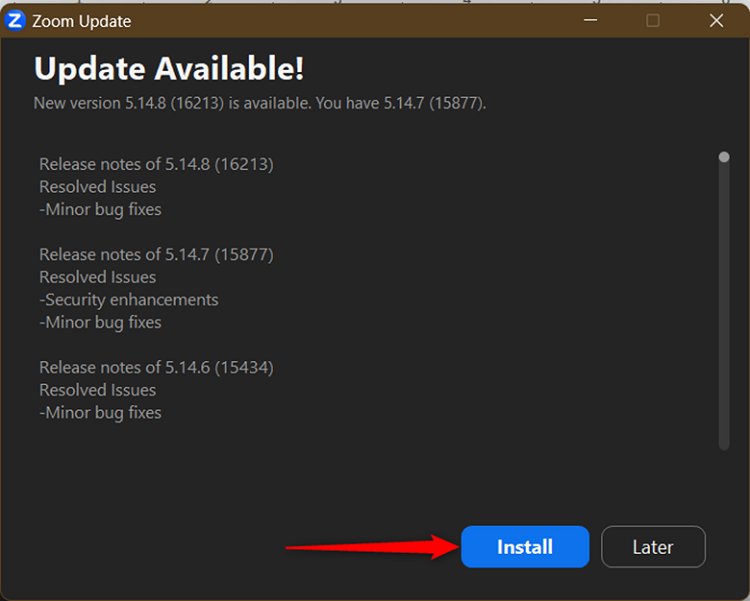
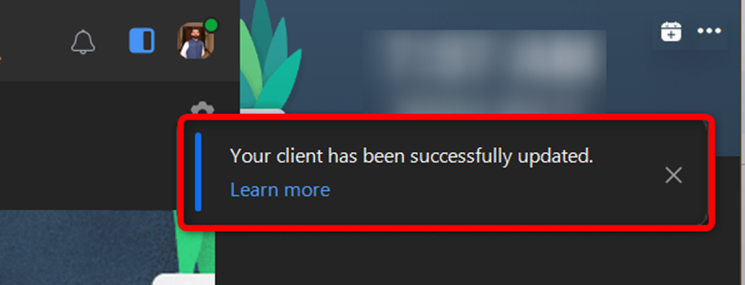
The Zoom app closes instantly upon clicking, and the installation will begin. After the update, Zoom will open automatically with a success prompt, as shown below:
System Resources
Like other applications, Zoom does have minimum system requirements to perform the operations smoothly. If Zoom cannot acquire the minimum RAM, processing power, etc., it starts freezing when it is opened. Thus, it is necessary to keep the hardware resources vacant for Zoom to operate smoothly.
- How To Fix It?
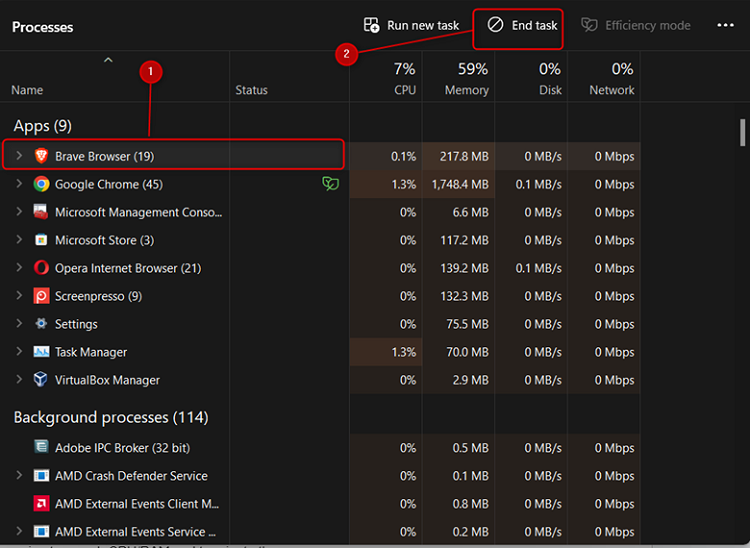
With the available resources, you can only optimize the consumption of the RAM and CPU to create room for Zoom to operate smoothly. For this, you must identify and terminate the unnecessary applications/processes that consume too much CPU/RAM.
Open the task manager (CTRL+SHIFT+ESC) and look for the processes that are putting load. Select the process and then click on the End Task button. Keep on doing all those processes that are useless for the time being:
Audio/Video Device Drivers
The audio, video, and camera are the primary support of Zoom to function properly. If these devices are not equipped with updated drivers, Zoom will hang and keep crashing/freezing on Windows 10. Ensure the system has the updated drivers for your audio/video devices.
- How To Fix It?
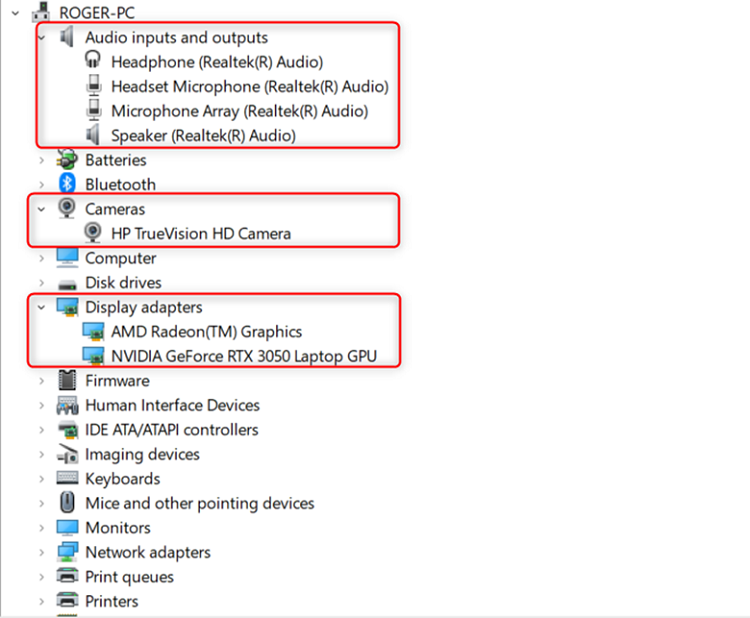
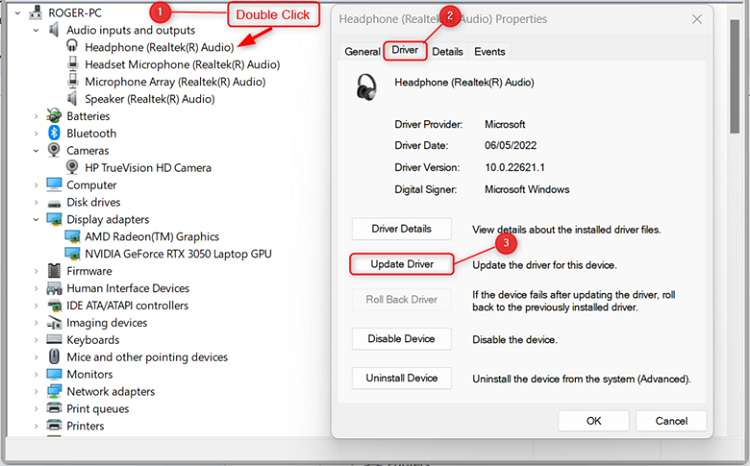
The drivers can be updated from the Device Drivers settings available on Windows 10. Open the Device Drivers and locate the following: Audio inputs and outputs, Cameras, and Display adapters, as highlighted in the image below:
To update the driver, double-click on any device drivers from the list and go to the Driver tab. Then, click on the Update driver option, as seen below. After that, follow the on-screen instructions to proceed:
Buggs/Internal Errors
If the Zoom app has caught bugs or any internal errors, then the app will keep on crashing and freezing. These bugs/errors will not allow you to perform any operation resulting in the overall crash of the Zoom app. In such a case, you must uninstall the current version and reinstall the fresh copy from their official website.
- How To Fix It?
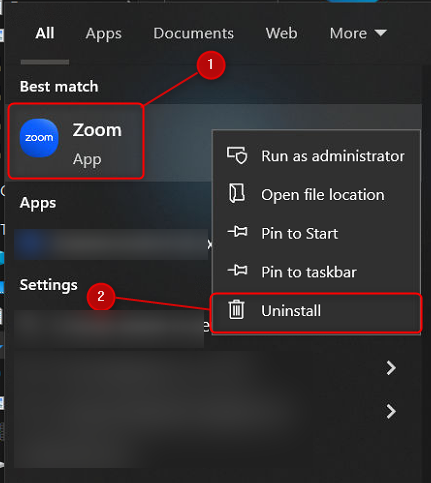
The only fix to the buggy Zoom app is to uninstall it and then install a fresh copy of it. To uninstall Zoom, search Zoom in the Windows search bar and right-click on it to choose Uninstall:
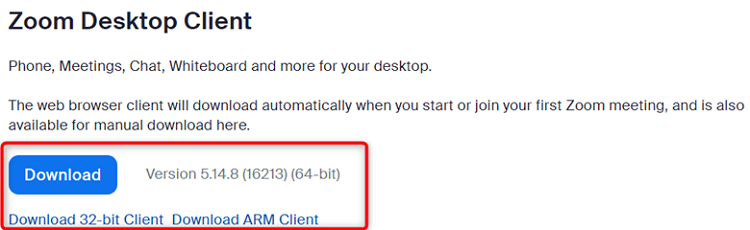
Once it is uninstalled, reboot your system and then go to the official download page on the Zoom website and download the .exe file of Zoom as per your system’s architecture (32bit or 64bit):
Bottom Line
Zoom, one of the leading digital communication platforms, offers one-to-one and group meetings. Zoom support is available on all the most used OSs Windows, macOS, and Linux, with over 300 % increase in the number of users over the last two years.
The Zoom app starts freezing and crashing on Windows 10 because the users do not follow the standard requirements to use it, i.e., resources, active status, internet, etc., the Zoom app will start freezing/crashing.
To get rid of the crashing issue of Zoom, you have to start optimizing from the basic requirements and proceed sequentially, i.e., internet service, then the Zoom status, GPU compatibility, resources, and supported drivers.
If you observe the causes, most of the problems can be prevented by taking some precautionary measures. However, still, if Zoom crashing occurs, then you can try the fixes that are discussed briefly in this guide.

The Integraudio Editorial Team consists of experienced music producers, audio engineers, and plugin enthusiasts dedicated to providing in-depth reviews and guides for music production software.