
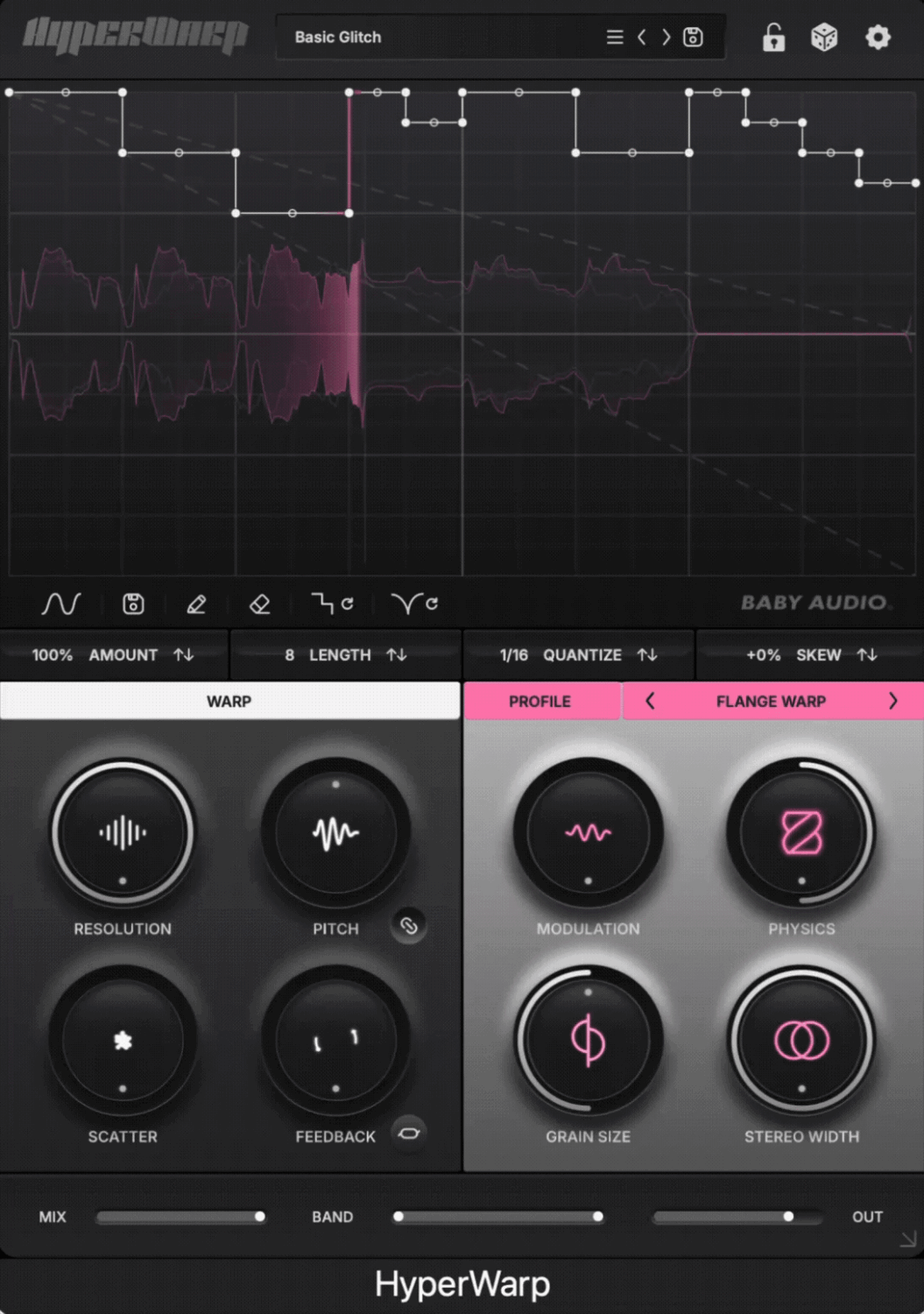
Baby Audio HyperWarp is a granular multi-effect built around one idea I really like: making time manipulation feel visual and immediate. Instead of hiding stutters, slowdowns, reverse effects, and freezes behind menus, it lets you draw them directly into a time-warp graph, then reshape the result with a granular engine and seven different processing profiles.
What makes HyperWarp interesting to me is that it sits somewhere between a glitch effect, a granular processor, and a rhythmic editing tool. I can use it to add a small variation to a vocal or drum loop, or push much further into pitch-shifted grains, scratches, half-time movement, reverse textures, and lo-fi processing without leaving the same interface.
I also like that it is designed for existing audio rather than starting from scratch. Loops, stems, vocals, drums, and synth parts can all become raw material, which makes HyperWarp feel more like a creative finishing tool than a separate sound-design environment. In this review, I will look at how useful the graph really is, how different the seven profiles feel, and whether it offers enough beyond simpler time-warp and stutter plugins.
HyperWarp Key Features
| Key Feature | What It Does |
| Drawable Time-Warp Graph | Lets you create stutters, slowdowns, reverse playback, freezes, scratches, and speed changes using steps, slopes, and curves. |
| Granular Processing Engine | Breaks incoming audio into grains and rebuilds playback according to the graph and Warp controls. |
| 7 Effect Profiles | Includes Clean Warp, Flange Warp, Degrade Warp, Filter Spam, Harmo-Nicer, Fauxcoder, and Lo-Fizzly. |
| Resolution | Adjusts grain size, moving from cleaner time-warping to coarser and more obvious granular textures. |
| Pitch Control | Shifts the processed signal up or down by two octaves, with optional semitone snapping. |
| Scatter | Randomizes where grains are read from inside the playback window for less predictable textures. |
| Feedback & Ping-Pong | Feeds grains back into the engine and can alternate repeats across the stereo field. |
| Steppy & Curvy Randomizers | Generates rhythmic step patterns or smoother scratch and speed-change shapes automatically. |
| Amount, Skew & Length | Scales the effect intensity, shifts the graph timing, and sets the processing window from 1/2 note to 4 bars. |
| Wet-Signal Band Limiting | Adds high-pass and low-pass filtering to the processed signal only, helping keep important lows or highs clean. |
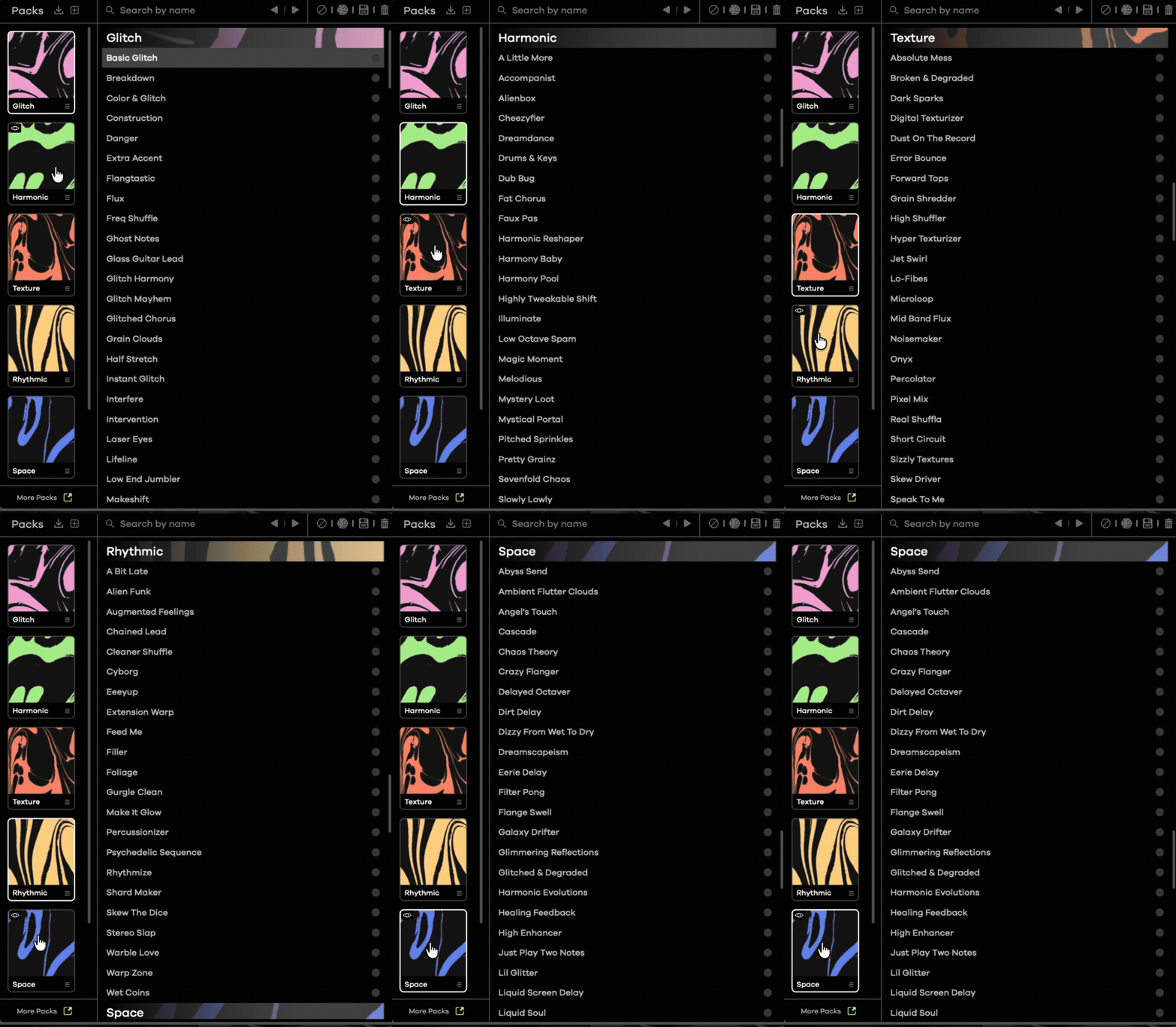
| 190+ Presets | Includes full presets and graph-only patterns for fast experimentation and starting points. |
| Resizable Interface | Lets you enlarge the graph for more precise drawing and editing. |
Detailed Features
HyperWarp is built around a workflow that separates time movement from granular character, and I think that is one of its smartest decisions. The graph decides when the audio jumps, slows, reverses, or freezes, while the Warp controls and seven profiles decide what those grains actually sound like.
Time-Warp Graph
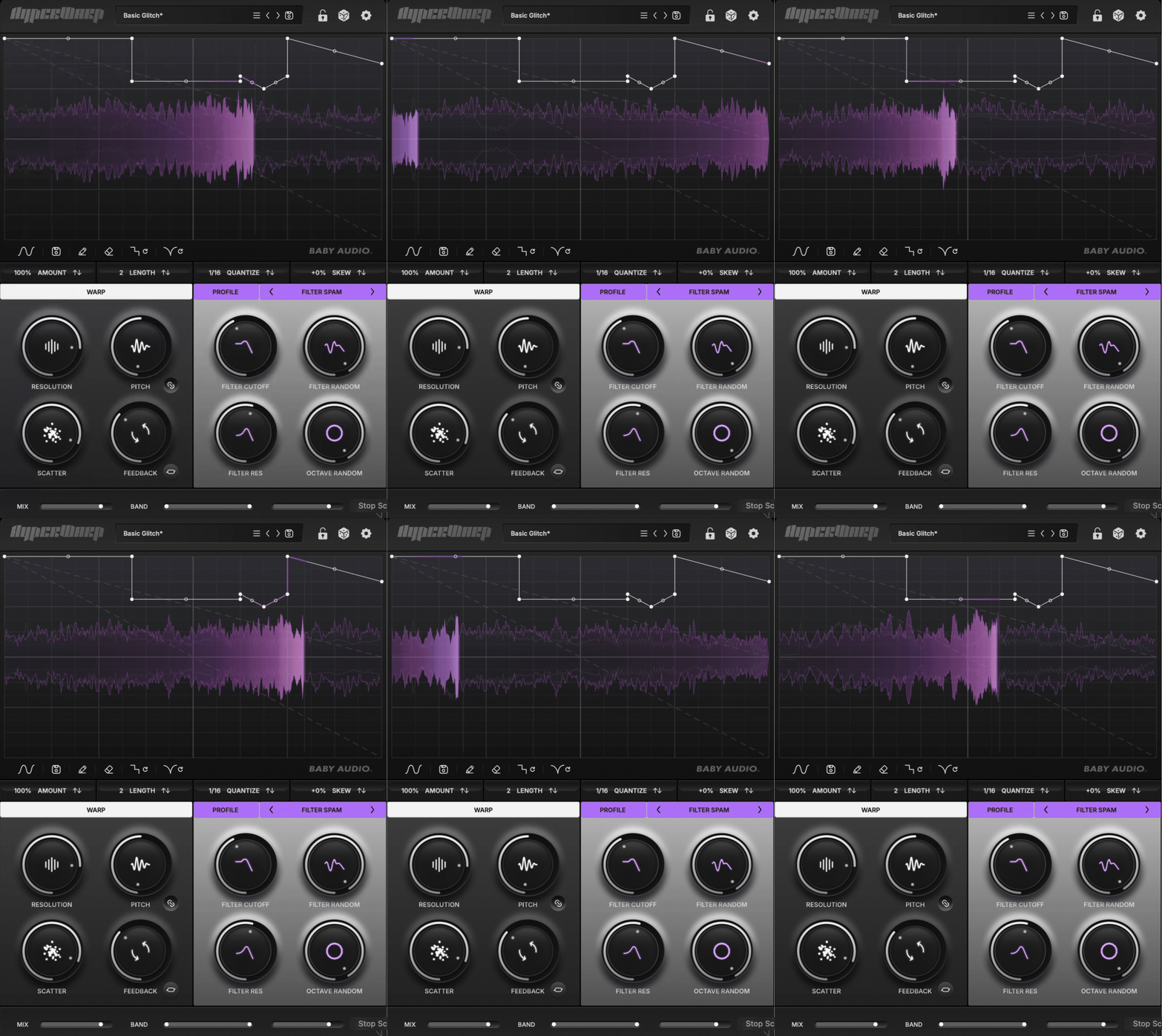
The graph is the heart of HyperWarp. Steps create stutters, slopes change playback speed, steeper lines can slow the audio all the way to a frozen grain, and curves create more fluid scratch or tape-stop style movement.
I like that this turns fairly abstract time manipulation into something visual. Once I understood what the different shapes meant, it became much easier to build a specific rhythmic idea instead of just randomizing until something sounded interesting.
Warp Controls
The shared Warp section gives you Resolution, Pitch, Scatter, and Feedback, plus a ping-pong option. Resolution changes grain size, Pitch covers ±2 octaves, Scatter changes where grains are read from, and Feedback feeds slices back into the engine.
For me, the best approach is to keep these controls fairly simple while I work on the graph, then add more texture afterwards. Otherwise, it is very easy to lose track of whether the movement or the granular processing is actually improving the sound.
7 Processing Profiles
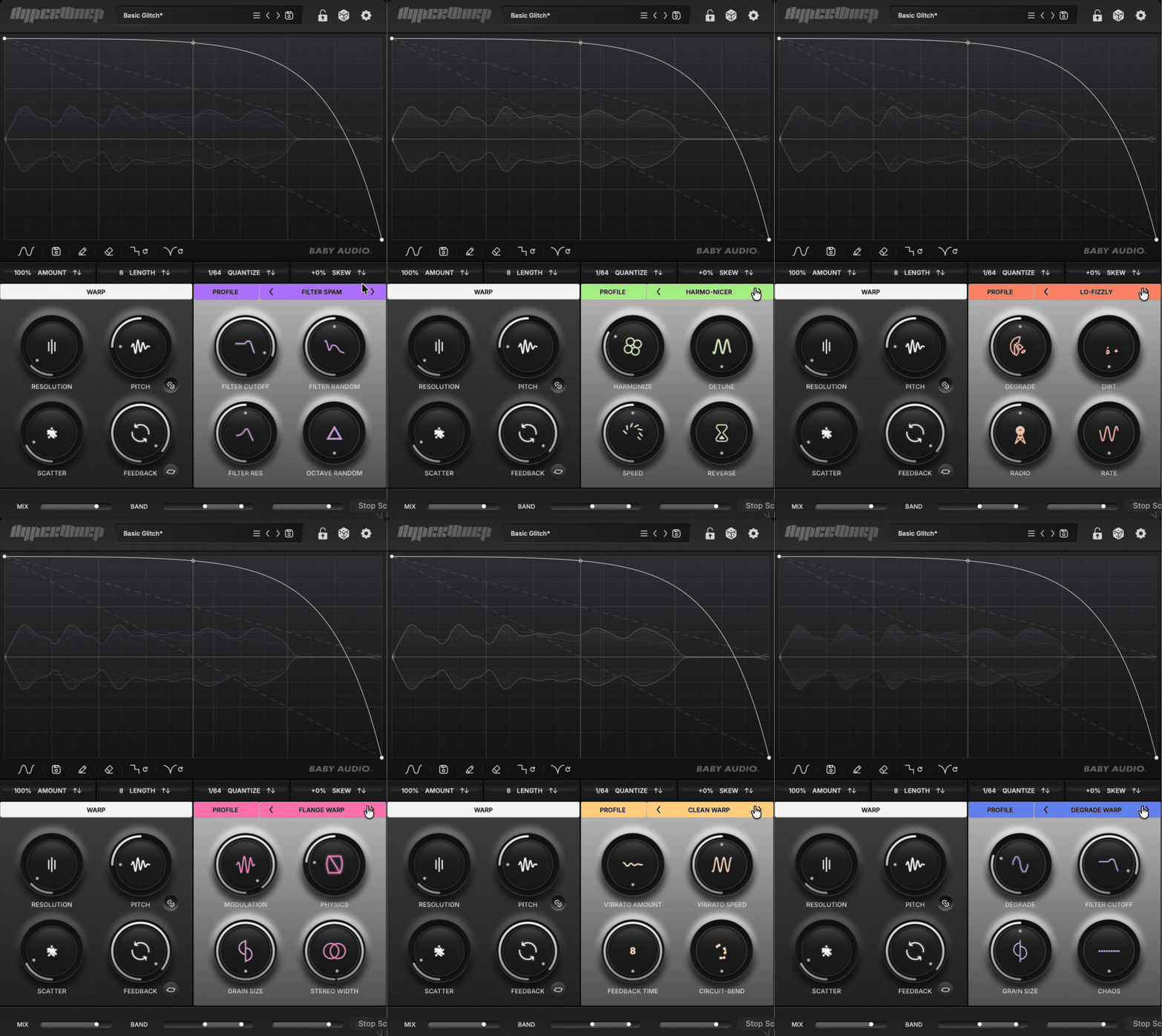
The seven profiles give HyperWarp most of its tonal variety, and the same graph can sound completely different just by switching between them:
- Clean Warp: keeps things relatively transparent, so the timing effect stays natural.
- Flange Warp: adds tighter, more pitch-linked movement.
- Degrade Warp: pushes the grains toward gritty, degraded textures.
- Lo-Fizzly: adds downsampled, lo-fi character.
- Harmo-Nicer: layers octave- and fifth-based grains.
- Fauxcoder: moves toward a resonant, vocoder-like sound.
- Filter Spam: applies randomized filtering across individual grains.
The last three are where things get more experimental, while Clean Warp is the best place to start when you want to hear what the graph itself is doing.
Randomization and Pattern Tools
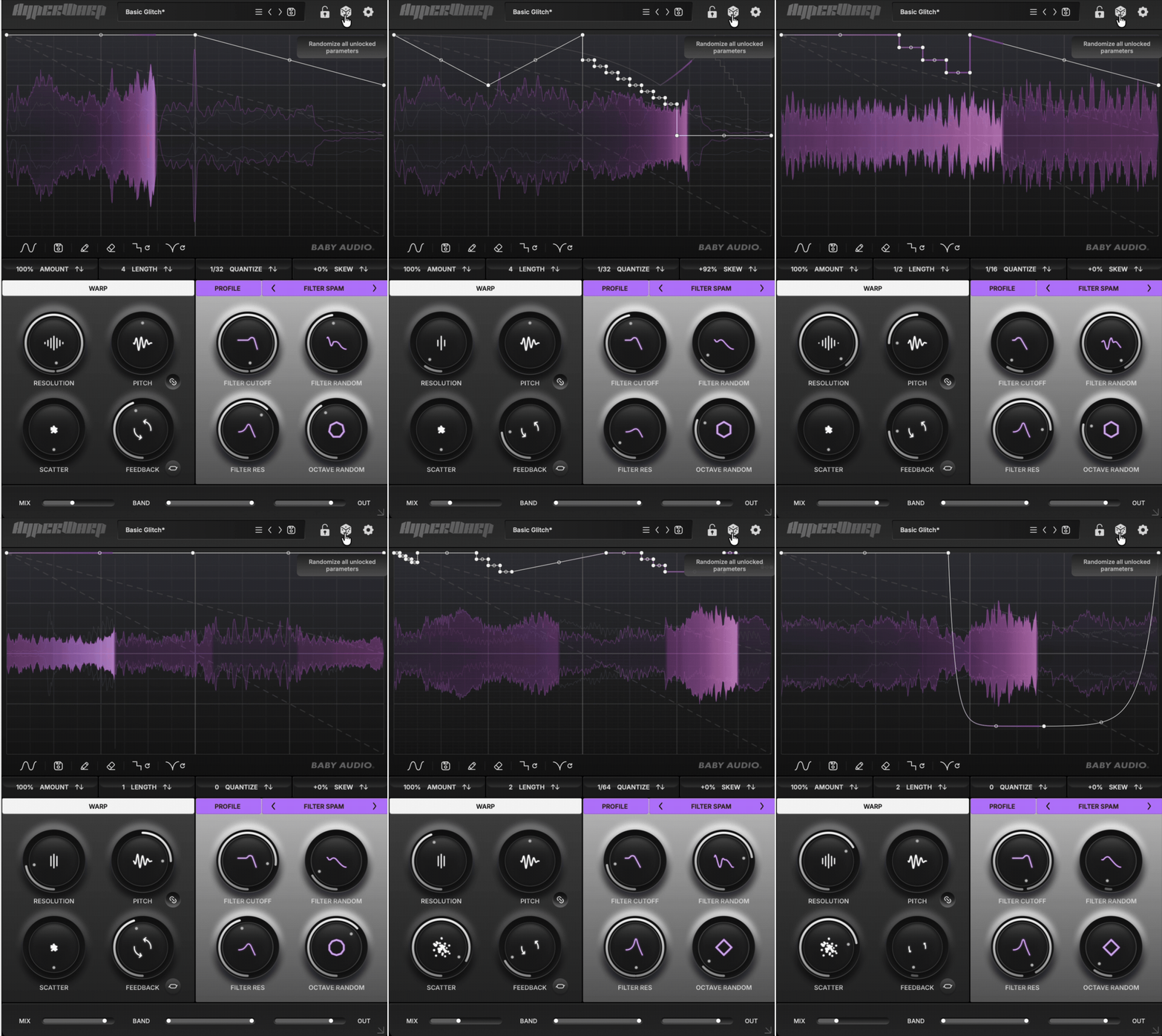
HyperWarp includes separate Steppy and Curvy randomizers, which generate either glitchier step patterns or smoother speed-based shapes. You also get Quantize, Amount, Skew, Length, step drawing, and graph preset saving.
I would use randomization more as a starting point than a finished result. Locking the graph or profile while randomizing the rest is particularly useful because it lets you explore new textures without destroying a rhythm you already like.
Wet Signal Control
The output stage includes a Mix control and a band-limiting section with high-pass and low-pass filtering on the wet signal only. That makes HyperWarp much easier to use on full loops or buses because I can let the dry low end remain stable while the granular processing takes over the mids and highs.
This is one of those small features that makes the plugin much more practical. It keeps the effect from automatically becoming an all-or-nothing sound-design tool.
Interface and Workflow
The interface is built around the large graph, which immediately tells you that timing is the main creative focus. I found that helpful because HyperWarp never feels like a granular processor with a sequencer added later; the drawing itself is clearly meant to be the starting point.
My preferred workflow would be to begin with a simple graph and Clean Warp, get the rhythmic movement working, and then switch profiles to hear how the same pattern changes. That makes it easier to understand what each section is contributing rather than changing graph, grain size, profile, and feedback all at once.
The graph tools are straightforward once you learn the visual language. Steps, slopes, curves, Quantize, Amount, Skew, and Length are all easy to reach, and the ability to resize the interface makes detailed editing much more comfortable.
I also like the distinction between full presets and graph-only presets. If I already have a sound I like, I can browse new rhythmic shapes without replacing the whole patch, which feels much more useful than constantly loading complete presets.
The main thing I would recommend is resisting the urge to make every section complex. HyperWarp gets interesting very quickly, so a simple one-beat stutter or short reverse curve can often work better in a finished arrangement than a constantly changing graph.
Overall, the workflow feels very much in line with Baby Audio’s recent plugins: fast to understand, visually clear, but still deep enough to reward experimentation.
First Impressions and Sound
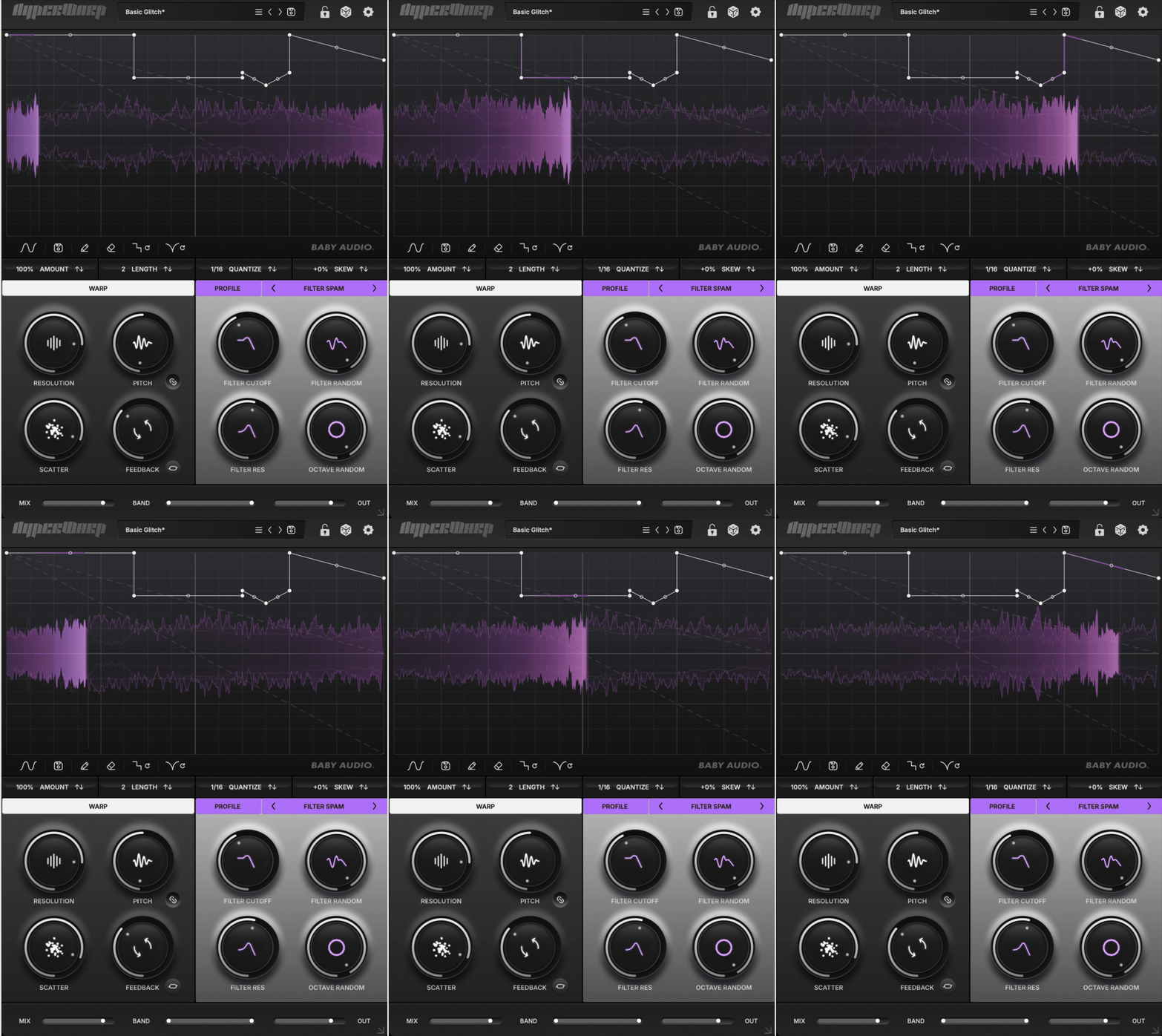
What I like most about HyperWarp is that it can create obvious movement without making every result feel like a preset-driven glitch effect. I usually prefer tools where I can hear a clear relationship between what I draw and what comes out, and the graph makes that much easier here.
On drum loops, I found the simplest patterns were often the most useful. A short backward jump, half-speed slope, or quick freeze near the end of a phrase can create a fill without completely changing the groove. My tip would be to start with one bar or even half a bar before trying longer patterns.
For vocals, HyperWarp works best for me as a detail effect rather than something I would leave running constantly. Clean Warp is useful when I want the timing effect to stay relatively natural, while Harmo-Nicer or Fauxcoder can turn a small vocal fragment into something much more textural.
I also like using it on pads and melodic loops, especially when the original part feels too static. The ability to separate pitch from time in Clean Warp means I can slow movement without automatically getting that classic tape-style pitch drop, which gives it a different feel from simpler slowdown effects.
The more aggressive profiles, especially Degrade Warp, Filter Spam, and Lo-Fizzly, are fun, but I would use them carefully. Once Scatter, Feedback, grain size, and profile macros all start moving together, the effect can become dense very quickly. I got better results by changing one section at a time and using the Mix control to bring the original source back into focus.
One thing worth knowing is that the graph only works with audio already inside its buffer, so it can pull material backward in time, including reverse and freeze-style effects, but it cannot create look-ahead movement into future audio. That is not really a problem in normal use, but it is useful to understand before drawing more complex shapes.
Overall, HyperWarp feels strongest when I want to turn an existing loop or performance into a variation rather than a completely new sound. It can get extreme, but for my taste its best use is adding controlled movement, short transitions, and granular detail while the original musical idea still remains recognizable.
Compatibility
| Specification | Details |
| Plugin Formats | VST, VST3, AU, AAX |
| Architecture | 64-bit |
| macOS | macOS 10.13 or later |
| Apple Silicon | Native support |
| Windows | Windows 10 or later |
| Supported DAWs | Ableton Live, Pro Tools, Logic Pro, FL Studio, Cubase, Studio One, Bitwig, Reaper, Reason, and other compatible hosts |
| Standalone Version | No |
| Trial | Functional demo with 5 seconds of silence every 60 seconds |
| Presets | More than 190 presets |
| Interface | Fully resizable GUI |
| Price | $49 intro price until 30 November 2026 (regular $99) |
HyperWarp covers the main modern plugin formats, and native Apple Silicon support makes it easy to slot into current Mac-based setups. Baby Audio also lists all of the major DAWs I would expect to see, including Logic Pro, FL Studio, Ableton Live, Cubase, and Studio One.
The resizable interface is especially useful here because the time-warp graph benefits from extra screen space when you are drawing more detailed patterns. The only thing to keep in mind during testing is the trial limitation, which inserts five seconds of silence every minute.
Pros and Cons
Pros
- Creative time-warp graph
- Seven distinct granular profiles
- Great for fills, vocal chops, and loop variations
- Useful Pitch, Scatter, Feedback, and Resolution controls
- Strong Steppy and Curvy randomization
- Wet-signal filtering keeps effects easier to blend
- More than 190 presets
- Resizable interface works well for detailed graph editing
Cons
- Can become busy quickly with heavier granular settings
- Takes a little time to learn what different slopes and curves do
- Less necessary if you only want a simple half-speed effect
Last Words
Baby Audio HyperWarp feels most useful when I want to turn an existing loop, vocal, or instrument part into something more animated without completely rebuilding it. The combination of a drawable time graph and granular processing gives it a different personality from simpler slowdown or stutter plugins.
For me, the strongest use cases are drum fills, vocal details, transitions, and alternate loop variations. I like that I can keep the rhythm simple and then change the character with profiles such as Clean Warp, Harmo-Nicer, or Lo-Fizzly instead of stacking several separate effects.
It also rewards restraint. HyperWarp can become very busy once Scatter, Feedback, Pitch, and the graph are all pushed at the same time, so I usually get better results by building the rhythmic idea first and adding texture afterwards.
Overall, HyperWarp is a strong fit for producers who enjoy glitch editing, granular textures, and rhythmic sound design. If all you need is a basic half-speed effect, there are simpler options, but if you want the warp itself to become part of the arrangement, HyperWarp gives you a lot of creative control without turning the workflow into a technical exercise.
At $49 (regular $99) until 30 November, HyperWarp is well priced for how much it can do. If you’re exploring more granular tools, see our FRCTL GRN review, or our roundup of the best reverse plugins for simpler backward effects.

Berk is a multi-instrumentalist musician from Istanbul, Turkey. He has been playing guitar, handpan, and percussion for over ten years, developing a sound that blends melodic sensitivity with rhythmic depth.
He began his musical journey as a teenager, learning guitar and performing in several bands. In 2016, he discovered the handpan, an instrument that immediately resonated with him on a deeper level and gradually became central to his artistic identity.
Since then, he has performed in streets, festivals, bars, and concert venues across different countries, connecting with diverse audiences through both intimate and large-scale performances.
Alongside his live work, Berk is deeply involved in studio production. He works from his home studio, where he composes, records, and produces his own music. His studio serves as a creative space for layering handpan, guitar, and percussion with modern production techniques, allowing him to shape fully realized, atmospheric compositions from start to finish.
His music explores a wide range of genres and textures, combining organic acoustic instruments with detailed studio production to create immersive and expressive soundscapes.