

This article will compare FL Studio 21 and Ableton Live 12, their workflow differences, interfaces, and other aspects, and give an overall analysis of which DAW may be more suited for you.
FL Studio, originally known as Fruity Loops, was developed by the Belgian company Image-Line and launched in 1997. It began as a MIDI drum sequencer and has evolved into a comprehensive digital audio workstation (DAW) used by both amateur and professional music producers.
Ableton Live, on the other hand, was developed by the German company Ableton and was first introduced in 2001. Unlike traditional DAWs available at the time, Ableton Live was designed with both music production and live performance in mind.
Purpose and Use Case
FL Studio is known for its pattern-based workflow, which is conducive to creating loops and building songs from these patterns. Its highly customizable interface allows you to arrange and resize windows to your preferences.
- Designed primarily for music production, arrangement, sampling, and beat making.
- It is excellently suited for electronic genres, hip-hop, and any music that relies heavily on loop-based composition.
- Great for drag-and-drop-based workflow
Ableton Live features a unique dual-view interface: the Session View, ideal for improvisation and live performances, and the Arrangement View, more traditional for tracking and mixing. This layout supports a more flexible workflow for both live performance and studio production.
- Crafted with both music production and live performance in mind.
- Offers a unique workflow that is advantageous for live looping, DJing, and electronic music production.
Both DAWs (Digital Audio Workstations) are ideal for music production, but you can’t say the same for their mixing-mastering abilities. Both of them can handle mixing-mastering pretty well but have their limitations. There are better DAWs in the market, like Logic Pro, Pro Tools, and Studio One, for those purposes. Now, let’s look at their differences in more detail.
User Interface
Ableton’s UI
Ableton’s workflow is split into 2 main windows: Arrangement View and Session View.
Arrangement View (Linear Workflow)
Arrangement View provides a more traditional, timeline-based approach to music production than the innovative Session View. This view aligns more closely with conventional digital audio workstation (DAW) layouts, making it intuitive for those familiar with other software.

- Timeline-Based Composition:
Arrangement View lays out tracks in a horizontal timeline, where time progresses from left to right. This linear progression is conducive to traditional song construction, allowing for detailed structuring of verses, choruses, and other song sections.
- Automation and Editing:
Within Arrangement View, you can draw or record automation for volume, panning, effects, and other parameters directly on the tracks. This capability supports intricate editing and dynamic changes over time, enhancing the expressiveness and precision of the mix.
- Track Organization:
Tracks are stacked vertically, showcasing audio and MIDI tracks, along with their corresponding clips and effects. This organization aids in the clarity of the project layout, making it simpler to navigate and manage complex arrangements.
- Editing Tools:
The view is equipped with a comprehensive set of editing tools for cutting, duplicating, moving, and consolidating clips. The ability to zoom in for detailed work or zoom out for an overview of the entire project provides flexibility in the editing process.
- Recording Capabilities:
Although both views support recording, the Arrangement View offers a more straightforward path for recording linear performances or automation. It’s ideal for tracking live instruments and vocals and for layering performances over time.
Session View (Non-Linear Trigger-Based Workflow)
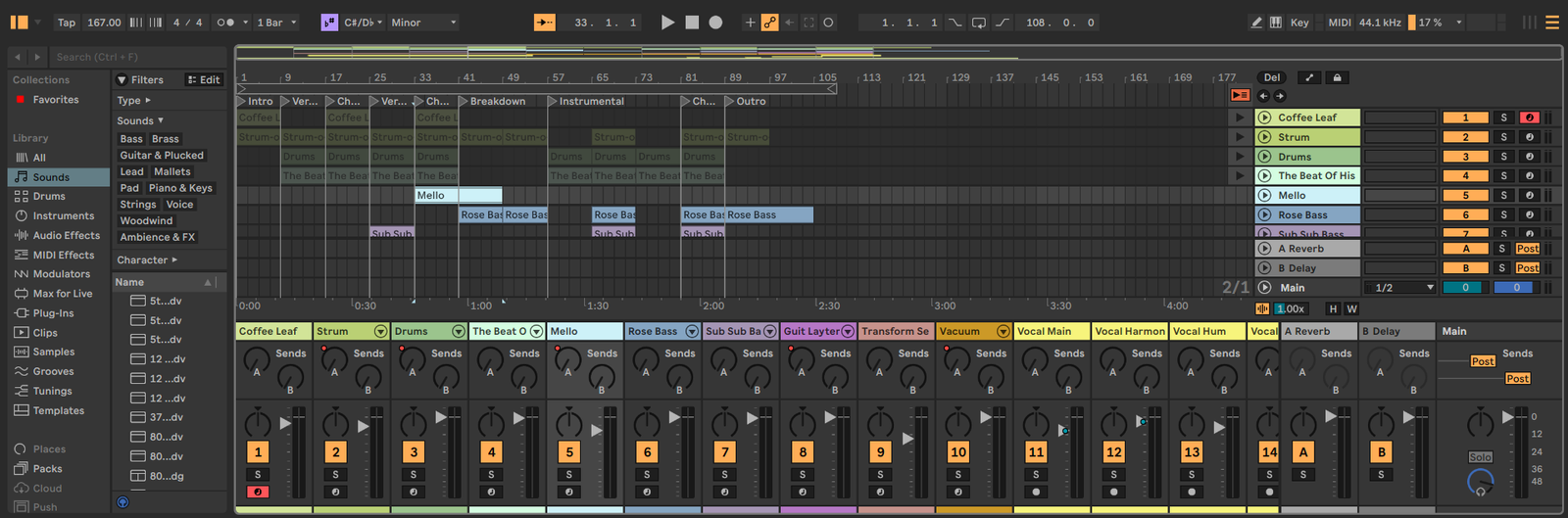
Unlike traditional timeline-based workflows found in most DAWs, Session View offers a non-linear approach to composing and arranging music. It allows you to experiment with musical ideas without committing them to a fixed timeline.
-
- Live Performance Oriented
One of Session View’s most significant advantages is its design for live use. DJs and live performers can trigger clips and scenes on the fly, allowing for dynamic, real-time composition and improvisation. This has made Ableton Live a favorite among performing artists and electronic musicians.
-
- Clips and Scenes
In Session View, music is made up of clips—small sections of audio or MIDI that can be looped, launched, and stopped independently. Clips are organized into tracks vertically and can be triggered together horizontally as scenes. This setup is ideal for trying out different arrangement ideas or for live performances where flexibility and spontaneity are key.
-
- Looping and Warping
Session View excels in manipulating audio in real-time. The warping engine lets you adjust the tempo and timing of audio clips without affecting their pitch, enabling seamless loop integration and synchronization, regardless of the original tempo or source material.
-
- Intuitive MIDI Mapping
Session View in Ableton Live supports easy MIDI mapping of clip launches, effect controls, and virtually any parameter within the software. This ease of mapping enhances the DAW’s capabilities as a live instrument, allowing for comprehensive control over performances with MIDI controllers.
One of Ableton Live’s most powerful features is the ability to fluidly move material between Session and Arrangement Views. You can experiment and improvise with ideas in Session View, then record or rearrange those ideas into a structured composition in Arrangement View.
While Session View supports improvisational creation and performance, Arrangement View excels in refining these ideas into a polished, linear format. The interaction between the two views encourages a dynamic and flexible approach to music production, catering to both the creative and meticulous aspects of the workflow.
FL Studio’s UI
FL Studio consists of the following main windows: Arrangement, Mixer, Channel Rack, and Sampler. While it’s not ideal for live sample/loop triggering and live programming, it’s great for programming sequences, sampling, and creating flexible arrangements for your songs.
Channel Rack
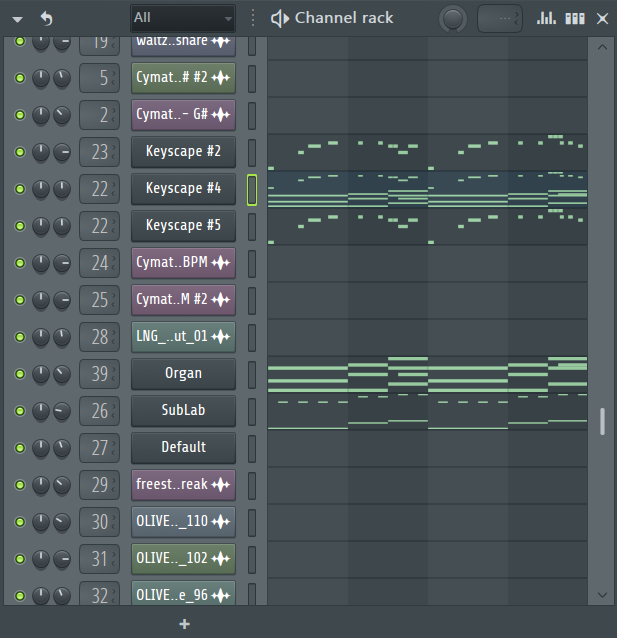
The Channel Rack serves as the primary interface for adding and organizing sequencer channels, which can include both internal synthesizers and external samples. You can easily create patterns here by programming beats and notes directly into the step sequencer or by recording MIDI performances. This makes it an indispensable tool for building the rhythmic and melodic foundation of a track.
Arrangement Window
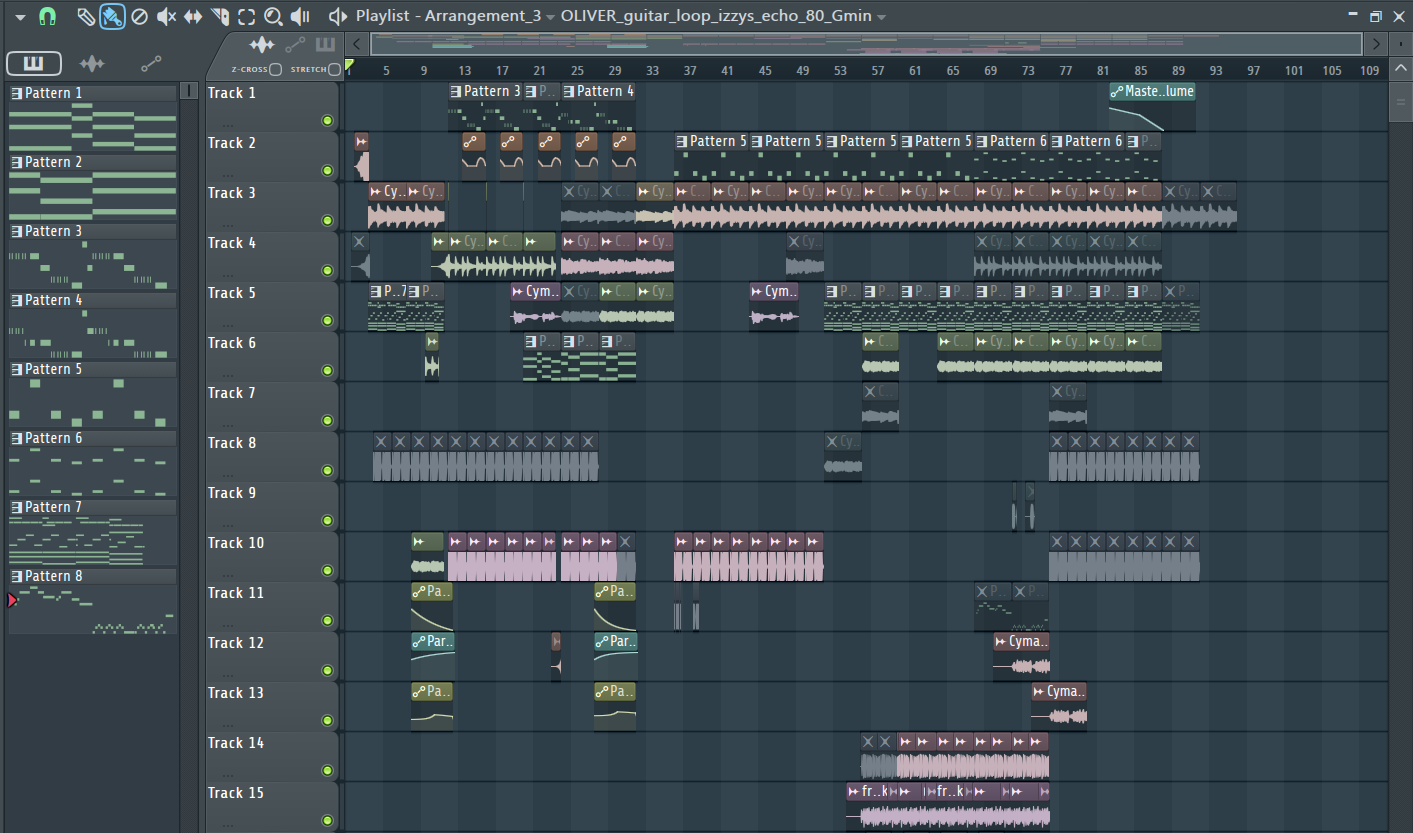
The Arrangement Window is FL Studio’s main canvas for structuring songs, arranging patterns, audio clips, and automation clips. The patterns consist of MIDI information, audio files consist of recordings or samples/loops, which can be linearly arranged, along with the automation clips.
Mixer Window
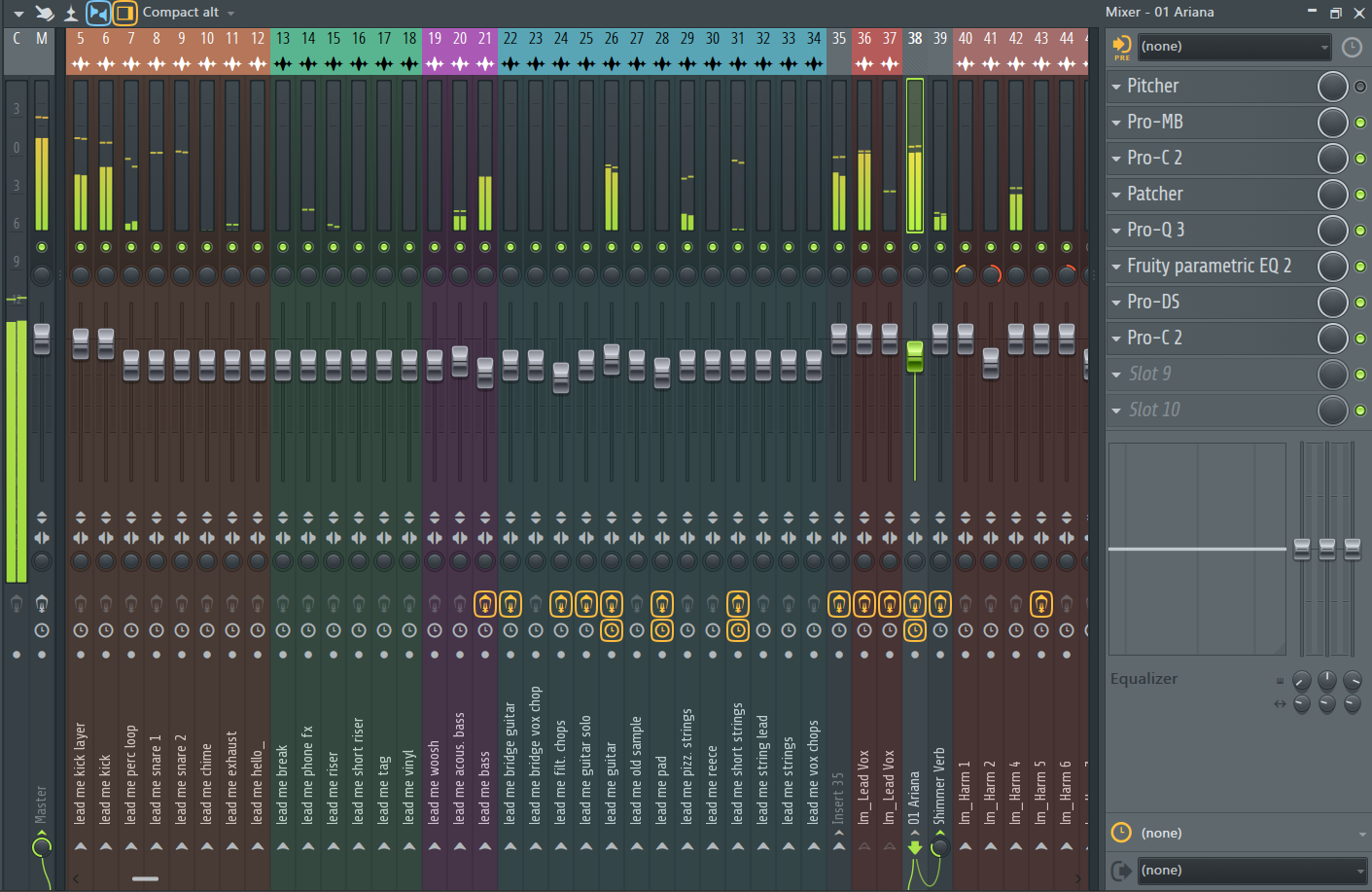
Each of these patterns or audio clips or any audio information can be routed to an insert channel in the mixer window, where you can add effects, route them in different ways, and adjust their pan and volume balances.
MIDI Programming
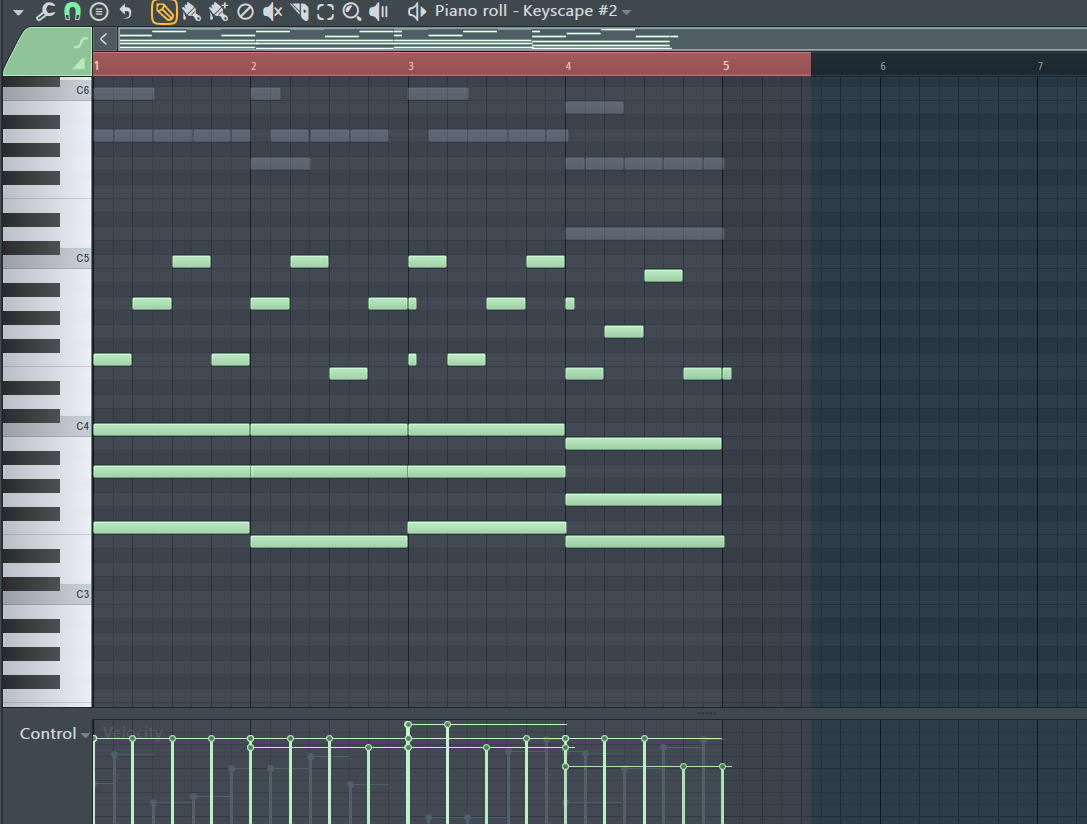
FL Studio’s Piano Roll is often cited as one of the most advanced and user-friendly in the DAW market, offering intricate control over MIDI editing, such as note velocity, pitch, and duration. This makes it highly effective for detailed MIDI programming and making complex melodies or rhythms.
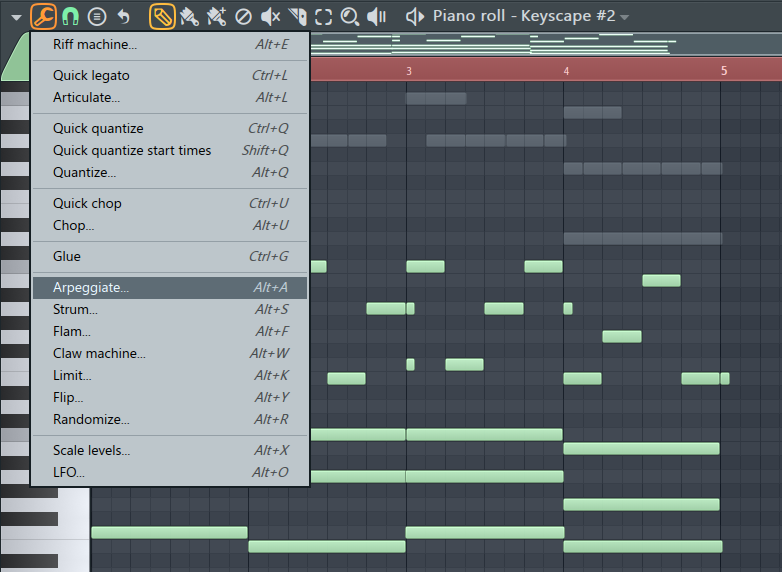
FL Studio also has great MIDI effects like arpeggiation, strum, randomize, etc.
Ableton Live also offers robust MIDI editing capabilities, but it has a workflow that some may find more suited to live performance manipulation and recording. Its MIDI effects, like arpeggiator and chord tools, integrate seamlessly with live instrument performances, enhancing creativity on the fly.
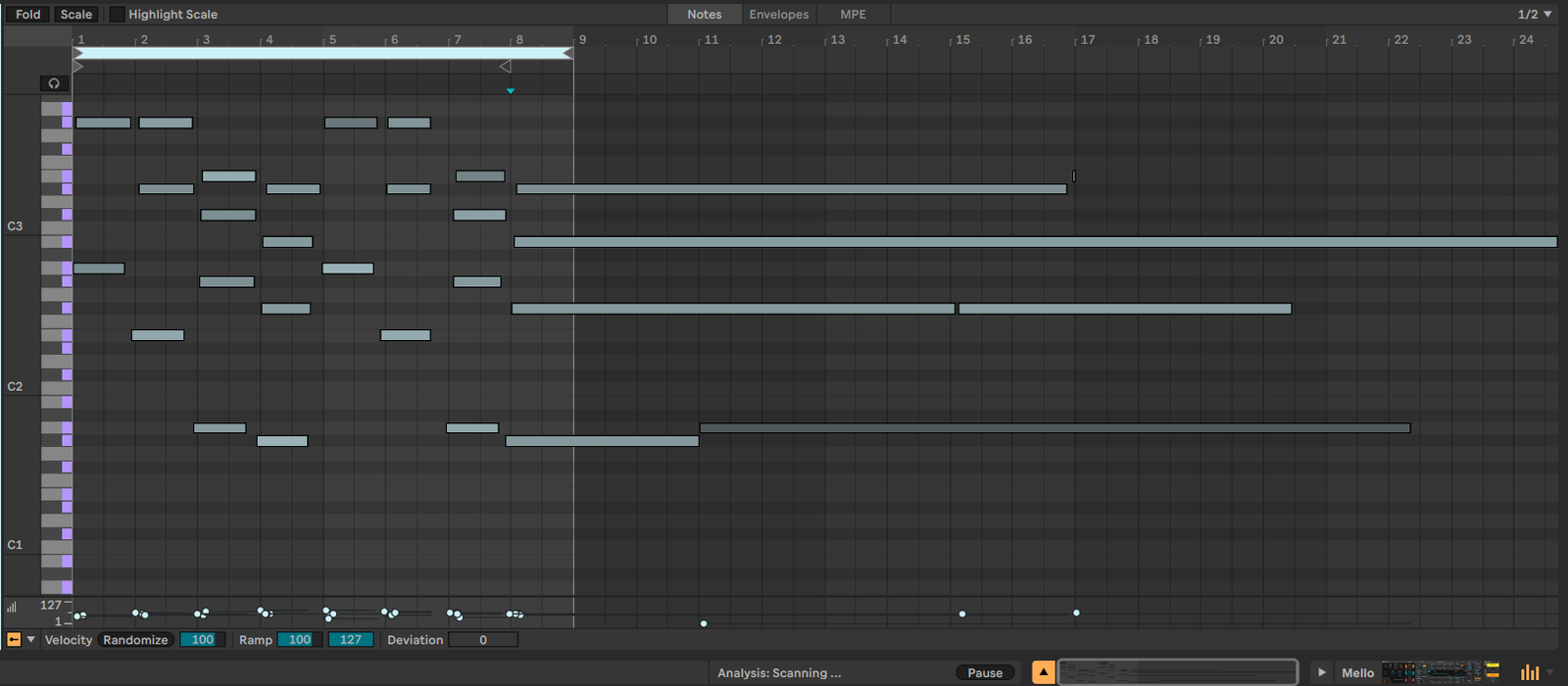
Ableton Live’s MIDI Note Editor, MPE support, and Envelope Editor are integral features that enhance its music production capabilities. The MIDI Note Editor allows for detailed composition and editing of melodies, chords, and rhythms with features like velocity editing and scale guidance.
MPE (MIDI Polyphonic Expression) support introduces advanced expression for performances, allowing intricate control over individual notes within chords and enabling more dynamic and nuanced musical expressions. The Envelope Editor is a versatile tool for automating almost any parameter within Live, from mixing controls to device effects, offering precise modulation possibilities.

Ableton’s MIDI editing is slightly more tedious than the smooth and easy MIDI programming in FL Studio. FL Studio also has a more intuitive and hands-on workflow when it comes to MIDI editing and programming.
Mixing Workflow
FL Studio’s Mixer Window
The mixer in FL Studio is known for its flexibility and depth, presenting an intuitive interface that allows for detailed channel routing, sidechain setup, and advanced signal processing. It can handle up to 125 mixer tracks, which includes support for sends, groups, and submixes, enabling complex mixing scenarios.
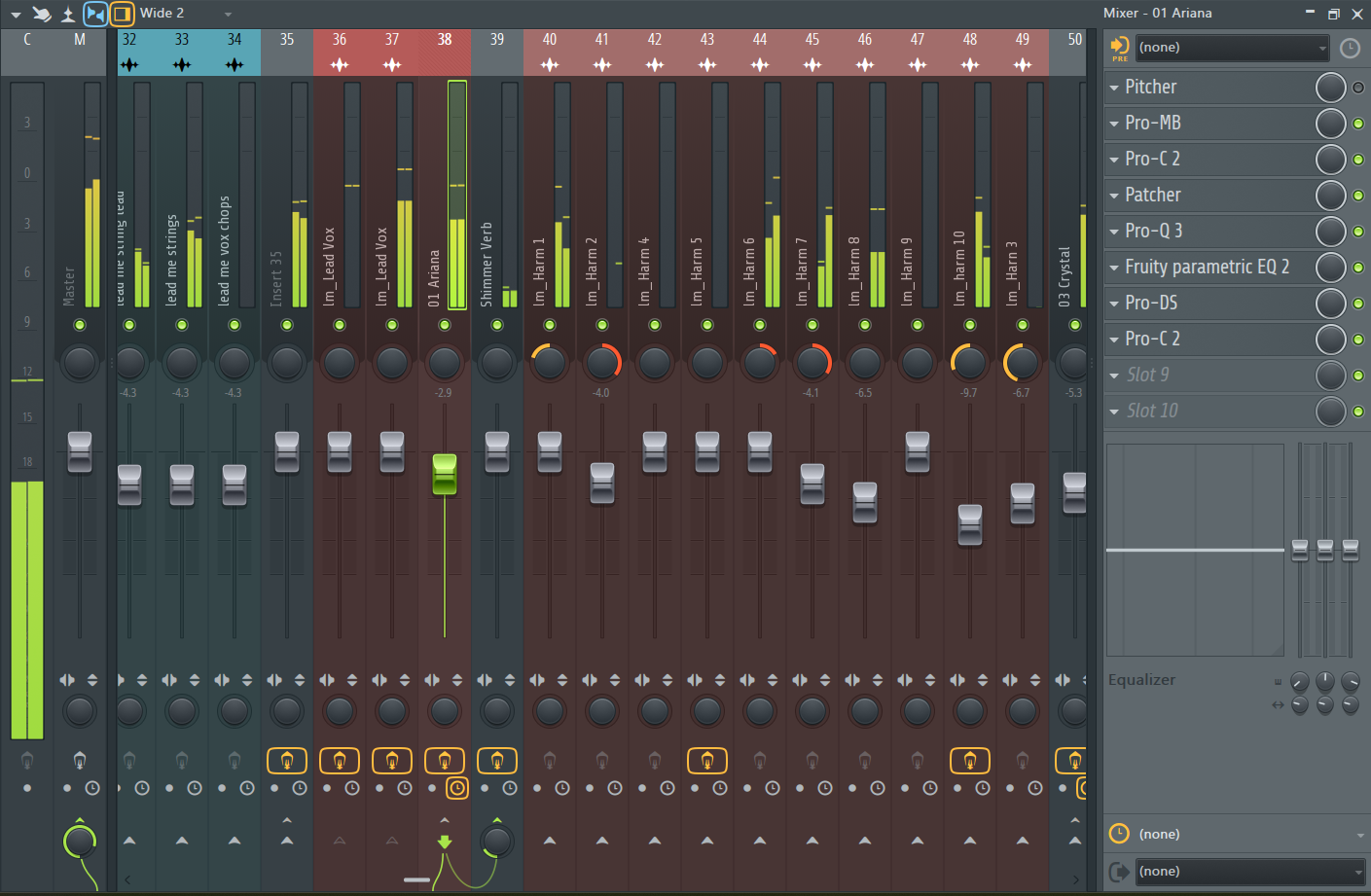
Each channel strip in FL Studio’s mixer can host an unlimited number of effects, allowing for intricate effect chains. The mixer also offers a wide range of native plugins that are highly customizable and visually informative, aiding in precise mixing decisions.
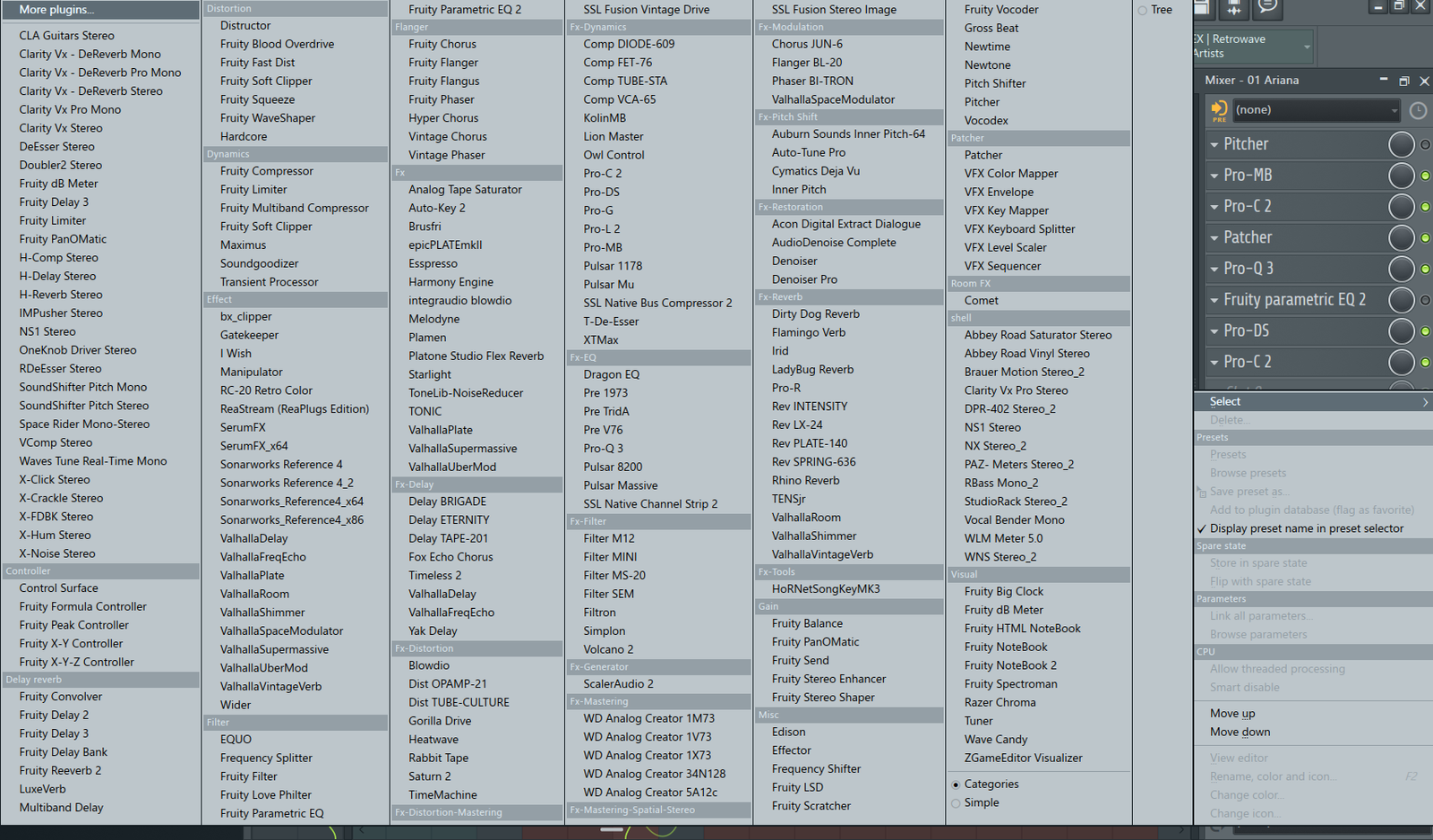
What’s great about FL Studio is that in its insert effects, you can load a patcher in which you can flexibly patch and route different plugins and effects and create a complex web of effects feeding into each other.

Ableton’s Effects Rack
Ableton has a pedal-like workflow in which effects can be dragged and dropped, unlike FL Studio, which has a drop-down menu for the effects.
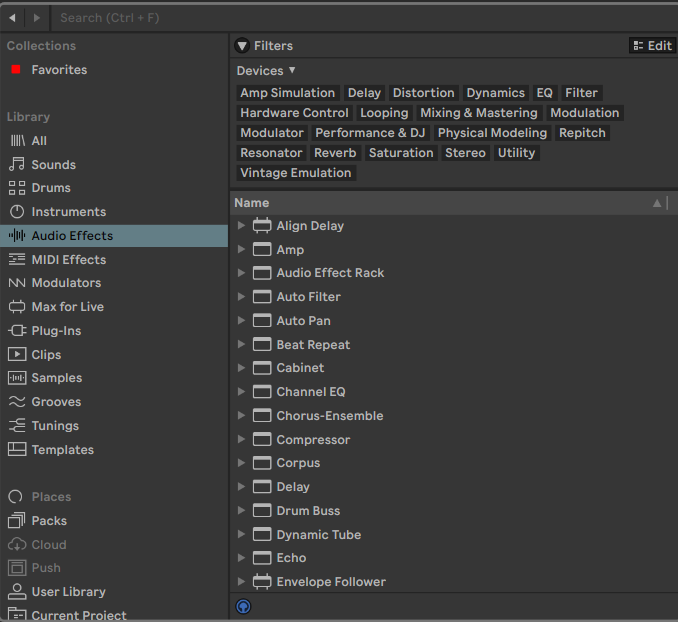
Ableton’s mixer is seamlessly integrated into both the Session and Arrangement Views and doesn’t have a separate window, offering a streamlined workflow that is particularly advantageous during live performances. Live emphasizes efficiency, with a focus on simplicity and immediacy.
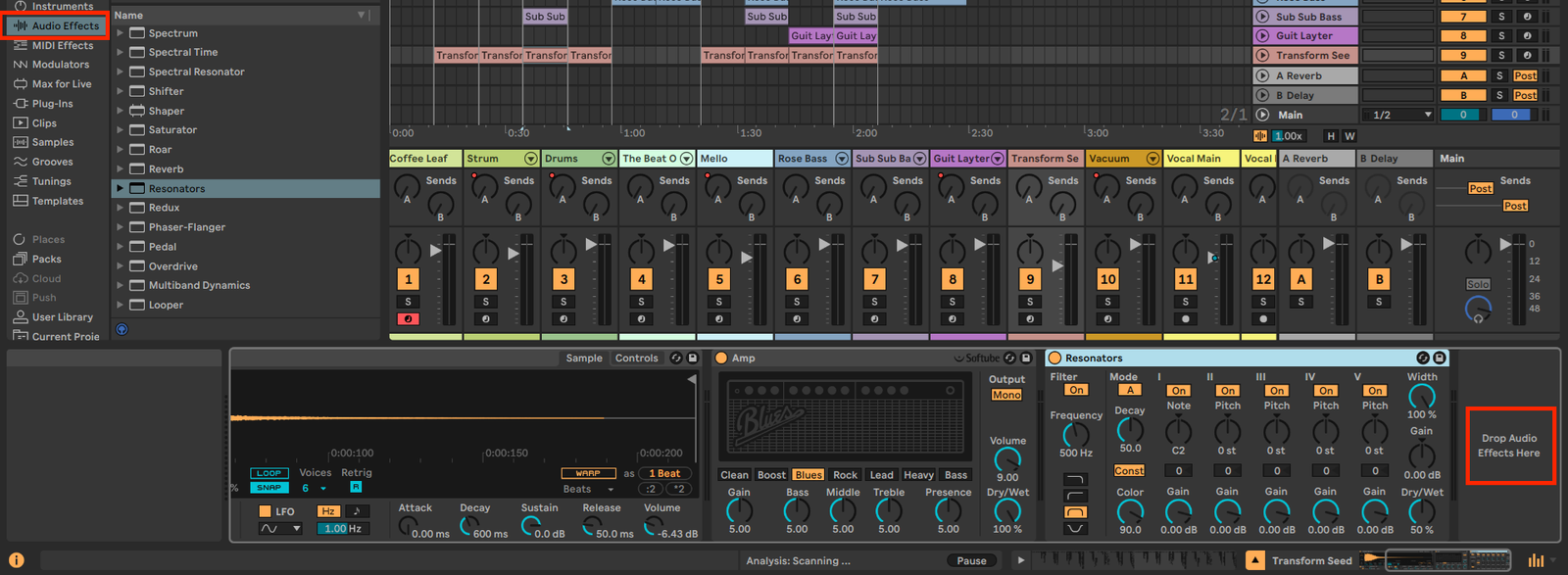
The mixer provides essential controls such as volume, panning, sends, and device chains, with flexibility through its Rack system for creating custom effect chains.

Ableton Live’s mixing capabilities are robust, though some may find the mixer layout to be less detailed compared to FL Studio’s array of dedicated mixing features, which are more comprehensive and flexible. However, FL Studio’s 125 inserts limit and lack of buses can be quite limiting.
Stock Sounds & Plugins: Instruments, Synths, and Effects
FL Studio’s Stock Sounds & Plugins
FL Studio is renowned for its wide array of high-quality synths and instrument plugins. Harmor, Sytrus, and Sakura are standout synthesizers that offer strong sound design possibilities, from intricate FM synthesis to physically modeled strings.
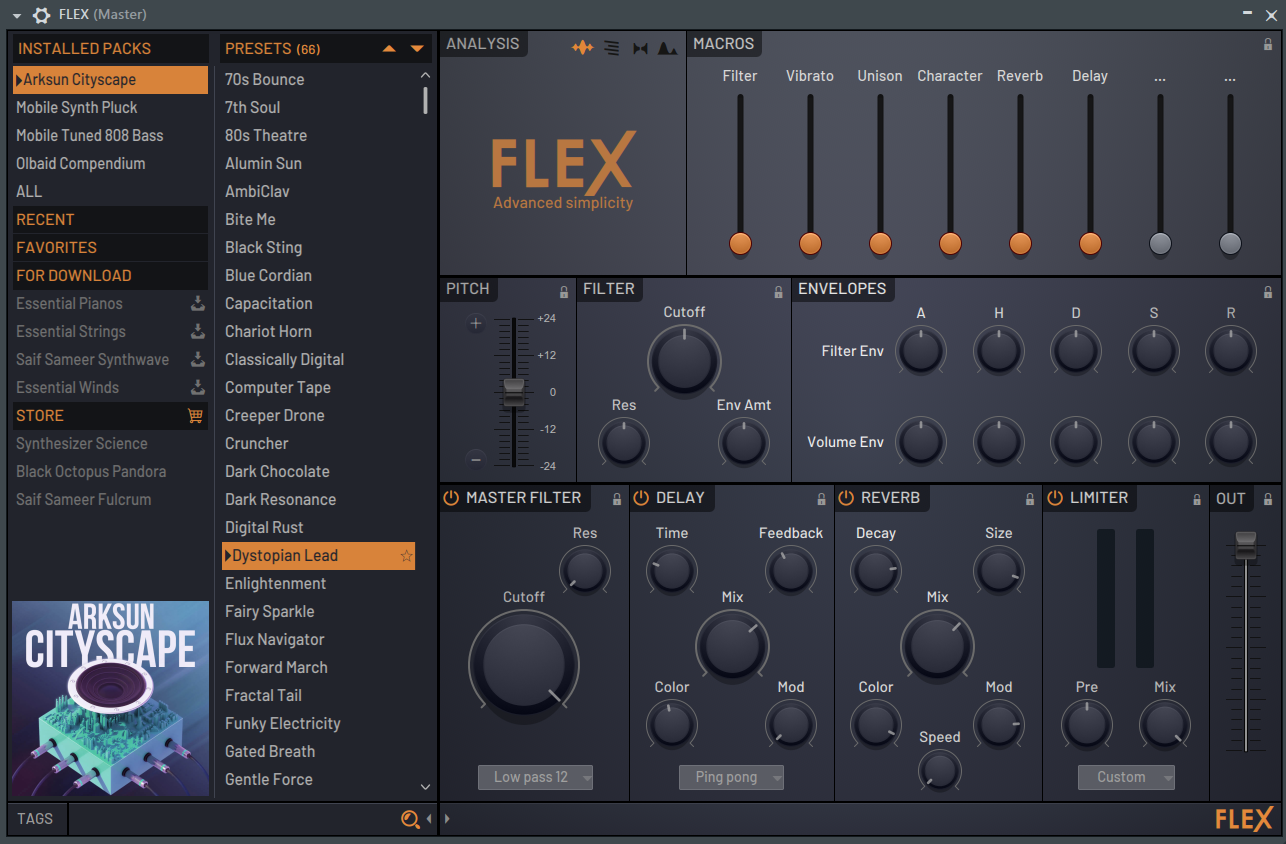
Image-Line also provides a variety of plugins for realistic instrument sounds. One of them is DirectWave Sampler for detailed sampling and FLEX, a newer addition that offers a vast library of presets combining synthesis and samples for quick inspiration.
FL Studio’s effects plugins excel both in variety and quality. With tools like the Parametric EQ 2, which is celebrated for its precise control and visual feedback, and the versatile Multiband Compressor, Maximus, FL Studio caters to both mixing and mastering needs. The Reeverb 2 and Delay 3 plugins demonstrate Image-Line’s focus on providing you with a comprehensive suite of effects that are both usable and creative.
Ableton Live’s Stock Sounds & Plugins
Ableton Live offers a unique set of instruments like Wavetable, Operator, and Analog, providing a wide range of sound design capabilities, from complex FM synthesis to analog-style warmth.
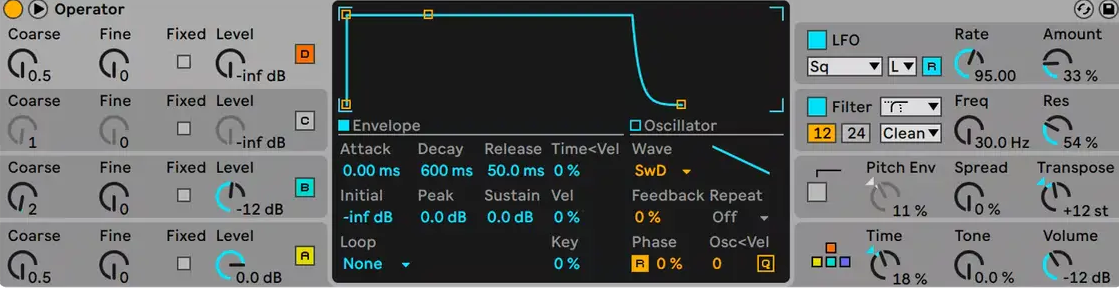
Live’s Sampler and Simpler devices are powerful for sample-based composition and manipulation, while Tension, Electric, and Collision add physically modeled sounds into the mix. The instrument racks facilitate layering and splitting instruments for complex sounds and performances.
Live’s effects are deeply integrated into its workflow, encouraging experimentation and performance. The Echo device offers analog-modeled delays, while the new Hybrid Reverb combines convolution and algorithmic reverbs for spaces ranging from realistic to utterly surreal.
Devices like Drum Buss and Pedal offer character and warmth, targeting specific production needs (like beefing up drums or guitar tones). Max for Live vastly expands this effects library with a community-driven library of unique devices that cater to every imaginable sound manipulation need.
Performance & CPU Load
Known for its scalability and efficiency, FL Studio can be relatively light on CPU resources for basic projects. However, CPU load can increase significantly as projects become more complex with multiple plugins and effects.
FL Studio offers various settings to optimize performance, such as multithreaded generator and mixer processing, “smart disable” for plugins, and adjusting the buffer length to ease CPU load during playback and live performance. These optimizations can help significantly, but the impact varies depending on the individual project and system specifications.
Ableton Live is designed with live performance in mind, which means stability and efficiency under varying conditions are paramount. Ableton Live’s CPU management is generally considered efficient, but like FL Studio, complex projects with numerous tracks, effects, and virtual instruments can strain the CPU.
Ableton provides several options for reducing CPU load, including freezing tracks, reducing sample rates, and cautiously using the “Reduce Latency When Monitoring” feature. Live 11 (and onwards) introduced enhancements like multicore rendering for Max for Live devices, further optimizing performance.
For both FL Studio and Ableton Live, it is recommended to have a minimum of 8 GB of RAM for optimal performance, especially when working with complex projects that involve multiple plugins, virtual instruments, and extensive sample libraries. While both DAWs can run on systems with less RAM, having at least 8 GB ensures smoother operation, reduces the likelihood of crashes or performance issues, and allows for a more efficient workflow.
A multi-core processor is highly recommended for both FL Studio and Ableton Live. A powerful CPU helps handle the processing load from synthesis, effects processing, and other intensive tasks more efficiently. Modern CPUs with at least 6 cores are advised for serious production work.
Compatibility
Operating System
Originally a Windows-only application, FL Studio has expanded its support to include macOS. This dual-platform support ensures that users on the most widely used desktop operating systems can run FL Studio without needing additional software like emulators or dual-boot setups. However, it does not natively support Linux.
Similar to FL Studio, Ableton Live supports both Windows and macOS, offering a broad compatibility range for desktop producers. Live does not officially support Linux, although some manage to run it on Linux using compatibility layers like Wine, but with varying degrees of success and official support.
Plugin Formats
Both FL Studio and Ableton Live support VST2/3 and AU plugins, which are two of the most common plugin formats.
Hardware Compatibility
Both DAWs are compatible with various audio interfaces and MIDI devices. With the introduction of FL Studio’s MIDI scripting, it’s easier to customize MIDI controller mappings. However, it may lack the deep hardware integration found in Ableton Live, especially with Ableton’s Push controller.
Ableton Live stands out for its seamless integration with its proprietary Ableton Push hardware, offering an unparalleled level of control and efficiency in the studio and on stage.
Support & Community
Both FL Studio and Ableton Live boast strong, welcoming communities that are enthusiastic about sharing knowledge and helping newcomers. The choice between them can come down to your specific needs and preferences.
FL Studio (Image-Line)
- FL Studio’s Support
Image-Line (the development company of FL Studio) offers direct technical support through its website and user forums. You can create tickets for more in-depth assistance, and there is a wealth of FAQs and troubleshooting guides available. Image-Line’s approach is personalized, with an emphasis on direct interaction in their forums, where developers and experienced users often provide help.
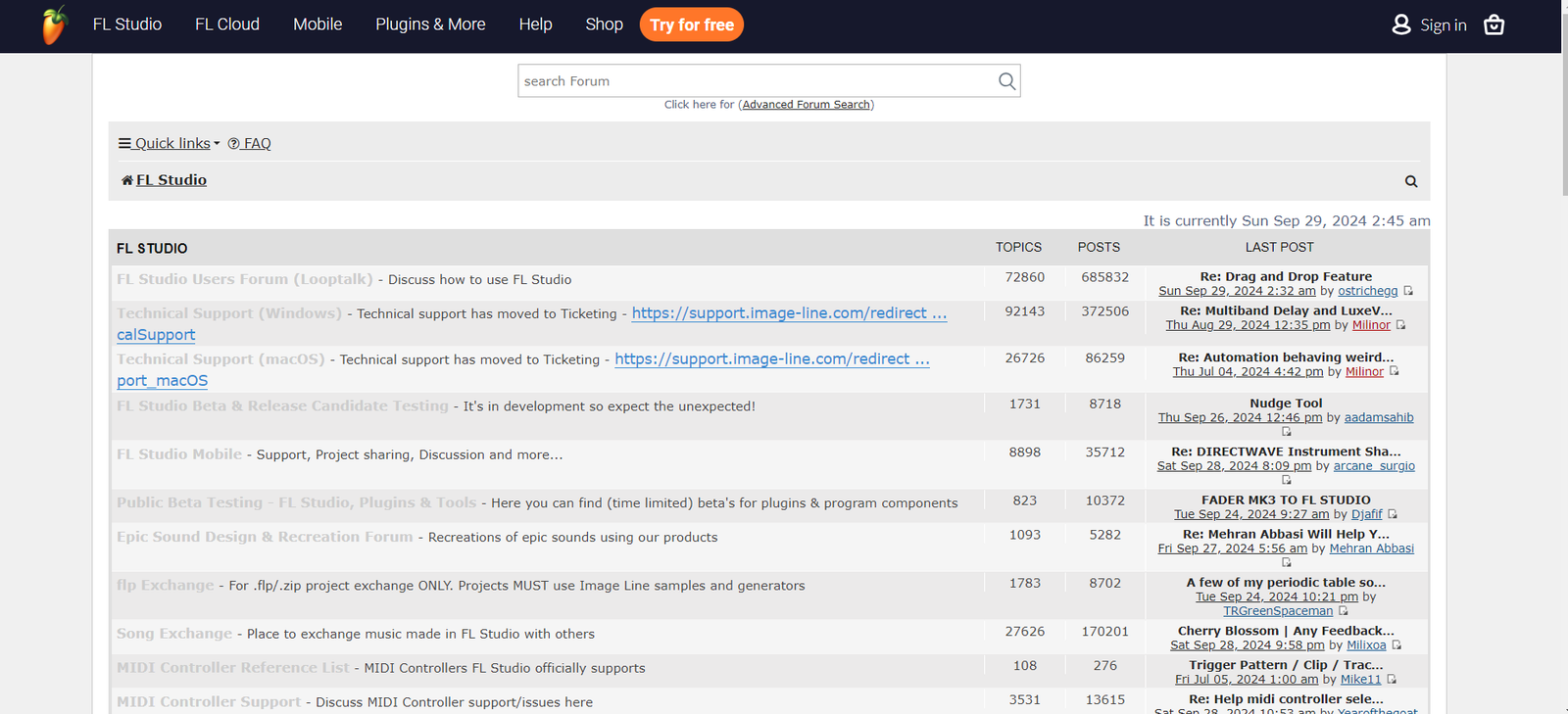
- FL Studio’s Community
FL Studio benefits from a large, diverse, and active user base that spans beginners to professional producers. The community is known for sharing a vast amount of free and paid resources, such as custom plugins, samples, presets, and project files. Tutorial content for FL Studio is abundant on platforms like YouTube, making it relatively easy for new users to get up to speed. The Image-Line forums are a treasure trove of information, tips, and user-generated content.
Ableton Live
- Ableton Live’s Support
Ableton offers comprehensive support through its official website, including a detailed knowledge base, manuals, and tutorial videos. They also provide technical support via email. Ableton’s Help View within the software is particularly notable for getting you acquainted with the basics and nuances of Live. The company has a reputation for responsive customer service and well-documented updates.
Ableton offers free video courses for learning the DAW on its ‘Learn Live’ module on the official website.
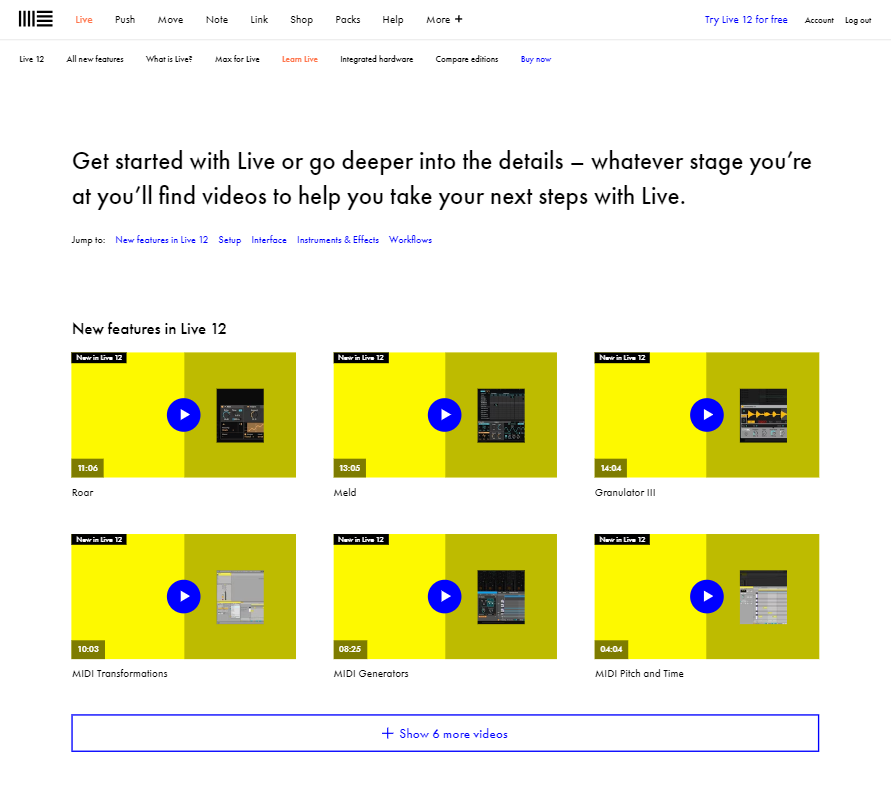
- Ableton Live’s Community
The Ableton Live community is vast and includes a wide spectrum of artists, from electronic music producers to live performers. This community is well-supported by official and third-party resources, including the Ableton website’s Learning Music section and extensive tutorial content available across various platforms. Live users often benefit from user groups, workshops, and meetups, both online and in-person, encouraging collaboration and learning.
Price Comparison
FL Studio 21 Price
| Edition | Price | Features |
| Fruity Edition | $99 | – Basic melody & loops creation – Lacks audio recording & advanced plugins |
| Fruity Producer | $199 | – Full recording capabilities – Audio clips & full playlist features – Wide range of effects & instruments |
| Fruity Signature Bundle | $299 | – Includes everything in Producer Edition – Additional plugins (NewTone, Pitcher, Gross Beat, etc.) |
| Fruity All Plugins | $899 | – Includes all features of the Signature Edition – Access to all FL Studio plugins available |
Ableton Live 12 Price
| Edition | Price | Features |
| Intro | $99 | – Essential instruments and effects | – Limited audio and MIDI tracks |
| Standard | $439 | – Unlimited tracks and scenes – Over 5,000 sounds – 34 audio effects – 8 MIDI effects |
| Suite | $749 | – Includes everything in Standard – Over 15,000 sounds – 55 audio effects – 17 MIDI effects – Max for Live included |
Ableton vs FL Studio: Conclusion
In conclusion, if you’re looking for well-rounded music production software, FL Studio is a good alternative with decent mixing capabilities, sufficient stock sounds, and flexibility. However, if you’re a DJ or see yourself doing live music production gigs and want to learn a single DAW that has capabilities for live and studio production, Ableton is the better alternative for you.
If you’re looking for audio engineering or your primary workflow is around mixing-mastering, neither of the DAWs will suit you. You must go for Pro Tools or Studio One.

The Integraudio Editorial Team consists of experienced music producers, audio engineers, and plugin enthusiasts dedicated to providing in-depth reviews and guides for music production software.