
Today, we have one of the most hyped Noise Reduction plugins on the menu, Supertone Clear!
I’ve spent a lot of time cleaning up dialogue, and honestly, it’s one of those jobs that can either make or break a project. When I first heard people buzzing about Supertone’s GOYO (now released as Supertone Clear), I figured it was worth a test.
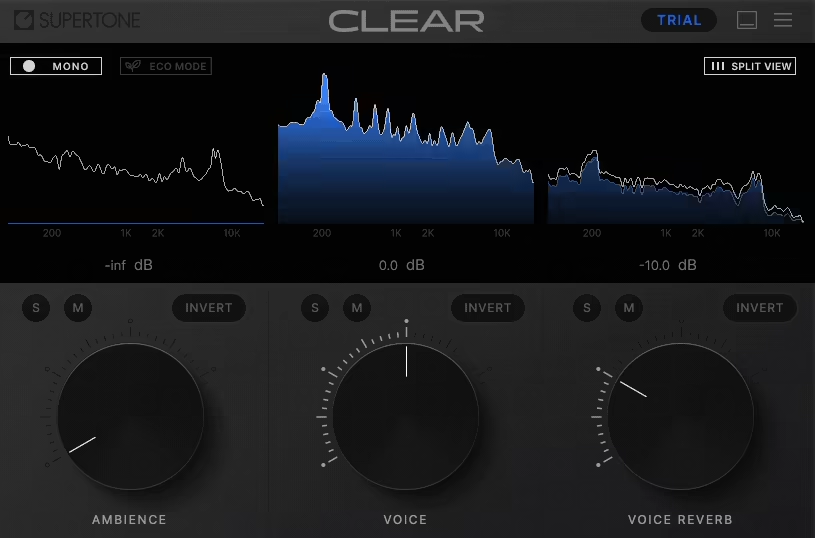
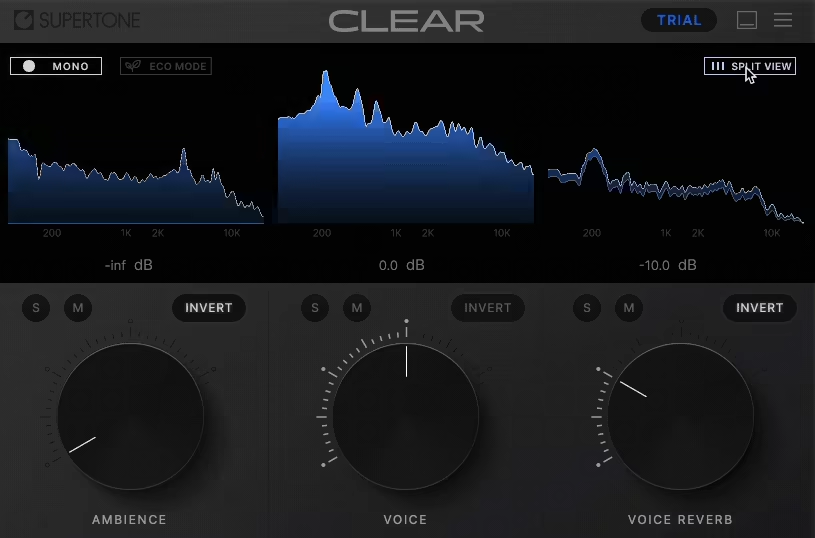
So, I’ve been testing it on dialogue and podcast tracks, and it impressed me with how quickly it cleans up recordings. The plugin separates audio into three channels; voice, ambience, and voice reverb, which makes noise and reverb removal surprisingly simple and precise.
In my own workflow, it handled background hums and room reflections with minimal artifacts, and the voice/reverb control lets you preserve natural tone when needed. It’s not a magic fix for bad recordings, and has some disadvantages, but for fast, reliable cleanup, Clear fits right into my day-to-day workflow.
So, let’s take a closer look at this hyped noise reduction VST to see if it is worth the fame!
| Feature | Description |
| 3-Knob Control | Simple interface with Voice, Ambience, and Reverb dials for quick adjustments. |
| AI Voice Separation | Neural network separates voice, ambience, and reverb with minimal artifacts. |
| De-Noise & De-Reverb | Removes background noise and excessive reverb while keeping voice natural. |
| Real-Time Processing | Processes audio instantly, making it useful for live streaming and quick edits. |
| Channel Visualization | Displays separated voice, ambience, and reverb for precise monitoring. |
Buy here and support Integraudio
Features
The beauty of Supertone Clear is how it keeps things dead simple without feeling limited. I never felt like I had to dig through menus or fight with too many controls; just three main knobs that get the job done.
- 3-Knob Control
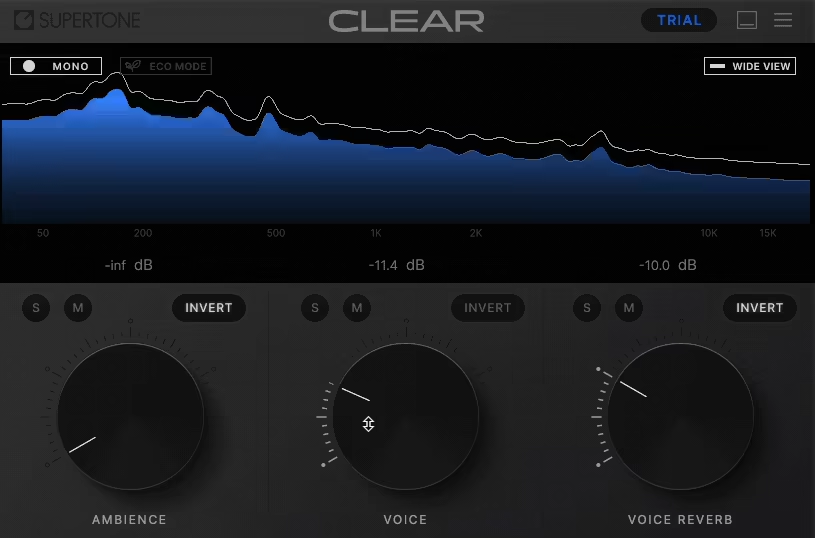
The interface revolves around Voice, Ambience, and Reverb dials. I loved how quickly I could dial out room tone or tame reflections without overthinking it.
Sometimes I’d just twist the knobs by ear and land on a setting that worked in seconds, which is exactly how cleanup tools should feel.
- AI Voice Separation
Well, this is where the magic happens. Clear’s neural network really does a solid job of pulling the voice away from the messy background. Even when I pushed it on noisier recordings, it gave me a result that still felt natural instead of robotic.
- De-Noise & De-Reverb
Instead of choosing one or the other, I liked that Clear tackles both. It’s not just about removing hums or hiss, cause it really takes the edge off small-room reverb that usually makes dialogue sound amateur. That reverb dial became my favorite part because it gave me control that other plugins usually bury in menus.
- Real-Time Processing
Being able to hear changes instantly made it super easy to trust my adjustments. When I tried it in a live streaming setup, it kept up without a hiccup, which isn’t something I can say about every noise reduction tool. It actually felt fast enough that I could tweak on the fly without breaking the flow.
- Channel Visualization
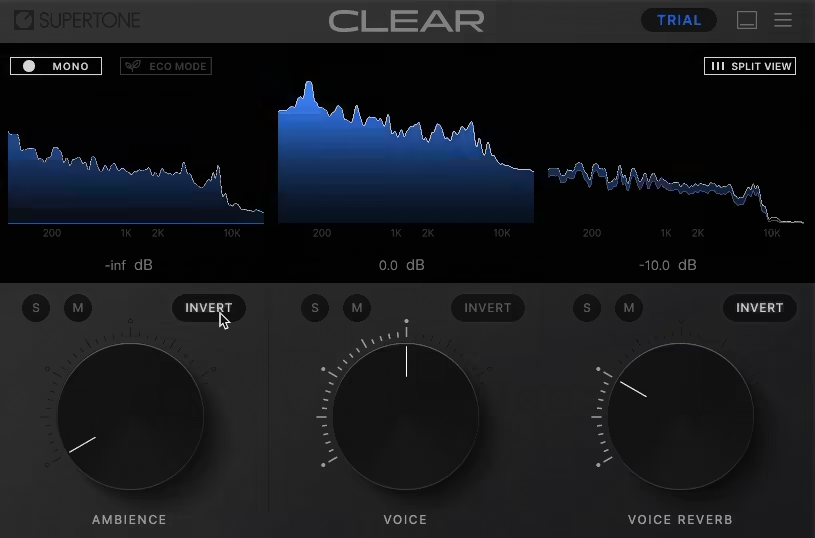
Clear doesn’t just work behind the curtain, as you can actually see the voice, ambience, and reverb split out. I found that visual feedback reassuring, especially when I wasn’t sure if I was cutting too much. Seeing the channels react as I turned the knobs made me feel more confident about my choices.
- Low CPU Option
This was a lifesaver when I loaded up a heavy mix. Switching to low-CPU mode gave me almost the same results, but with way less strain on my system. It meant I could leave Clear running on multiple tracks without constantly worrying about freezing or bouncing.
Interface & Workflow
Interface
The first thing I noticed when I opened Supertone Clear was how refreshingly simple it looked. Just three main knobs: Voice, Ambience, and Reverb, with a clean visualization panel that shows exactly what’s being separated. I didn’t have to squint at tiny sliders or buried menus, which honestly felt like a relief compared to something like RX.
It is a pretty straightforward GUI, which makes you focus on the work instead of the visual side of things. I like simple interfaces, so I can’t complain.
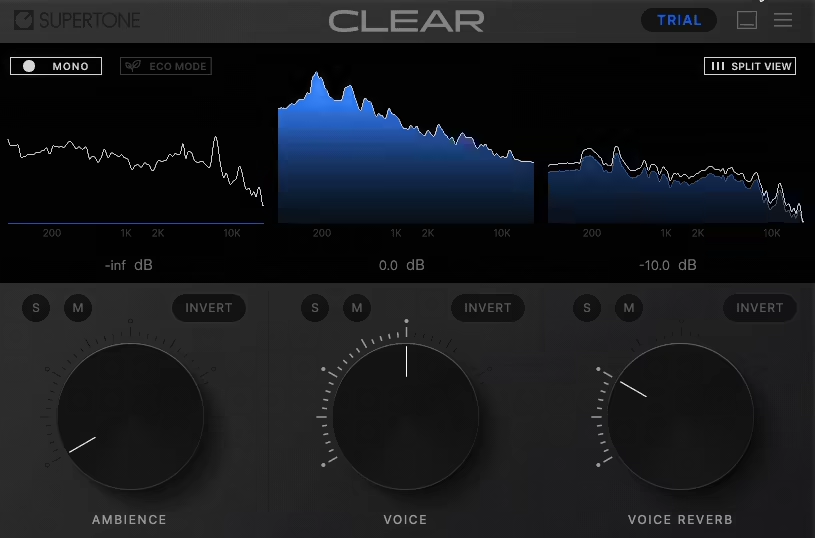
I also appreciated how the meters gave me immediate feedback on what the plugin was actually doing. Seeing the ambience dip while the voice stayed strong made it feel less like a guessing game. The color-coded channels were easy on the eyes, too, which helped me trust that I wasn’t overdoing it.
Workflow
Using Clear quickly became second nature for me. I’d drop it onto a dialogue track, twist the Voice knob to bring the speaker forward, then balance Ambience and Reverb until it felt natural. I was surprised by how little fine-tuning was needed; most times I was done in under a minute.
In post-production, I liked that Clear worked just as smoothly in Logic as it did in Resolve for many people. For podcast cleanup, I could run it in real-time and actually monitor my adjustments without lag, which is rare.
In heavier film dialogue sessions, I sometimes switched to Low CPU mode, and it still gave me results good enough to keep moving without interruptions.
What impressed me most was how “hands-off” it felt once I got the hang of it. I didn’t have to baby it or stack a chain of plugins; Clear often handled the bulk of cleanup in one pass. For me, that kind of reliability is what makes a tool stick in my workflow.
First Impressions & Sound
When I first dropped Supertone Clear onto a dialogue track, I honestly didn’t expect much. I’ve used plenty of noise reduction tools before, and they usually come with two extremes: either they barely touch the noise, or they clean too aggressively and leave the voice hollow and metallic. What surprised me right away was how natural Clear sounded, even when I pushed the controls harder than I normally would.
On a field recording with traffic rumble and chatter in the background, the Voice knob gave me a clean vocal focus without stripping out the character of the performance. I didn’t hear that plasticky, phasey quality I often get with other AI-based tools. The background ambiance dipped smoothly, almost like someone had ridden a fader rather than zapped it with an algorithm.
The real “wow” moment came when I used the Reverb control. A podcast guest had recorded in a tiled kitchen, and the reflections were overwhelming. Clear pulled the reverb back enough that the voice felt like it had been captured in a treated room. I gotta say it wasn’t perfect, if I pushed it too far, I could hear a little smearing on sibilants, but at moderate settings it was effective.
I also tried Clear on a phone recording. Usually, those tracks are flat, boxy, and messy with room noise. With Ambience turned down and Reverb tucked back, the voice became not only cleaner but more intelligible. It didn’t magically give me a studio-quality mic, but it was a huge step up from the raw audio.
Musically, I tested it on a quick vocal demo with some hiss and fan noise in the background. Clear reduced the noise floor without dulling the highs, something that happens a lot when I use broadband noise reduction. The singer’s tone stayed intact, and I felt like I could use the take without re-recording.
For me, the sound character of Supertone Clear sits somewhere between the precision of Waves Clarity Vx and the “voice rebuilding” approach of Accentize dxRevive. It doesn’t try to re-synthesize the voice into something new, but it does separate it cleanly from its environment. That balance makes it really flexible, whether I’m working on podcasts, YouTube videos, or short film dialogue.
Performance & Compatibility
In my experience, Supertone Clear is impressively lightweight on CPU. I was able to run multiple instances in Logic on my M1 MacBook Pro without hearing clicks, pops, or spikes, even while playing back a multitrack session with several dialogue layers. The low-CPU mode is genuinely useful if you’re working on a laptop or in a dense mix.
| Feature / Spec | Details / Notes |
| Supported OS | macOS 10.13+, Windows 10+ (64-bit) |
| Native Apple Silicon | Yes |
| Plugin Formats | AU, VST3, VST, AAX |
| CPU Efficiency | Low CPU mode available; multiple instances run smoothly in DAWs |
| Sample Rate Support | 44.1 kHz, 48 kHz, 96 kHz |
| Buffer Size Recommendation | 256 or higher for optimal performance |
Last Words
Overall, Supertone Clear impressed me with how simple it makes dialogue cleanup without feeling gimmicky. The three-knob interface is intuitive, the noise and reverb removal is very effective, and it’s light enough to run multiple instances in a session.
I think it can be a bit limited for complex projects as it lacks the advanced controls, but for anyone needing fast, reliable, and low-artifact noise reduction, especially on voice recordings, Clear is a solid addition to your toolkit.
Pros
- Excellent noise and reverb removal with minimal artifacts
- Intuitive three-knob interface; easy to use on the fly
- Low CPU footprint; multiple instances run smoothly
- Real-time or offline processing for flexible workflow
Cons
- Advanced features for creative control are limited
- Only focuses on dialogue/voice, less for complex environmental noise
- No built-in multi-track batch processing beyond the basic drag-and-drop
Supertone Clear excels at separating voice from noise and reverb, giving you precise control over dialogue clarity. Its intuitive three-knob system and real-time processing make cleaning up recordings fast and natural, preserving tone while removing distractions.

Berk is a multi-instrumentalist musician from Istanbul, Turkey. He has been playing guitar, handpan, and percussion for over ten years, developing a sound that blends melodic sensitivity with rhythmic depth.
He began his musical journey as a teenager, learning guitar and performing in several bands. In 2016, he discovered the handpan, an instrument that immediately resonated with him on a deeper level and gradually became central to his artistic identity.
Since then, he has performed in streets, festivals, bars, and concert venues across different countries, connecting with diverse audiences through both intimate and large-scale performances.
Alongside his live work, Berk is deeply involved in studio production. He works from his home studio, where he composes, records, and produces his own music. His studio serves as a creative space for layering handpan, guitar, and percussion with modern production techniques, allowing him to shape fully realized, atmospheric compositions from start to finish.
His music explores a wide range of genres and textures, combining organic acoustic instruments with detailed studio production to create immersive and expressive soundscapes.