

All the savvy readers who are also into technology and are AirPods users who have switched to a Windows 10 PC might actually need clarification about how to pair your headphones with it. Apple AirPods work best with Macs but are compatible with any Bluetooth device.
As the use of AirPods grows in popularity, we recognize the significance of ensuring the use of Airpods with no hitches on any gadgets.
Don’t worry; we’ll walk you through “How To Connect AirPods With Windows 10” and investigate and fix problems when they arise. Whether you’re a serious music listener, a podcast addict, or just enjoying the freedom of wireless earphones, this is the guide for you. The time has come to get out those AirPods and get down to business.
How To Connect Airpods With Windows 10
You can connect AirPods to windows ten by placing them in the charging case and pressing and holding the button on the back until the white status light blinks. Once detected, your AirPods will appear in the PC’s Bluetooth settings’ Add a device window, where you can select them to pair and connect.
Before starting, ensure your AirPods are fully charged and in pairing mode. Once your AirPods are in pairing mode, follow these steps to connect them to your Windows 10 PC:
- Turn on Bluetooth
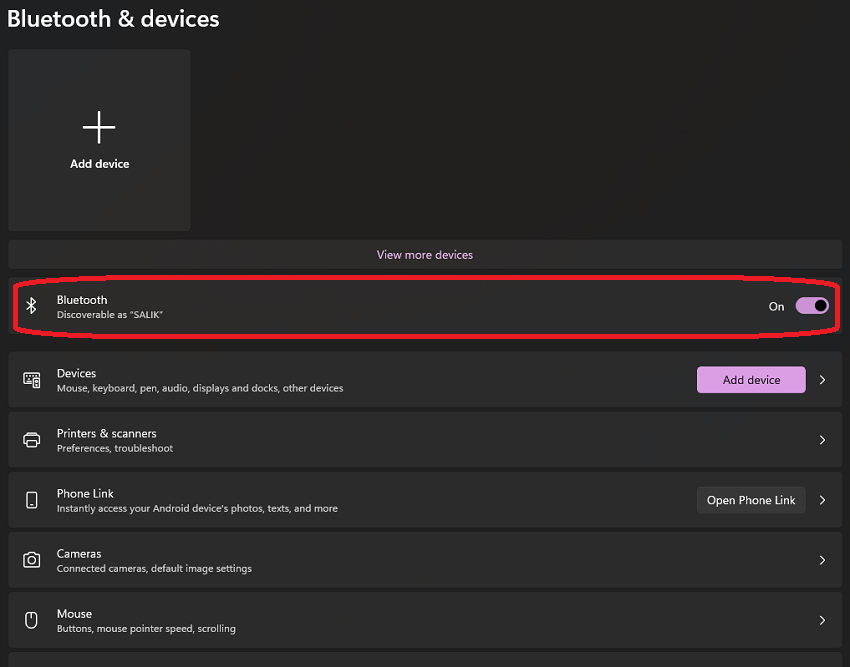
To connect your AirPods to a Windows 10 computer, you must first turn on Bluetooth. Open your computer’s Settings and select Devices, then click on Bluetooth & other devices. Turn on the Bluetooth toggle switch.
- Add a Bluetooth device.
After turning on Bluetooth, add your AirPods as a Bluetooth device. Select Bluetooth and click “Add Bluetooth or other devices.” Your PC will then scan for nearby devices.

- Connect the AirPods
Click the “Pair” button once you see your AirPods in the list of connected devices. Enter the PIN code that appears on your screen. After the pairing, your AirPods will connect to Windows 10 computer.

- Test your connection
To ensure your AirPods are correctly connected to your Windows 10 PC, test the connection by playing music or a video. If the sound is not coming through your AirPods, select them as the default audio device in your PC’s sound settings.
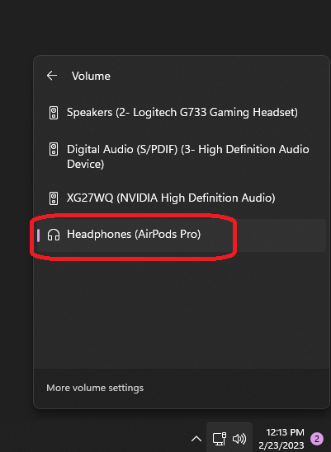
You can have your AirPods connected to your Windows 10 computer in minutes. If you follow these instructions, you’ll have a wonderful time with the convenience of wireless earbuds while using your computer.
Pros Of Using AirPods With Windows 10
But why should you bother connecting your AirPods to your Windows 10 PC? There are many benefits to pairing AirPods with a Windows 10 computer. For one, you can listen to high-quality sound without being tied to your computer.
While listening to your favorite tunes and podcasts or even making or receiving phone calls, you can roam around the house or office as you, please. It’s a fantastic method of maintaining contact with others and getting work done even when away from your desk.
Connecting your AirPods to your Windows 10 computer allows you to use their superior sound quality and user-friendliness. While Apple products are the most natural fit for AirPods, you can pair them with a Windows 10 PC without installing third-party software or hardware.
Your AirPods can also serve as headphones for your computer, saving you the cost of buying a second set of headphones.
AirPods on a Windows 10 PC won’t let you use Siri, but you can still use voice commands to play music and adjust the volume. This feature is helpful if you’re doing computer work and need to adjust your AirPods or pause your music while keeping your hands on the keyboard.
Common Problems When Connecting AirPods To Windows 10
Here are some solutions for common issues users may encounter when connecting AirPods to Windows 10.
AirPods Not Appearing In The Bluetooth List
If your AirPods aren’t showing up in your device’s Bluetooth list, check to see if you haven’t accidentally turned them off by pressing and holding the button on the case until the pairing light begins flashing. You can also try placing AirPods back in their charging case and pressing the button on the back until the light starts flashing.
Make sure that the Bluetooth feature on your computer must be active and set to “discovery mode.” If that doesn’t work, try turning it off and then on your computer and AirPods.
AirPods Connected, But No Sound
If your Airpods are connected to your computer, and there is no sound, make sure that in Windows 10’s sound settings, your AirPods are set as the default audio output device. You may also have to adjust the volume using AirPods and Windows 10 sound settings. If your AirPods aren’t working, try removing them and putting them back on again, and it might just do the trick.
AirPods Keep Disconnecting And Have Poor Sound Quality
First of all, be sure to charge your AirPods completely. If the AirPods’ Bluetooth connection is weak, try moving them closer to the computer. You can also put the AirPods in their case and hold the back button until the amber light flashes. Lastly, a new driver software may solve the problem if your computer has Bluetooth functionality.
Also, check that your AirPods are free of earwax and other debris before attempting these solutions to ensure a smooth connection between your Windows PC and headphones.
Troubleshooting: When Your AirPods Won’t Connect with Your Windows Computer
Even when paired with an iPhone or another Apple product, AirPods still have flaws. It’s, therefore, not surprising that they have compatibility problems with Windows 10. Don’t worry; we’ve compiled the most reliable strategies for fixing AirPods’ compatibility problems with Windows 10.
- If you’re using AirPods with Windows 10, ensure your computer is within range of the headphones. Remember that Bluetooth has a finite range; avoid being too far away.
- You should disconnect all other Bluetooth devices(especially apple devices) from your Airpods. If interference is the problem, this should help eliminate it.
- The troubleshooter in Windows is a built-in tool that can aid in isolating the source of your Bluetooth connectivity problems. If you follow these steps, you can determine why your AirPods won’t connect to Windows.
- A fully charged pair of AirPods is a must-have.
- Turn on the AirPods and ensure they are in pairing mode. Return the AirPods to the case and open the lid to activate pairing mode. Maintain pressure on the case’s rear button until the white indicator light on the front begins blinking rapidly.
- Install and activate Bluetooth on your Windows 10 machine. Turn on the Bluetooth by going to the device’s settings and selecting “Bluetooth & other devices” from the list.
- You can reset your AirPods. To do this, open the lid of the case that houses your AirPods and place them inside. When the amber light on the front of the case begins flashing, open the cover and press the button on the back for 30 seconds.
- If connecting the AirPods on Windows 10 fails, try restarting your computer.
- If you’re using Windows 10 and none of the preceding solutions worked, try upgrading the Bluetooth driver. To do this, open Device Manager, locate your Bluetooth device, right-click it, and select Update Driver from the menu that appears.
Disconnecting AirPods From A Windows 10 Operating System
AirPods’ detachment from Windows 10 is as simple as connecting them. Follow these instructions to unplug your AirPods from your Windows computer:
- Click the “Sound” icon on your screen’s bottom right corner.
- Choose “AirPods” from the list of compatible audio equipment.
- To disconnect your AirPods, disable Bluetooth on your computer.
- Go to the “Start” menu, type “Settings,” then select “Devices” to disable Bluetooth.
- Click “Bluetooth & other devices” to turn Bluetooth off, and then toggle the switch next to it.
- You can now unplug the AirPods from your Windows computer.
Remember that unplugging your AirPods from your computer will also unplug them from any other devices to which they may be connected, such as your iPhone or iPad.
Conclusion
Using your AirPods with Windows 10 is a no-brainer. It’s a simple process that can make a big difference in your computer use. When paired with Windows 10, AirPods deliver an exceptional aural experience and facilitate greater efficiency and comfort.
No more fumbling for your phone to answer calls and disturb the people around you with your music or videos. Try out the AirPods with Windows 10 if you still need to. With the straightforward instructions in this blog post, you’ll be listening to your favorite tunes wirelessly in no time.
Put aside your concerns about wireless earbuds’ safety and try them. And see how much easy and more convenient your computing experience can be.

Integraudio is a audio-focused blog that explores everything from VST plugins and studio hardware to practical guides, tips, and tutorials on Spotify, AirPods, podcasting, Discord, and beyond.