
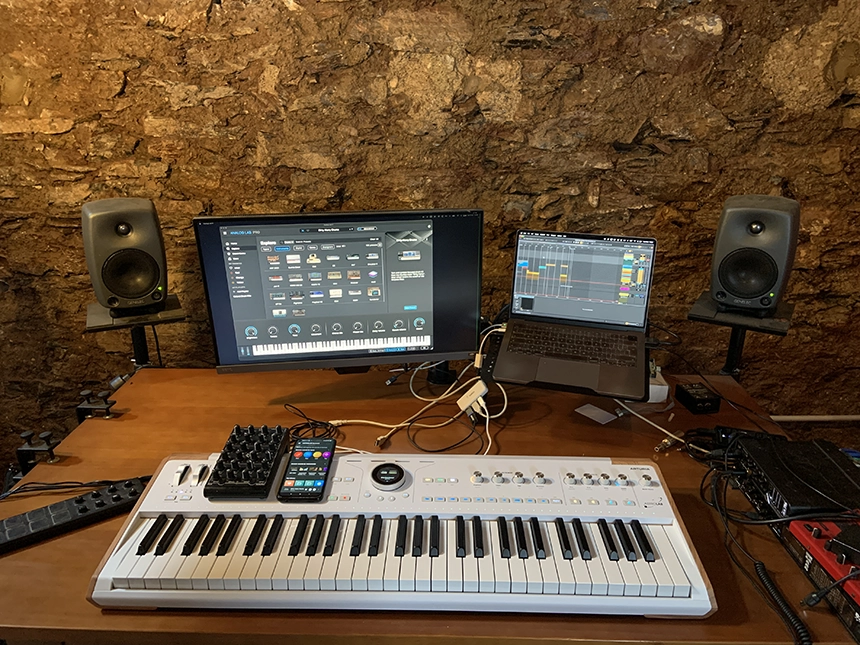

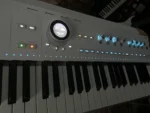
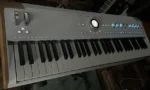

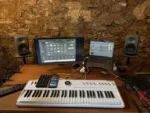
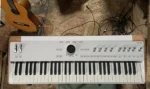
I recently got my hands on Arturia’s Astrolab performance keyboard, and am thrilled to share my thoughts. Designed for both studio producers and stage performers, this sleek 61-key keyboard offers versatility and functionality.
The release coincides with their 25 years in the business, marking a commendable milestone amidst the competitive landscape of music technology. Congratulations to them for persevering through the challenges.
Unlike your typical preset machine, the Astrolab aims to be your creative companion, offering a vast selection of presets across various instruments and styles. It’s all about keeping your inspiration flowing seamlessly, whether in the studio or on stage.
Once you’ve selected your presets, dialed in your settings, and added your effects, they stay put on the Astrolab. That means you can leave the studio behind without losing your sonic palette.
Say goodbye to soundcards, laptops, and tangled cables when it’s showtime. With the Astrolab, you’re free from the potential headaches of traditional setups.
Is it finally possible to bring your favorite virtual instruments from the studio to the stage with ease? In this article, I’ll give you a rundown of what makes this keyboard unique, so you can decide if it’s the right fit for you.
Unboxing and Setup
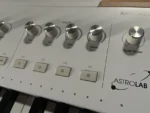
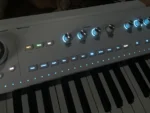
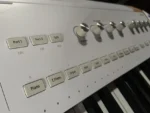
Upon unboxing the keyboard, its sleek design and sturdy build immediately caught my attention. The combination of bakelite, faux wood side panels, and full-size keys gives it a professional yet inviting feel.
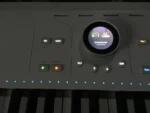
One standout feature is the Central Encoder, which is the gateway to navigating the keyboard’s functionality.
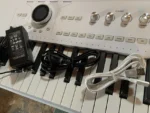
After connecting the keyboard to my computer via the included USB-C cable, I launched Analog Lab Pro, which also comes bundled with the package. After a quick firmware upgrade, I was ready to delve into the world of sound.
For those unfamiliar, Analog Lab Pro is both a DAW plugin and standalone App that grants access to Arturia’s extensive preset library.
Astrolab continues the performance-oriented approach of Analog Lab, providing effortless access and control over many inspiring sounds.
What sets Astrolab apart from conventional controllers used with Analog Lab is its minimal latency. With Astrolab, you can monitor and perform with zero latency, regardless of your DAW’s buffer size.
Additionally, Astrolab boasts a companion app called Astrolab Connect, which offers functionality similar to Analog Lab. I’ll delve deeper into this later.
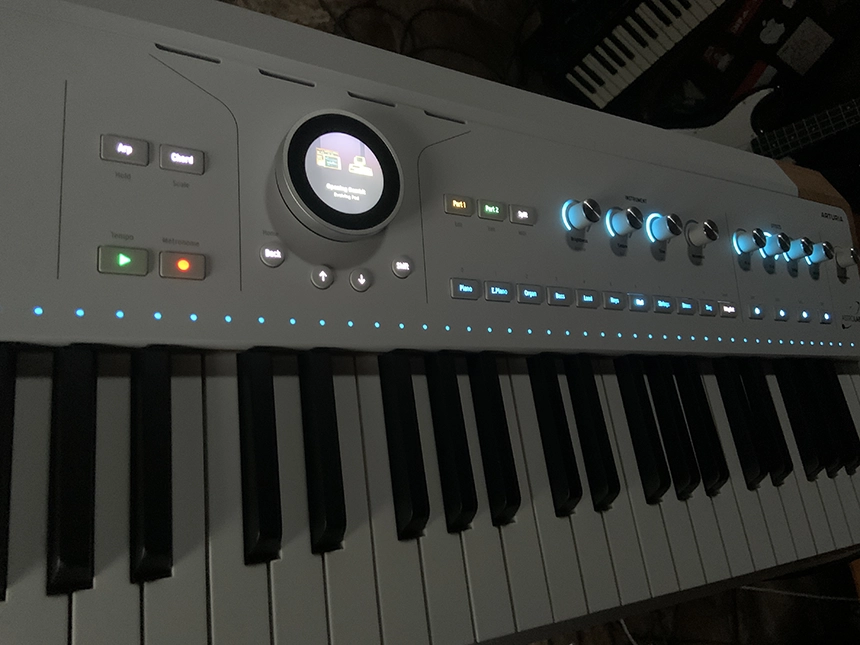
Hardware Features
Keyboard
Equipped with full-size semi-weighted keys that provide velocity (12-bit resolution) and aftertouch sensitivity, the keyboard offers a dynamic playing experience. You can adjust the sensitivity of these keys through the keyboard’s settings.
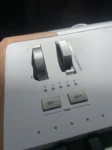
Additionally, standard controls for pitch bend and modulation are available. Two buttons positioned below these controls enable you to transpose the keyboard in octaves and semitones, adding further versatility to their performance.
Encoders Knobs and Buttons
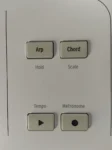
Transitioning to the central section, you’ll find buttons dedicated to controlling the Arpeggiator, Chords and Scales, Record, and Play for a Looper, enhancing performance capabilities.
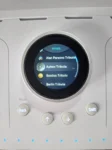
A standout feature is the color screen encoder, allowing seamless navigation through presets, instruments, and adjustment of effects and settings with ease.
Moving to the right-hand side in the Instrument section, nine buttons offer quick selection of instrument types:
- Piano
- Electric Piano
- Organ
- Bass
- Lead
- Keys
- Pad
- Strings
- Brass
- Seq
Adjacent to the Type buttons is an additional button for saving presets or loading a Playlist, ensuring convenient sound library management.
Parts: Single and Multi
Located above the Type buttons are two Part buttons for configuring whether a preset is a single or 2-part multitimbral preset (Multi). Adjacent to these is a button for setting up keyboard splits.
In the case of a preset containing two parts/presets, setting the split point is as simple as holding down the split button and selecting the desired note on the keyboard to divide the presets.
Shift: Dual Functionality
If you’re acquainted with Analog Lab, you’ll recognize the Macro knob configuration featured on Astrolab.
Moreover, those familiar with Arturia’s user interaction style understand that hardware knobs and buttons offer dual functionality when combined with the Shift Button. This same versatility is present here.
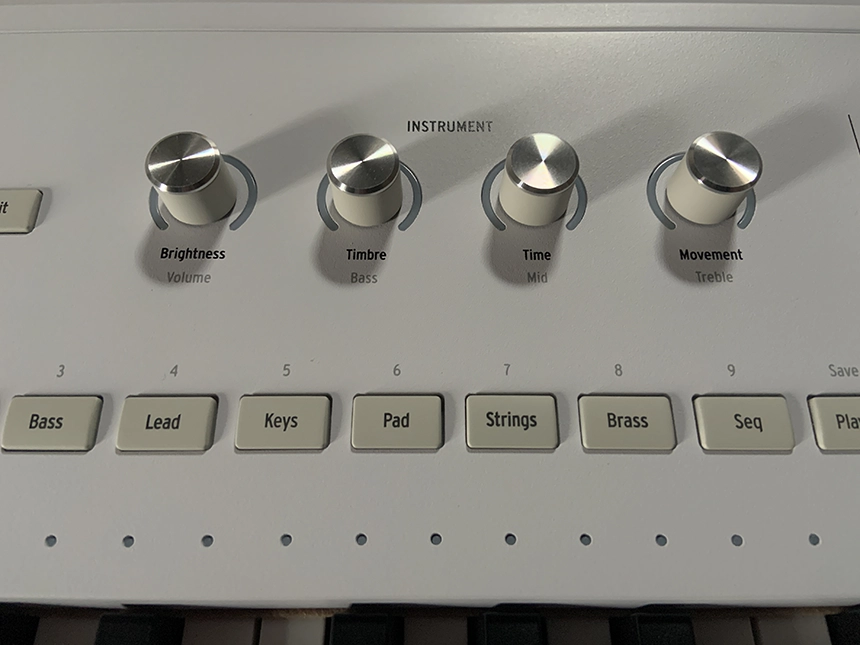
Instrument Macro Knobs
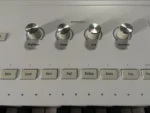
Given its performance-oriented design, the Instrument section of the keyboard boasts four knobs with LED position rings, allowing for macro control of presets.
Notably, when a preset contains two parts, the color of the rings changes based on the selected Part: yellow for Part 1 and green for Part 2. Otherwise, the color is blue.
These knobs are finely tuned to offer musically relevant adjustments, optimizing the diversity of changes to the preset’s output. They are assigned to control the following characteristics of a preset:
| Name | Function | Secondary Function (Shift) |
| Brightness | Covers settings that impact high-frequency content, like synth filter cutoff or organ drawbars. | Adjusts the Part volume. |
| Timbre | Affects multiple aspects simultaneously. Examples include filter resonance, oscillator waveform manipulation, PWM, waveshaping, and more. | Adjusts the master EQ’s Bass control |
| Time | Normally adjusts envelope parameters like attack, decay, and release. | Adjusts the master EQ’s Mid control |
| Movement | Adds modulation or evolving sequences to impart movement to the sound. | Adjusts the master EQ’s treble control |
Instrument Macro Knobs and Buttons
Adjacent to the Instrument section lies the Effects section, featuring four knobs with LED position rings and four knobs dedicated to editing effects. Each preset includes two insert effects and two send effects.
All effects can be easily toggled on/off using the dedicated buttons, either by combining with the Shift button or through a long-press. Accessing the settings window for an effect allows for effect type and parameter adjustment.
Additionally, a master volume knob is provided for overall volume control.
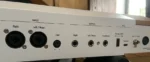
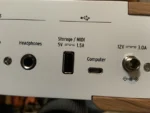
On the back panel of the keyboard, various connections are available:
- Power switch and connector (with a handy locking feature to avoid accidental disconnection)
- Headphone output
- Main outputs – 2 x Balanced 1/4″ TRS outputs
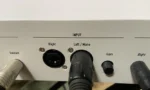
- Audio inputs – 2 x XLR/jack combo sockets
- USB-C for communication with a computer
- USB-A to allow connection of storage devices and external MIDI controllers (power supplied by Astrolab)
- 4 control/pedal inputs for sustain, expression, and 2 auxiliary ports
- 5-pin MIDI in and out
The audio inputs serve the purpose of processing external audio through the Vocoder V instrument, alongside the option to utilize insert and send effects.
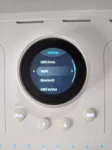
For seamless communication with computers, Apps, and other devices, Astrolab offers Wi-Fi and Bluetooth connectivity. Bluetooth functionality allows for direct audio playback (without processing) through Astrolab.
This feature is invaluable for jamming along with pre-recorded tracks, adding supplementary soundscapes, or layering additional elements to your performance.
Preset Management
Astrolab houses presets sourced from Arturia’s V Collection instruments, offering an extensive selection of sounds. With 10 synthesis types, 35 engines, and thousands of presets, the options are virtually limitless, whether you’re in the studio, on the road, rehearsing, or performing live.

To streamline navigation through this vast array of presets, Arturia organize them into different categories:
- Types: Navigate through a comprehensive list of Preset Types. These include categories such as Bass, Keys, and more.
- Instruments: Explore an extensive array of Instrument models, from classic synthesizers to contemporary digital instruments.
- Artists: Immerse yourself in a collection of Presets inspired by renowned artists. Examples include Aphex Twin, The Beatles, Pink Floyd, and Tame Impala, to name just a few.
- Liked Presets: Keep track of your favorite sounds and revisit them whenever inspiration strikes.
- Sound Banks: Explore and organize your collection of Presets within dedicated banks, including those you’ve created, imported, or acquired as Collections from the Arturia Sound Store.
- Playlists: Curate and manage your own playlists, offering convenient access to sets of Presets tailored to specific projects, moods, or performance needs. Whether compiling a selection of presets for a live performance or organizing sounds for a studio session, playlists provide a versatile tool for organizing and accessing your musical resources.
Polyphony
Astrolab imposes polyphony limitations on its instruments to prevent dropouts. Below is the current information available, although not all instruments are listed:
| Voice Count (per Part) | Instruments |
| 1 | Buchla Easel V, Synthi Vm Korg MS-20 |
| 8 | CZ V, DX7 V, Emulator V, Jun-6 V, Jupiter-8 V, Mellotron V, Modular V, OB-Xa V, Pigments, Vocoder V |
| 12 | Matrix 12 V |
| 16 | ARP 2600 V, CMI V, CS-80 V, Mini V, Prophet-5 V, Prophet-VS V, SEM V, Synclavier V |
| 48 | B-3 V, Clavinet V, Farfisa V, Piano V, Solina V, Stage 73 V, Vox V |
Certain Instruments may experience even more restricted polyphony due to CPU-intensive processes within the Preset.
Instruments equipped with Unison capability divide the maximum voice count by the current unison voice count. Additionally, to mitigate dropouts, certain instruments utilize Astrolab’s reverb instead of their internal convolution reverb
Workflow overview
Color Encoder
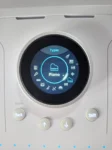
The Color Screen Encoder is at the heart of Astrolab’s functionality, serving as the gateway to its potential power. With thousands of onboard presets, managing this abundance efficiently becomes crucial.
In a digital audio workstation (DAW), navigating through a vast preset library can be daunting. Astrolab features over 22GB of onboard storage, capable of holding thousands of presets. But how do you navigate this sea of options effectively while staying in your creative flow?
Analog Lab Pro emerges as a key ally, seamlessly integrating with Astrolab. Its intuitive structure and robust metadata tagging system streamline the search process, helping you discover the perfect presets for your musical ideas. You can create Playlists/Songs and send presets directly to Astrolab, enhancing your workflow.
However, Astrolab isn’t solely reliant on its partnership with computer software. Designed to function standalone, it boasts impressive browsing capabilities. The color screen encoder facilitates navigation, allowing you to scroll through options easily.
Enhancing navigation are dedicated Back, Previous/Next keys, and the Shift button. Three main screens – the Preset Screen, Filter Screen, and Home Screen – grant access to Astrolab’s comprehensive functionality and browsing capabilities.
Preset Screen
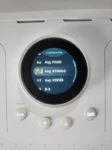
Upon powering on Astrolab, the Preset Screen greets you. Here, you’ll find the name of the preset, indication of whether it’s a single or multi-preset (with 2 parts/presets), and miniature graphics representing the instrument(s) used.
Rotating the encoder collar initiates one of two actions, depending on Astrolab’s settings. It either loads the next preset in your browsing category instantly or presents a list of presets within the category for selection.
Alternatively, you can use the Previous/Next buttons to navigate through presets.
On this screen, a long-press of the Color Encoder unveils a menu with options to:
- Like: In AstroLab, like Analog Lab Pro, you can “Like” presets. Liked presets are accessible in the Liked section of the Library. If a Preset is liked, the heart symbol at the center of the screen will be filled; otherwise, it will be outlined.
- Save: Overwrite or Save to a new preset
- Add to Playlist: Adds to the Preset to a Playlist
- Delete: Deletes a Preset
- MIDI: For Parts 1, 2 or both you can set the Low and High Note limits, MIDI input and output channel, and Octave/Semitone Transpose. Switches allow you to enable/disable Pitch Bend, Mod Wheel, Aftertouch, Sustain, and Expression Pedal.
- Info: If you like, you can rename the preset from here and adjust its Type.
Filter Screen
Accessible either from the Home Screen or by pressing the Screen Encoder after selecting a Preset Type button, this screen offers an expanded view of preset options.
Despite having 9 Preset Type buttons, this screen presents a total of 13 available options:
- Bass
- Keys
- Lead
- Pad
- Piano
- Electric Piano
- Organ
- Strings
- Brass & Winds
- Drums
- Sequence
- Vocal
- Sound Effects
You can navigate the options by turning the encoder collar to highlight a Type (or use the Previous and Next Buttons), then press the Encoder to select. For further refinement, if you long-press on a Type, it will be divided into subtypes, such as Lead > Plucked Lead.
This intuitive feature lets you finely hone your search for the perfect preset. For instance, within the Bass type category, subcategories include:
- Bass Line
- Hard Bass
- Plucked Bass
- Soft Bass
- Sub Bass
Home Screen
The Home screen acts as the central hub of AstroLab, offering quick access to its main menu and essential settings and functionalities.
Navigation is straightforward: use the Color Encoder collar or Previous/Next buttons to browse, and press the Encoder to make selections. Pressing Shift+Back from any other screen takes you back to the Home screen.
On the Home screen, everything except for Settings pertains to filtering presets. As mentioned earlier, the available options include:
- Types
- Instruments
- Artists
- Liked Presets
- Sound Banks
- Playlists
Further Filtering
As you explore, you’ll discover numerous methods implemented to streamline the organization of presets on Astrolab.
The Home screen offers access to all presets, categorized into different groups, with additional shortcuts available.
Within the Instruments submenu on the Home screen, a long-press on an instrument reveals subtypes, offering more refined results. For instance, MS20 > Lead > Dirty Lead.
In the Artists category, the Preset Type buttons illuminate if that preset type exists within the collection. Holding an illuminated button for 2 seconds navigates to presets within that collection of that type. Alternatively, a quick press of a Type button displays all presets of that type.
While these filtering, search, and shortcut options may take a bit of getting used to, they unlock immense power in managing a vast array of presets. They facilitate discovering the sounds you’re after, fostering a highly creative and uninterrupted workflow.
Effects
Insert Effects
Astrolab boasts 2 insert effects (FX A and FX B) and 2 send effects: Delay and Reverb.
For the insert effects, you have the option to choose from:
- Multi Filter
- Parametric EQ
- Compressor
- Distortion
- Chorus
- Flanger
- Phaser
- Stereo Pan
- Analog Phaser
- Wah
- Twin Amp
- Rotary Speaker
These guitar pedal-style effects on Astrolab deliver exceptional sound quality, a testament to Arturia’s expertise in creating effects plugins.
Each effect offers between 2 and 6 control parameters, and a dry/wet control (Parametric EQ has Scale). Some effects also feature switches.
For effects with tempo-related features, you can choose to sync them to the tempo of the preset (with various musical division options) or leave them unsynced.
The FX A and B encoders control the Dry/Wet parameter for the insert effects. By using Shift + FX Encoder, you can adjust the effect’s intensity, though the specific adjustment varies depending on the effect.
In single-part presets, the sound engine output passes through FX A, then FX B, before being routed to a Master 3-band EQ. Delay and Reverb are available as sends.
In a Multi preset, you have two routing options. Each part can independently use a single insert effect or be routed through the same insert effects.
When routed through the same insert effects, the parts are mixed, eliminating independent sends for each part.

Send Effects
Astrolab offers two excellent send effects: Delay and Reverb, providing flexibility in styles, color, and parameter editing options.
For the Delay effect, you have three options:
- Analog: Vintage warmth ideal for pitch-shifting effects.
- Digital: Modern clarity with stereo ping-pong capability.
- Tape: Vintage tape echo for atmospheric repeating effects.
The encoder controls the send amount, and when holding down Shift, you can adjust the delay Time.
You can set the delay time in free time or sync it to musical divisions of the preset tempo.
For the Reverb effect, you have a myriad of options:
- Digital Reverb
- Small Piano Room
- Soft Room
- Small Studio
- Large Studio
- Jazz Club
- Small Concert Hall
- Large Concert Hall
- Bright Room
- Bright Space
- Factory Hall
- Small Plate
- Large Plate
- Spring
For all settings except for Digital Delay, you Pre-delay, Size, and Decay controls. Digital Delay includes additional controls for Damping, M/S (adjusting the reverb output between mono and stereo), and high and low pass filters for the reverb (not dry) output.
The encoder adjusts the send amount, and the Decay time is adjusted when holding down Shift.
Master EQ
The last processor at the end of the signal chain is a 3-band master EQ. While simple, it has the potential to be invaluable in both studio and live settings, allowing you to tailor a sound to fit within a mix, ensemble, or room.
To adjust the EQ, you utilize the Macro controls. Holding Shift and adjusting Timbre, Time, and Movement adjusts Bass, Mid, and Treble respectively. Each control offers a range of +/- 10 dB.
Creative Tools
Arpeggiator
Astrolab boasts an Arpeggiator feature. Pressing the Arp button and holding down specific notes triggers an arpeggio based on the Arp’s settings. These settings include:
- Type: The order in which notes are played
- Up
- Down
- Ordered (follows order in which you struck notes)
- Reversed (reverse order in which notes were played)
- Inc (up and down, top and bottom notes repeated)
- Exc (up and down, top and bottom notes not repeated)
- Random (random order)
- Octave Range: 1-5 octaves
- Rate: When synced
- 1/96, 1/64, 1/48, 3/128, 1/32, 1/24, 3/64, 1/16, 1/12, 3/32, 1/8, 1/6, 3/16, 1/4, 1/3, 3/8, 1/2, 2/3, 3/4, 1, 3/2
- Rate: When not synced
- From 0.01 to 50Hz
- Sync: All Sync, Sync Straight, Sync Triplets, Sync Dotted, BPM (1/4 note)
- Part Selection: The Arp is applied to Part 1, Part 2, or both.
The Arp section seems to have received significant attention from Arturia, offering ample flexibility with timing options and the ability to arpeggiate one part while leaving the other unaffected.
Pressing Shift+Arp activates Arp Hold, allowing you to release their fingers and adjust other sound-related parameters seamlessly.

Chord and Scale
In line with its performance-oriented design, Astrolab caters to experienced musicians and those new to playing. Features like Chord and Scale simplify the process of playing and generating musical ideas.
For those without extensive keyboard or music theory knowledge, these tools aid in unlocking the keyboard’s musical potential.
Activating Chord Mode by pressing the Chord button lets you play chords with a single note. When activated, the options include:
- Type: Major, Major 7, Major 9, Major 11, Custom, Octave, Fifth, Suspended, Minor, Minor 7, Minor 9, Minor 11
- Part Selection: Use Chord mode on Part 1, Part 2, or both.
To create a custom chord type with Chord mode enabled, hold down the Chord button, input the desired chord notes, and then release the Chord button.
Activate Scale mode by pressing Shift+Chord. With Scale mode active, Astrolab quantizes any note played outside the selected scale to the nearest note of the scale. When activated, the options include:
- Root Note: C (default) to B
- Scale Type: Major (default), Minor, Harmonic Minor, Melodic Minor, Lydian, Mixolydian, Dorian, Phrygian, Locrian, Japanese, Gypsy, Arabic, Freygish, Pentatonic Major, Pentatonic Minor, Blues
Another useful feature when Scale mode is activated is that a light above the keys within that scale illuminates, providing a visual indication of the notes that will be in key. This feature aids you in playing confidently within the selected scale and staying musically consistent.
MIDI Looper
The MIDI Looper feature enables you to record up to 32 bars, capturing not only the notes played but also the velocity and Macro knob adjustments made during recording.
This versatile feature will serve various purposes for different users. I find it excellent for laying down pads or atmosphere in a Multi Preset and then jamming with the second part over it.
Additionally, I use it to set up a drum and bass split Preset, recording a beat and experimenting with different bass grooves.
The MIDI Looper offers a count-in before recording starts and includes a metronome feature to aid in playing in time.
Astrolab can store up to 127 MIDI recordings, allowing you to try recordings with different presets and tempos.
Some recordings may even serve as foundational elements to develop song ideas further.
When recording a loop, adjustable settings include:
- Loop: Enables looping during playback (On) or plays through once (Off).
- Quantize: Snaps recorded notes to a rhythmic grid from half-notes to 64th-notes.
- Swing: Adjusts the rhythmic offset of upbeats from 50% to 75%.
- Fixed Length: Dictates recording duration—stops when recording is initiated (Off) or at a set length (On).
- Length: Sets Fixed Length duration: 1, 2, 3, 4, 8, 16, or 32 bars.
- Arm Rec: Initiates recording upon playing the first note when active.
Playlists
A Playlist in Astrolab is a curated collection of presets that can be further organized into Songs. Multiple songs can be arranged within each playlist, serving various purposes such as concert sets, album ideas, or groups of favorite presets.
Each Playlist can accommodate up to 128 presets. The first 10 presets are automatically assigned to the Preset Type buttons when loading a Playlist. You can utilize the Color Encoder and/or the Next/Previous keys to access additional presets.
Notably, Astrolab maintains the previous sound even when selecting a new preset, as long as keys are held down. The new preset only takes over when new notes are played.
You can organize Playlists directly on Astrolab or with the help of Analog Lab Pro or Astrolab Connect.
They prove invaluable when you require quick access to a specific set of presets, making them ideal for situations where precise selections are needed.
Astrolab Connect
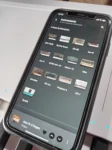
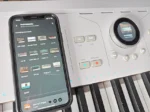
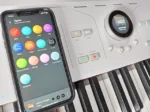
Astrolab Connect is a companion App to Astrolab, offering convenient preset organization on the go, akin to carrying Analog Lab in your pocket.
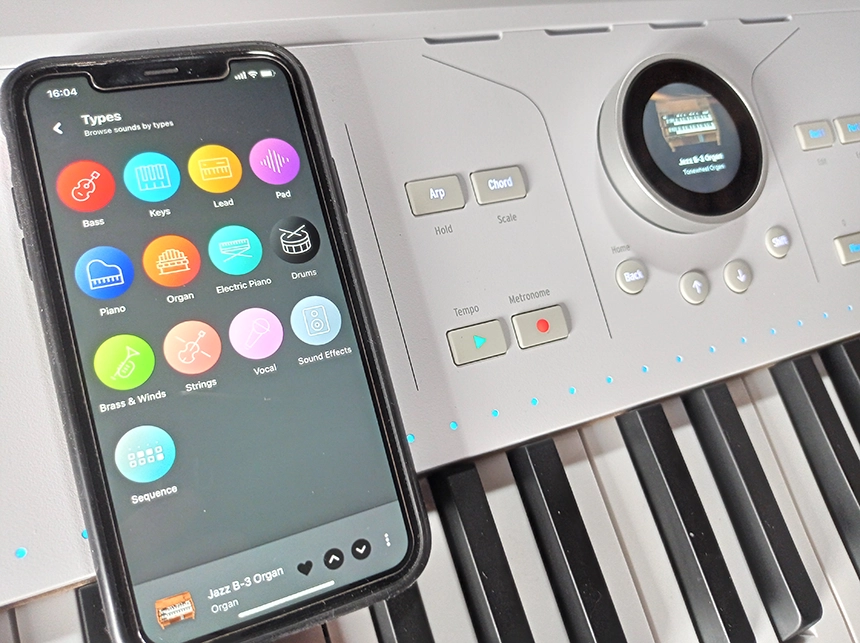
With Astrolab Connect, you can effortlessly organize presets, playlists, and sound banks, and make purchases from the store anytime, anywhere.
Additionally, the App allows you to edit preset volume, macros, and master EQ settings directly from within the interface. This seamless integration enhances the overall user experience and ensures flexibility in preset management.
Pros and Cons
Astrolab offers Arturia’s renowned quality and diverse possibilities seen in their virtual instrument plugins.
The keyboard is built for performance, providing hands-on controls for easy sound editing. Streamlined controls still offer ample scope for transforming presets.
Various filtering methods allow quick access to desired sound categories, reducing procrastination and enhancing music production.
Integration with Analog Lab Pro and Astrolab Connect enhances preset organization, with the latter providing mobile convenience.
Astrolab enables users to bring virtual instruments anywhere without a computer, fulfilling a long-awaited dream.
The generous storage allows users to carry a vast array of sound possibilities.
The Vocoder capability enhances the keyboard’s versatility for studio and stage use.
Multitimbral capability allows for useful setups and powerful sound combinations without overwhelming configuration options.
Onboard effects enrich the output of the available sound engines.
Creative tools like Arp, Chord, Scale modes, and MIDI looper facilitate idea capture and creativity.
Zero latency playback ensures smooth monitoring during sound creation.
Some presets take a few seconds to load, which may be inconvenient in live situations.
LEDs above the keys can be difficult to see in certain lighting conditions.
Users without access to full instrument versions may envy those with more editing possibilities.
Expression and auxiliary pedal inputs could provide access to more parameters within the keyboard.
Some filtering options available in Analog Lab Pro are missing from Astrolab Connect.
Presets in Astrolab Pro lack descriptions, which could provide valuable insights into their capabilities.
Filtering options don’t facilitate finding presets for processing external audio efficiently.
Playlists created on Astrolab do not appear in the Astrolab Connect app if they were created after the connection was made.
Browsing with the App automatically loads presets from selected categories, unlike Astrolab’s manual loading behavior.
Here are all 3 videos we made with AstroLab, check them out:
Conclusion
In conclusion, Astrolab can effectively cater to performers and studio producers. As someone more inclined toward studio production, I was pleasantly surprised by the keyboard’s offerings despite not being a proficient player myself.
While some may initially view it as merely a preset machine, the Astrolab transcends this label by providing quick access, robust control, and performance tools that genuinely foster new musical ideas and inspiration.
Access to Arturia’s top-notch virtual instruments opens up a world of possibilities across various electronic music genres, encouraging exploration beyond one’s usual sonic territory.
Despite encountering some minor issues related to preset navigation and app functionality, I remain optimistic that these will be addressed in future updates.
Using the Astrolab undoubtedly encourages deeper exploration of Arturia’s instruments, potentially leading to further purchases. While this may align with Arturia’s business goals, it also unlocks a wealth of creative options for Astrolab users.
Despite reservations about relying on presets in music production, the Astrolab introduces something fresh and innovative. With its wide array of sound possibilities, macro controls, hardware inputs, Wi-Fi, and Bluetooth connectivity, all packaged neatly, the Astrolab still holds many secrets waiting to be discovered. I eagerly anticipate delving deeper into its capabilities.

The Integraudio Editorial Team consists of experienced music producers, audio engineers, and plugin enthusiasts dedicated to providing in-depth reviews and guides for music production software.