
What Is Kontakt?
In Kontakt: The Fundamental Guide I’m going to give you the basics on Kontakt.
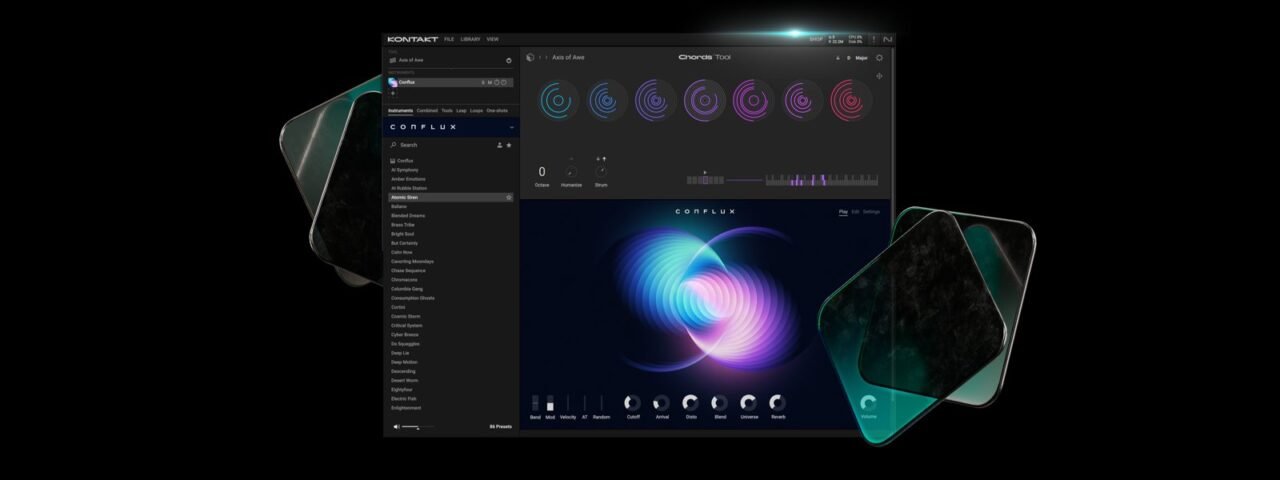
Kontakt, in simple terms, is an extremely powerful sampler. A lot of DAWs have some form of a sample instrument, most of which are quite simple. You import one sample, the sampler changes the pitch of this sample and allows you to play it as an instrument. Kontakt utilizes many samples to recreate the sound of an instrument, or create something new, with extreme detail.
The libraries for Kontakt can be quite large in file size, as there can be multiple samples of each 127 velocities for each note or sound of the library. This gives you the feeling of really playing the instrument as if it’s right in front of you being recorded.
Kontakt, as well as loading and playing libraries, also allows you to control the way the samples are used in the instrument. You can get very specific with each element of a library. You can even create your own instruments there.
People have different uses for Kontakt, but for me I love it for allowing me to use high-quality, realistic, sampled versions of instruments that I can’t record in my home studio. The biggest one for this, personally, is drums. Drum libraries have come such a long way, where if you know how to use the libraries, in a mix you probably can’t tell the difference between the library and the real thing.
The Different Versions Of Kontakt
With each update of Kontakt, there are two versions. One is the full Kontakt software, and the other is called Kontakt Player. The full software is the complete plugin with all of the capabilities that Kontakt has to offer, such as loading and playing libraries, editing them, and creating your own. This is the paid version. Kontakt Player is free, but of course has more limited functionality.
Kontakt Player allows you to load and play official, Player licensed libraries only. It doesn’t allow you to create your own, or to play unlicensed 3rd party libraries. We will get into the specifics of which libraries will run in Kontakt Player, but for now just keep in mind that there are a lot of 3rd party libraries that don’t run in Kontakt player. For the Native Instruments and licensed 3rd party libraries, they sound exactly the same as the full version of Kontakt, you just can’t edit them like you can in the full version.
Getting And Setting Up Kontakt 8 And Kontakt 8 Player
Getting Kontakt, or any Native Instruments software, is all handled through Native Access. To get started you need to create a Native Instruments account on their website https://www.native-instruments.com.
The current version of Kontakt is version 8. If you already have a licence for Kontakt 7 you can still get it through the legacy downloads. However, Kontakt Player 7 is no longer available, and if you don’t have a Kontakt 7 licence, you won’t be able to get it now.
Once you’ve created your Native ID account, you can add Kontakt 8 or Kontakt Player 8 to the contents of your account.
To get Kontakt 8, you can buy it from here https://www.native-instruments.com/en/products/komplete/samplers/kontakt-8/. Once you install Native Access (below) then it will appear in your library to install. If you have Kontakt 8, you don’t need to also get Kontakt Player, because Kontakt has all of the features and more of Kontakt Player.
To get Kontakt player, go to https://www.native-instruments.com/en/products/komplete/bundles/komplete-start/. This is the free bundle from Native Instruments called Komplete Start. This includes Kontakt Player 8, plus a whole lot more. You don’t have to download and install everything right now, but who doesn’t love free music software?
To actually install any form of Kontakt, you need to install Native Access from here https://www.native-instruments.com/en/specials/native-access/.
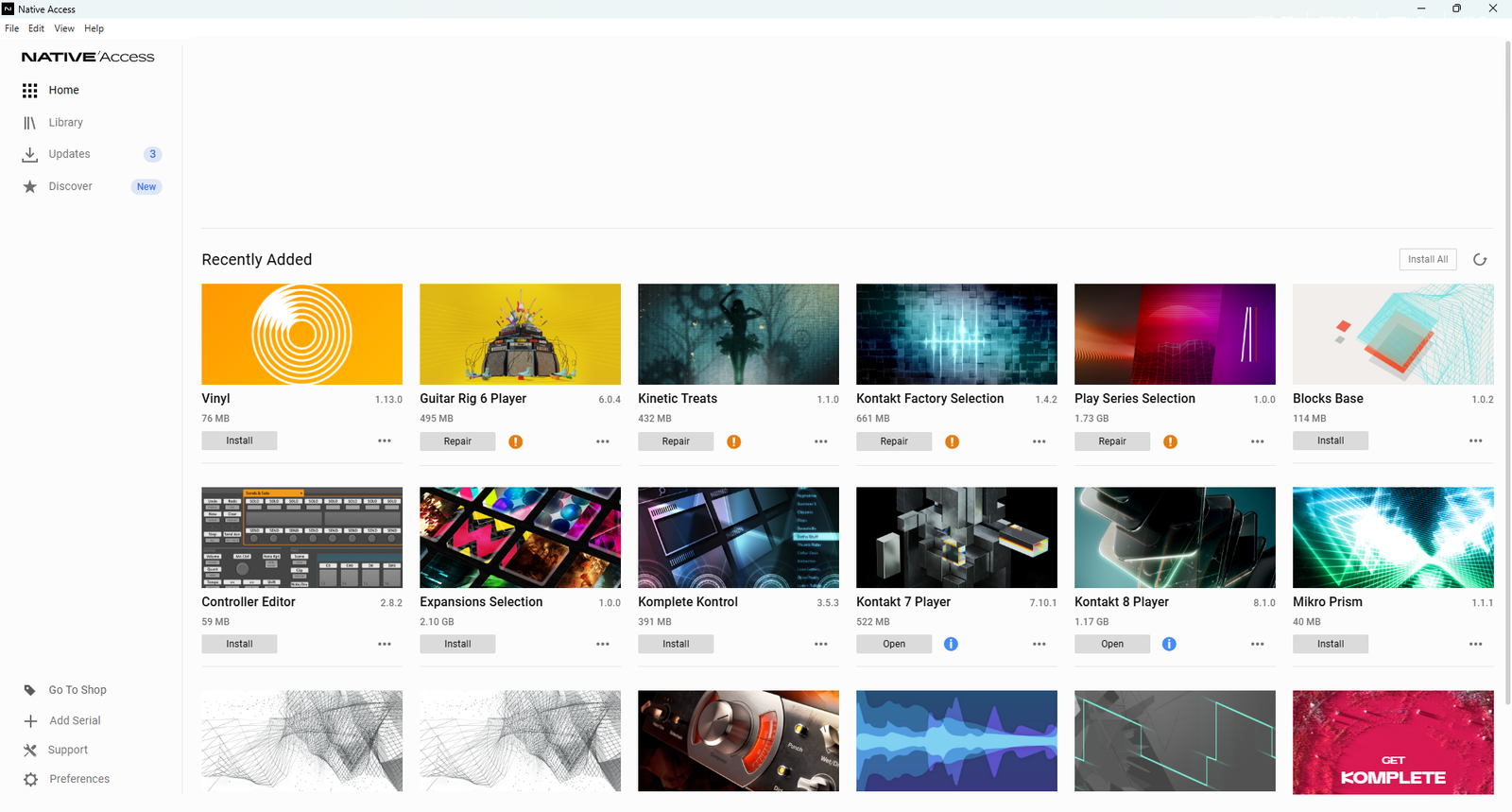
Native Access is the main application from Native Instruments that allows you to manage all the software from them. This includes downloading, installing, activation of the software, and updates. In here you simply find Kontakt, either on your home page or in your library, and click install. Then once it’s installed, you can open it from within here too. It’s as simple as that.
How To Load And Play Libraries
There are two ways of loading in libraries to Kontakt. The first is through Native Access, the second is by loading it directly into Kontakt and then saving it. Let’s go through both, as some libraries, especially older ones, won’t work through Native Access. So it’s important to know both.
Using Native Access
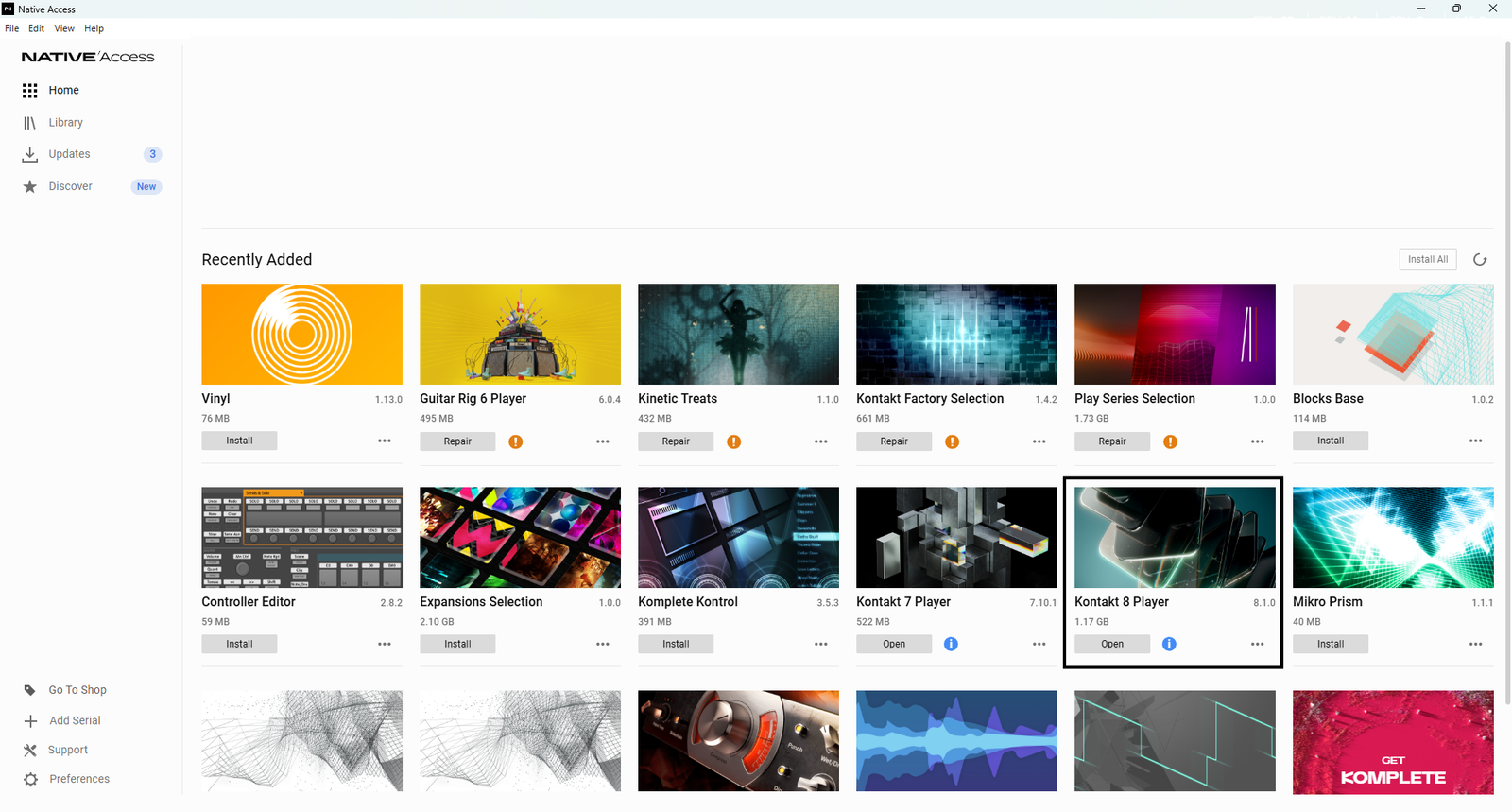
To install libraries directly from Native Instruments in Native Access, simply purchase the library on the Native Instruments website, and it will appear as an option to download in Native Access. Then it’s the same process as installing Kontakt.
For libraries not from Native Instruments, you first need to download the library. Go to whichever website you’re getting the library from and download it, using the instructions on that website. Some will have an installer to download, and some will directly download the library from the website.
If you use an installer, make sure to point the installation folder to where your Kontakt libraries are stored. If you downloaded the library directly, then move it into this folder. You can and should use sub folders to organize the libraries, or else it’s a complete mess. Now when you open Native Access, the library will appear as available. So you can install it from there, or press locate if Native Access can’t find all the files and point it in the right direction.
Then when you next open Kontakt, it will be there. Make sure you restart Kontakt if it is open during this process. Although I’d recommend closing Kontakt for this and only open it once everything is installed.
Installing A Library Directly Into Kontakt
If you have an older library, or one that isn’t installed through Native Access, you will need to use this method.
For this method, it’s still best to have your library in the main Kontakt library folder, that way everything is together and organised.
Open up Kontakt and go to the files tab.
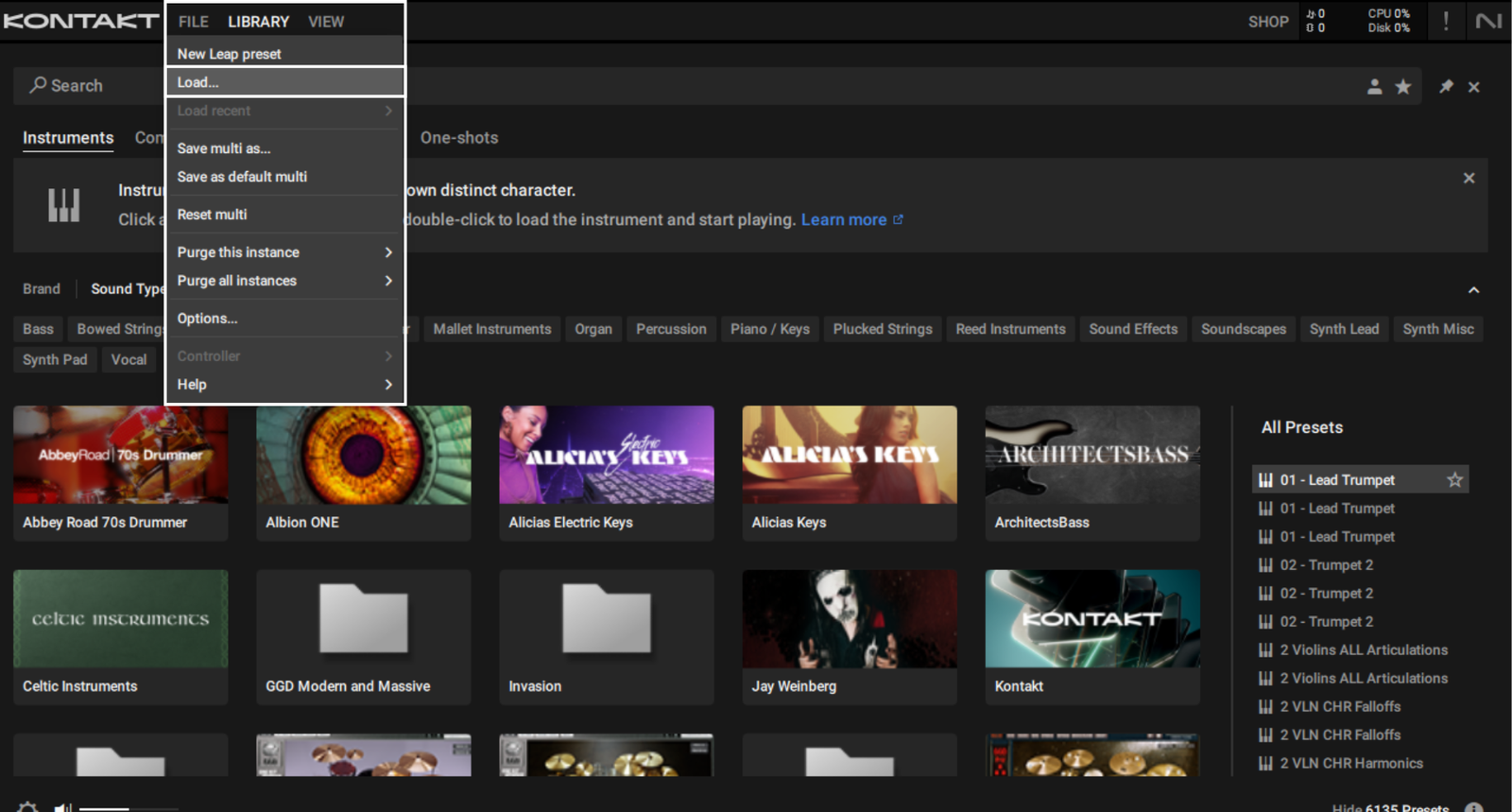
In the browser, find the location of the .nki file (or any other compatible file) and load it. This file is the instrument file that Kontakt loads.
When you load the instrument, a window may appear saying that there are missing files, in which case you can set a folder for Kontakt to search for these files. Personally, I keep my instrument files on my main SSD hard drive and the samples on a separate HDD, as I found this is the best way performance-wise without taking up too much space on my main SSD. So this window always appears for me when I install new libraries.
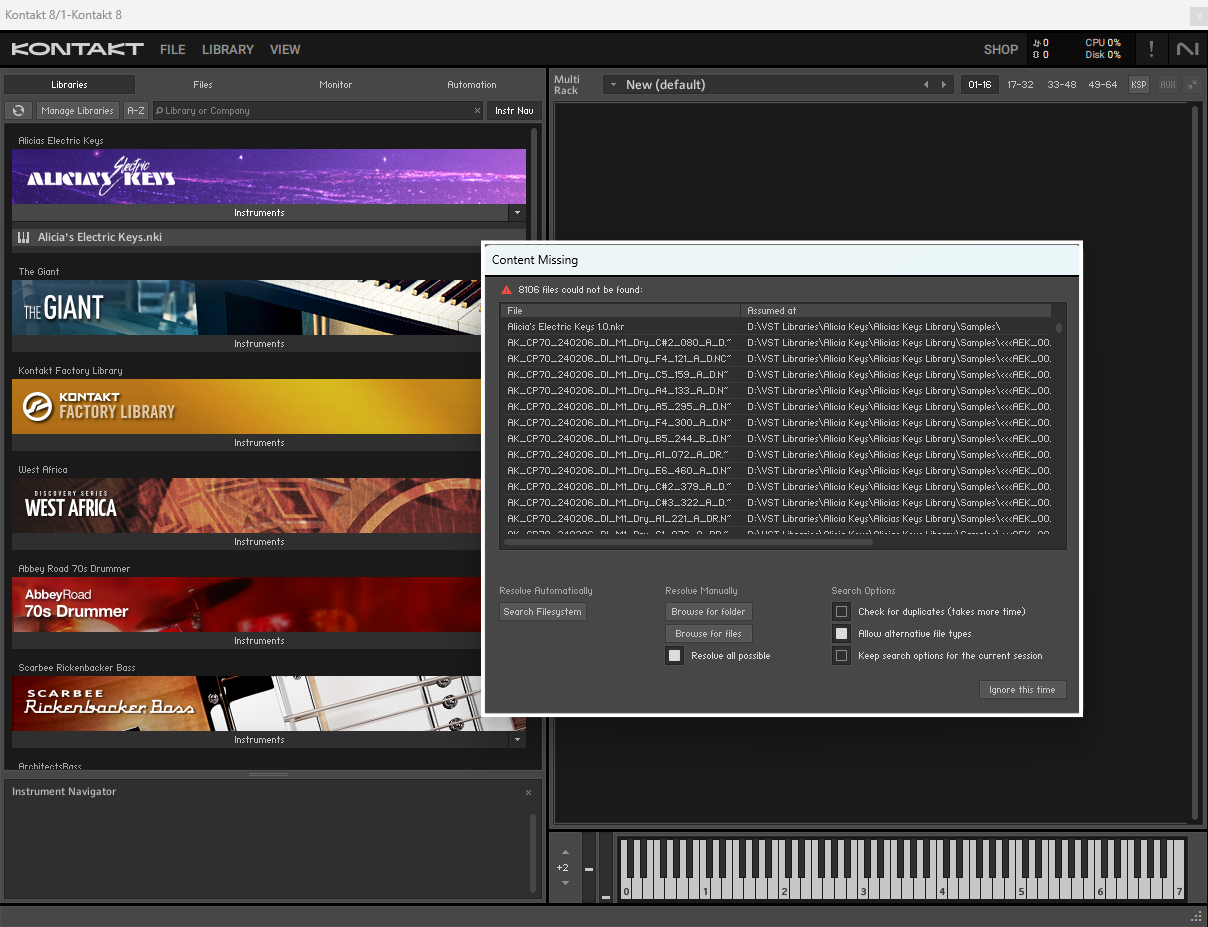
Once you’ve done that, make sure you save this and overwrite the original .nki. This way you won’t have to locate files every time you load it.
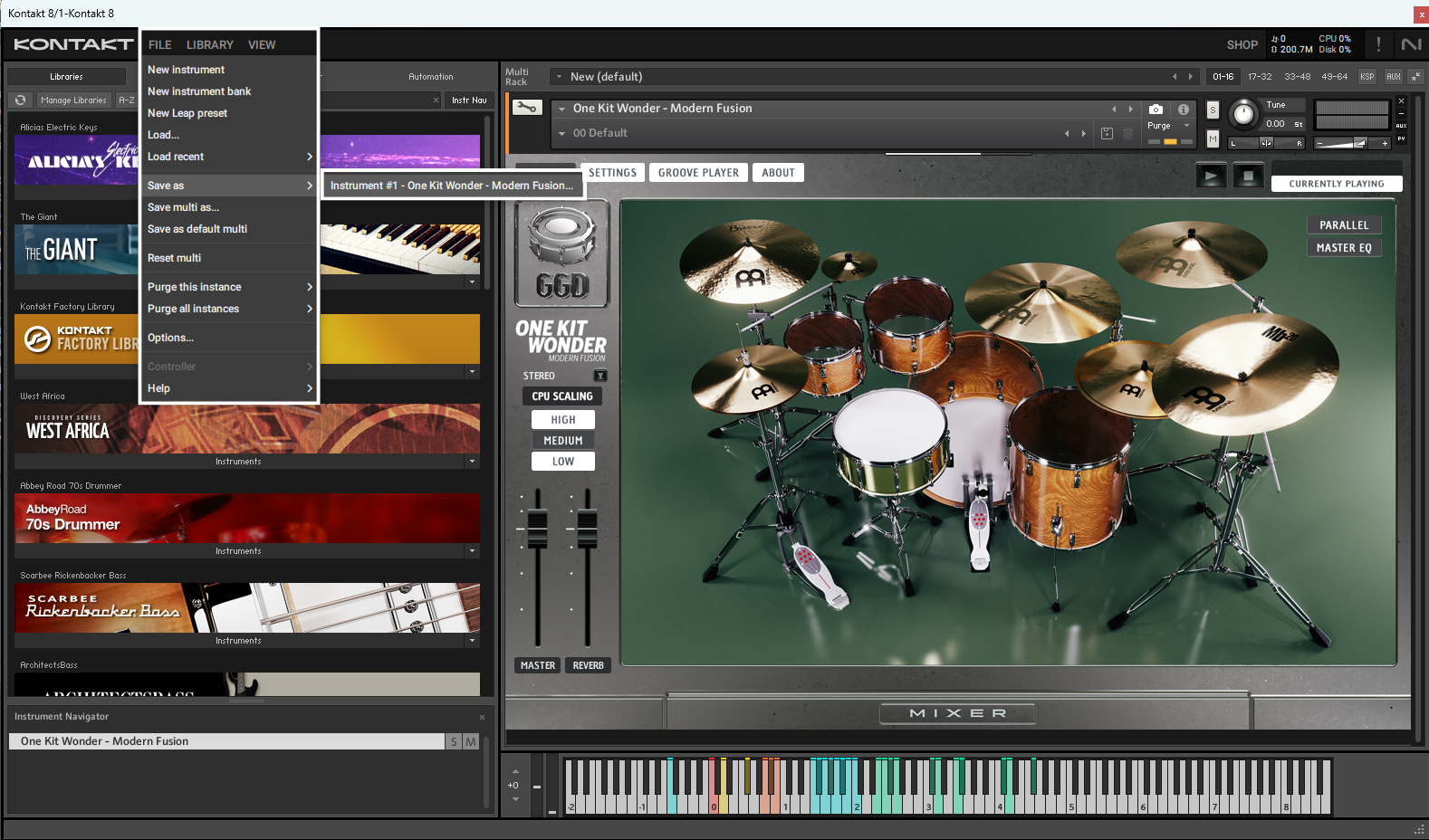
Also, if you’re using multiple versions of Kontakt, then make sure to save separate .nki files for each version, as that way all your libraries will still be compatible with older versions of Kontakt. Personally, I have separate folders for Kontakt 7 and 8, which have their own .nki files inside for all my libraries.
How To Play Libraries
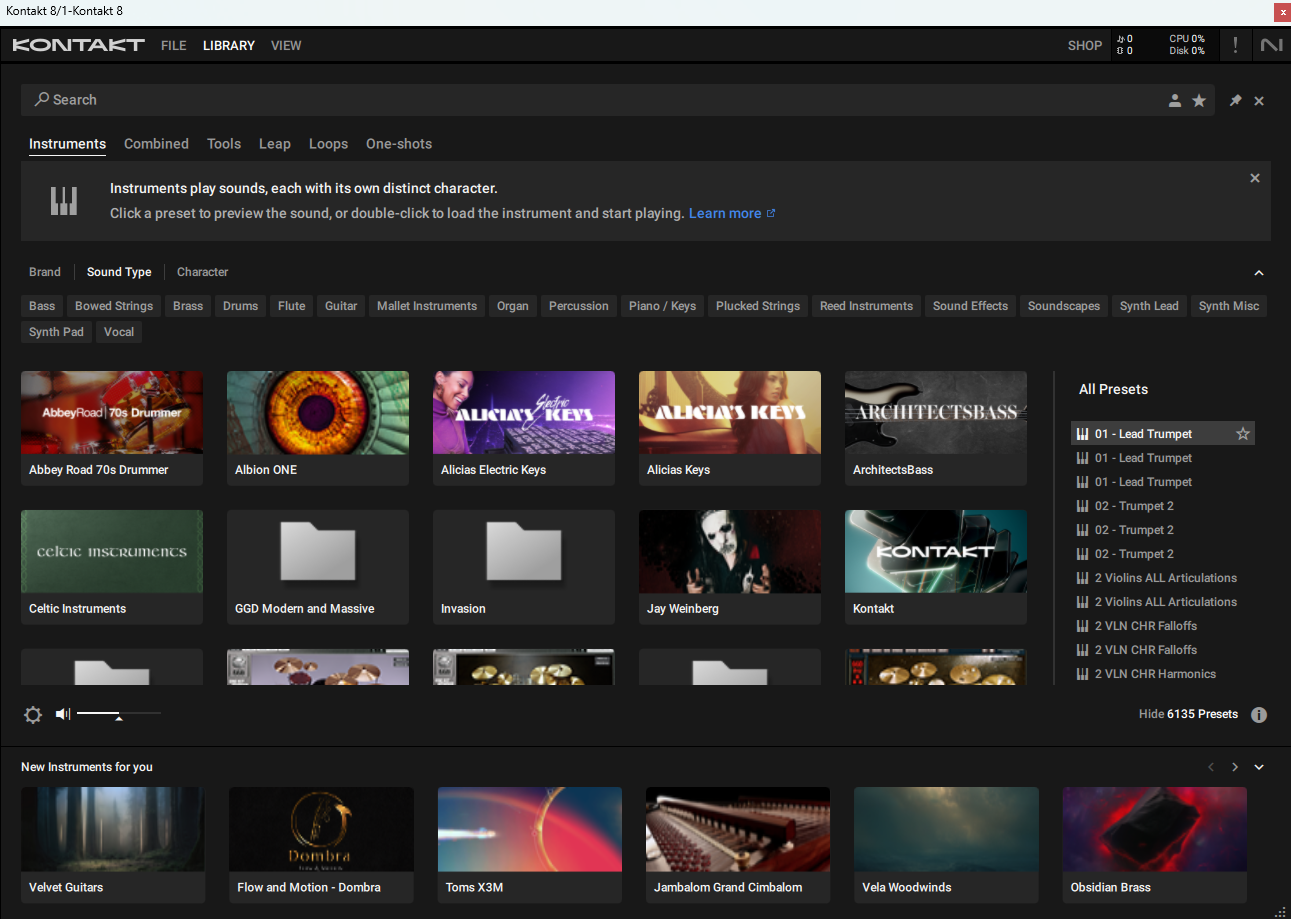
When Kontakt loads, it shows the libraries that you can play. If you hover over the library, a button appears allowing you to play the first preset. Or you can click on the library and it will show all the presets in the right panel. From here you can double-click on the preset and load it.
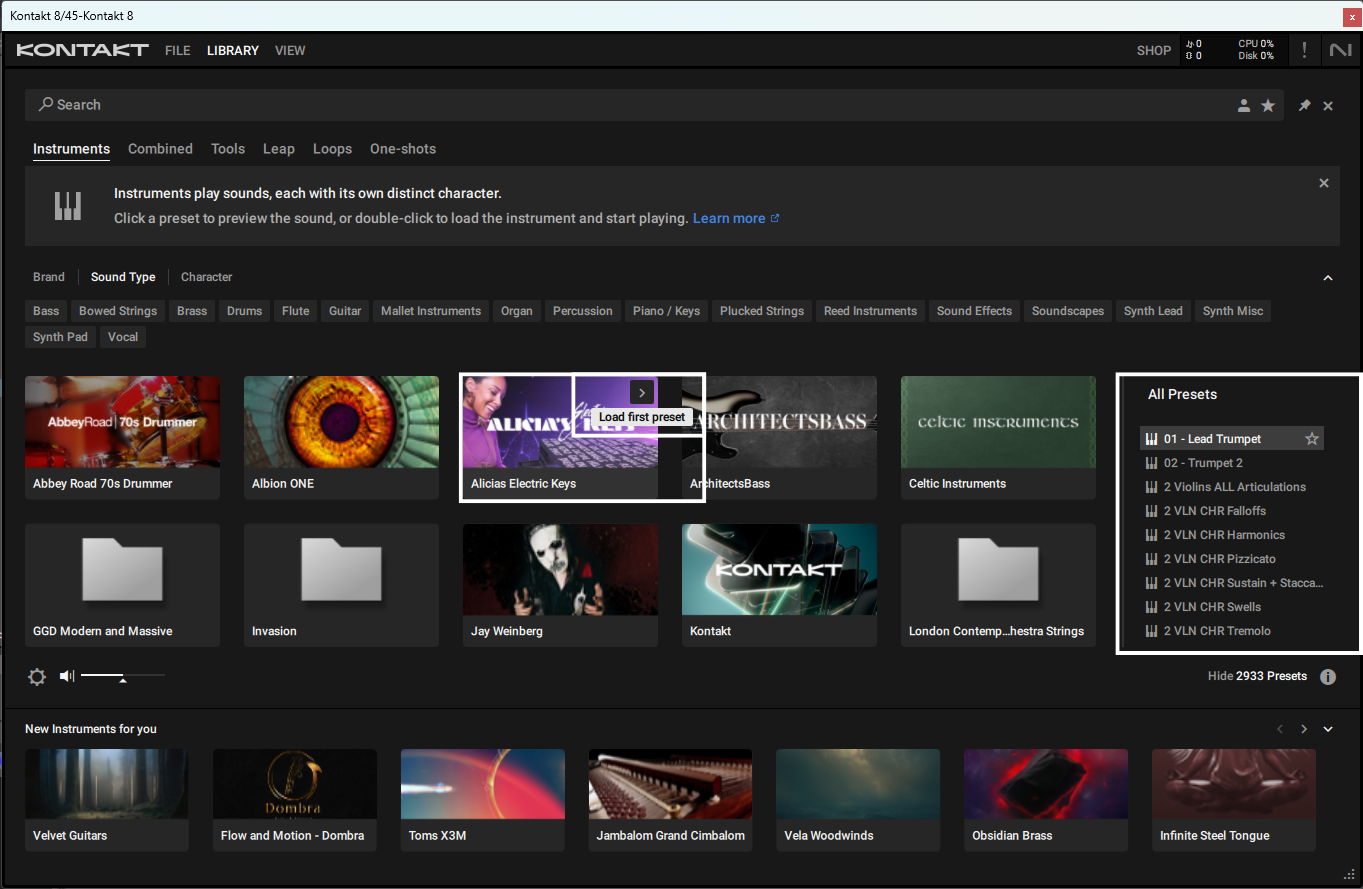
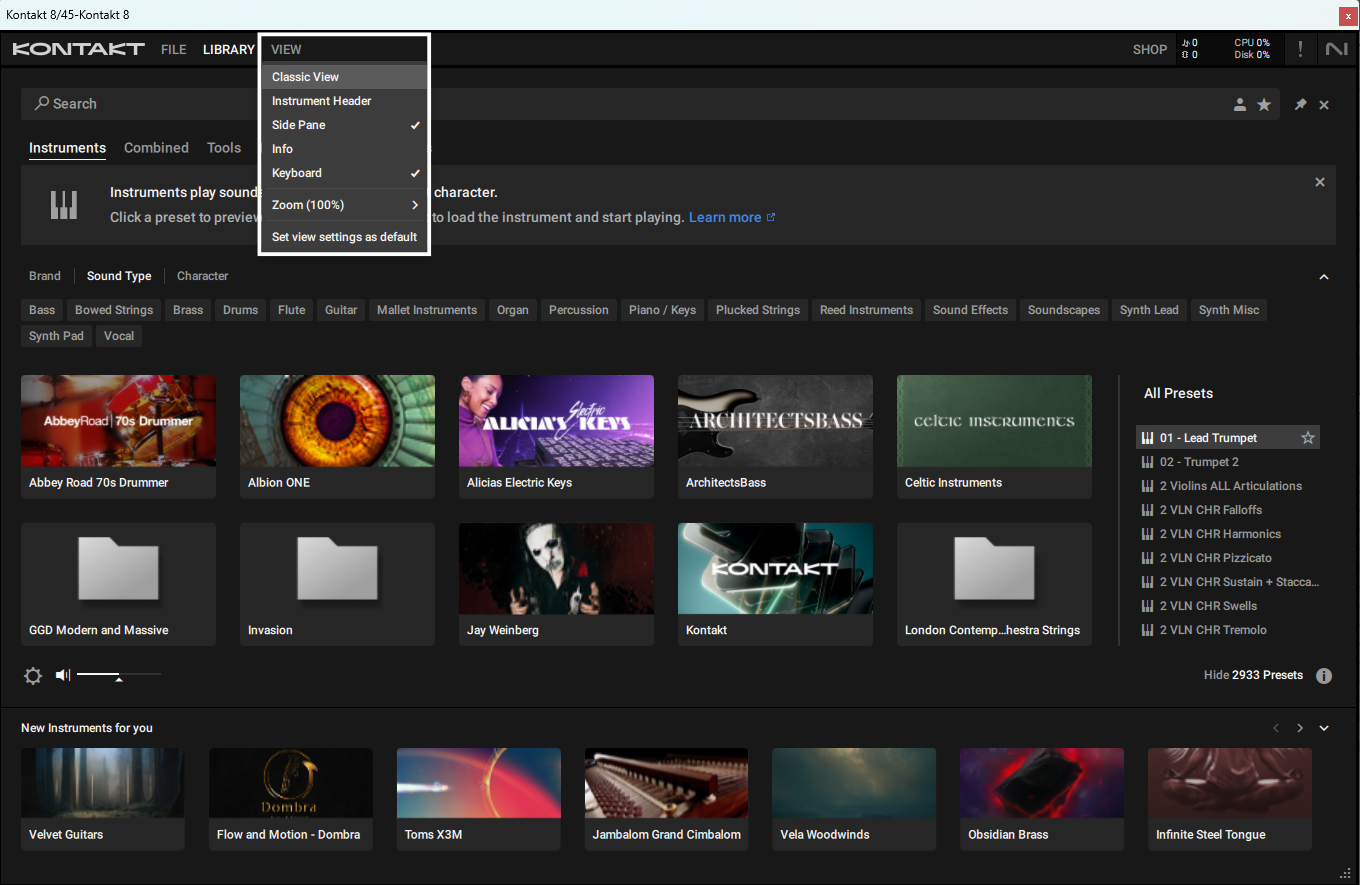
The other option is to put Kontakt in the classic view. Do this by clicking on “VIEW” and select “Classic View”.
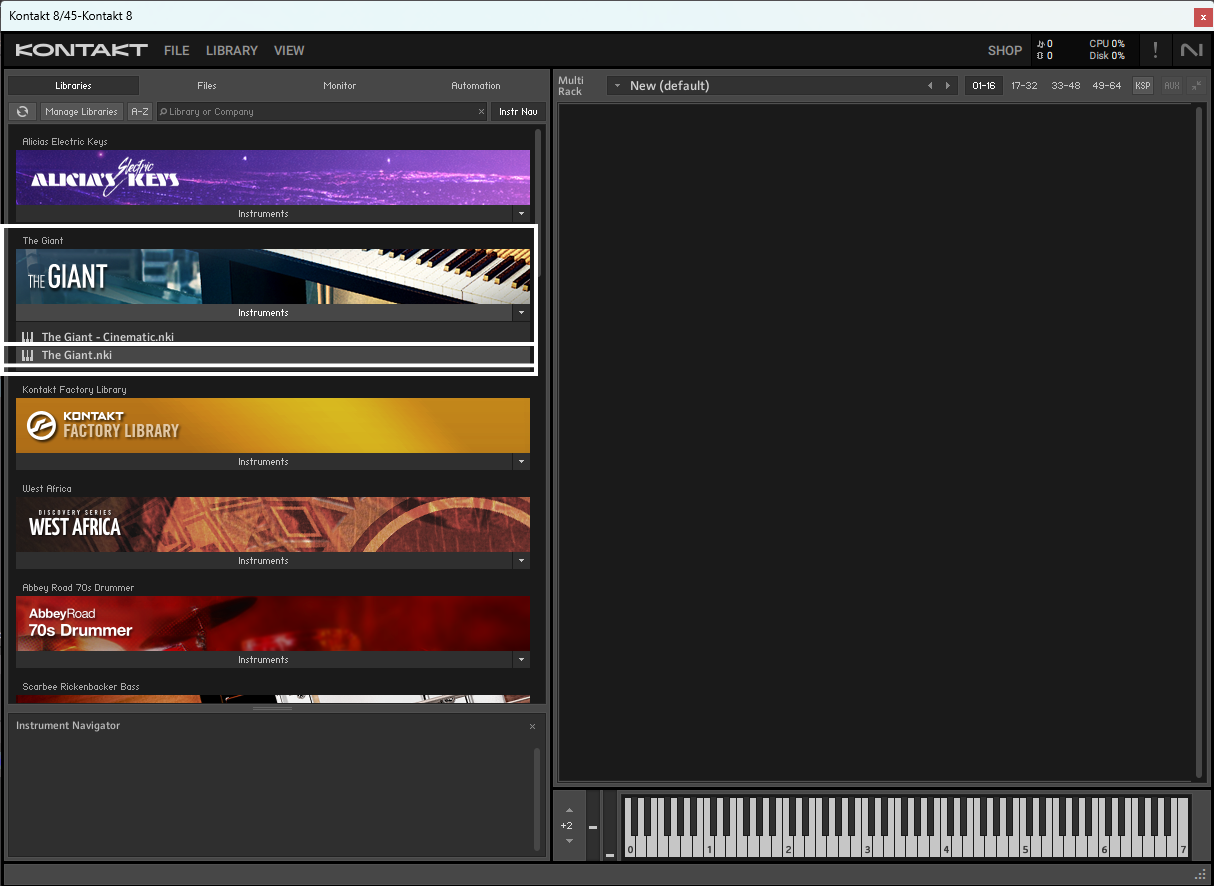
Then click on “LIBRARY” and you can select libraries from within here. Just click on the “Instruments” button on the library you want to load, and double-click the instrument that you want.
Once the library is loaded up, you can either play it using a MIDI device or by writing MIDI notes in the piano roll of you DAW. It’s as simple as that.
Using Kontakt In A DAW
Almost every DAW has a very similar way of loading plugins. You need to make sure that the .dll (VST2) and .vst3 files are in the correct places. These are easily found in your DAW settings/properties. Usually, when installing Kontakt, the installation wizard will already know where to store your plugins. Once they are in there, you just need to open your DAW and it will scan for it. If it doesn’t, there is almost always a scan plugins feature. I will go through a couple of example DAWs to show you.
Ableton
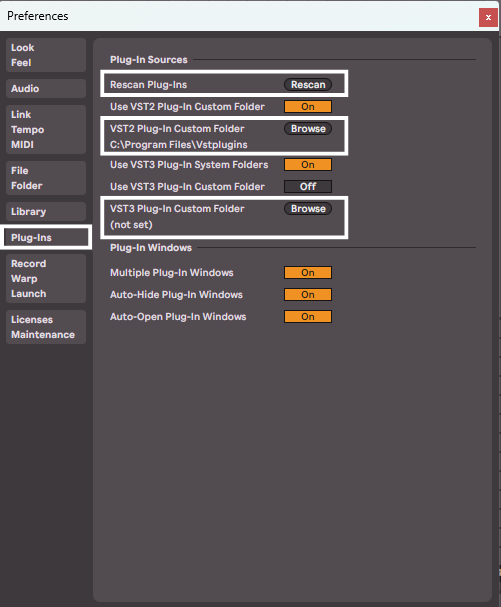
To use Kontakt in Ableton, just drop the .dll and/or .vst3 file into the usual folders for plugins. Then when you open Ableton, it should scan and pick up Kontakt, and then load it in as an option. If it doesn’t, then you can go to the “Options” tab, click on “Preferences”. In the window that pops up, go to the “Plug-Ins” tab and click “Rescan”. In here it also shows where your “Plug-In Folders” are for Ableton.
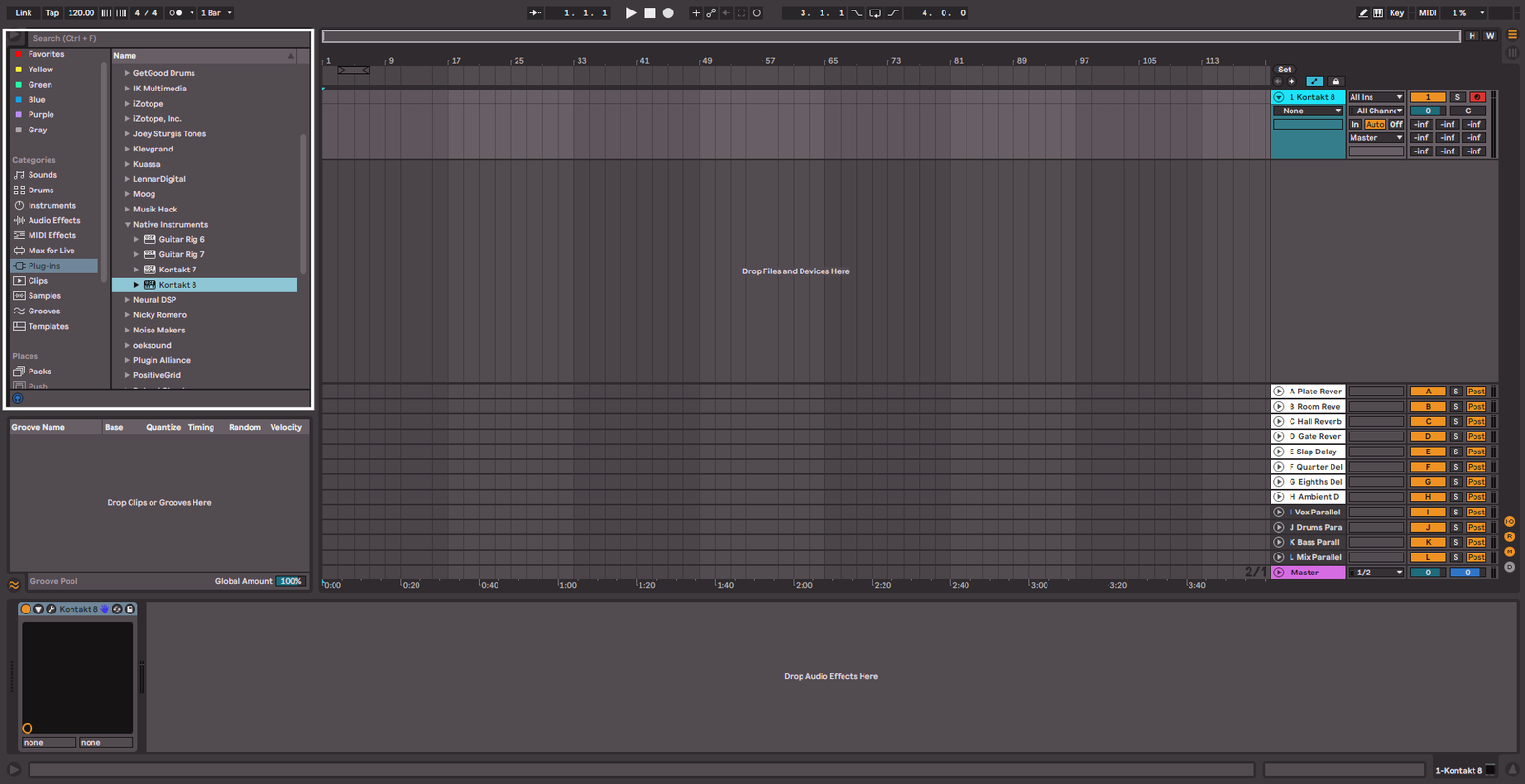
Then to load Kontakt, just create a new MIDI track and then drag Kontakt from the left side bar.
Studio One
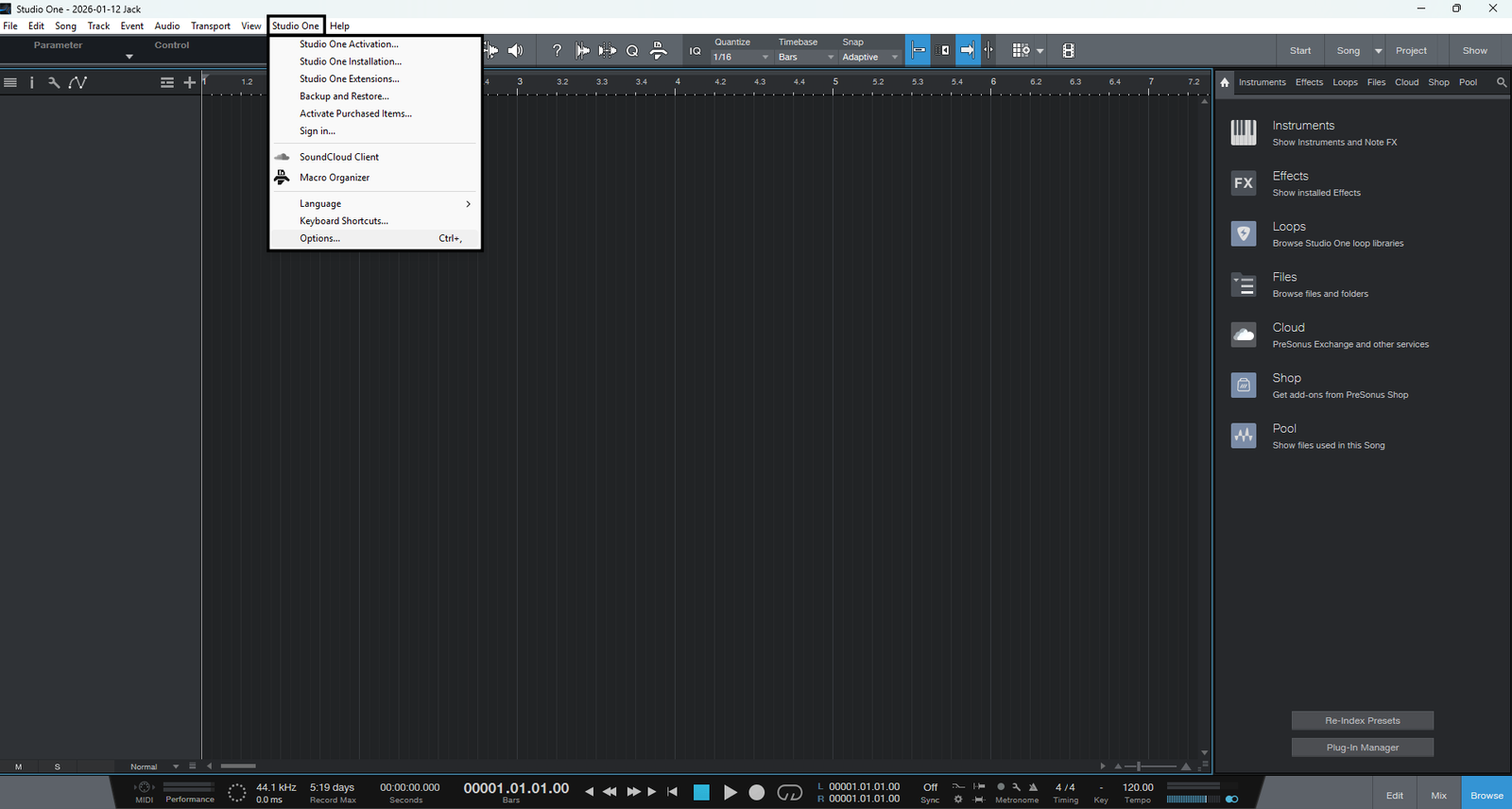
To get Kontakt working in Studio One, it’s very similar to Ableton. Put the plugin files in the same locations as usual, and then in Studio One go to the “Studio One” tab, and select “Options”.
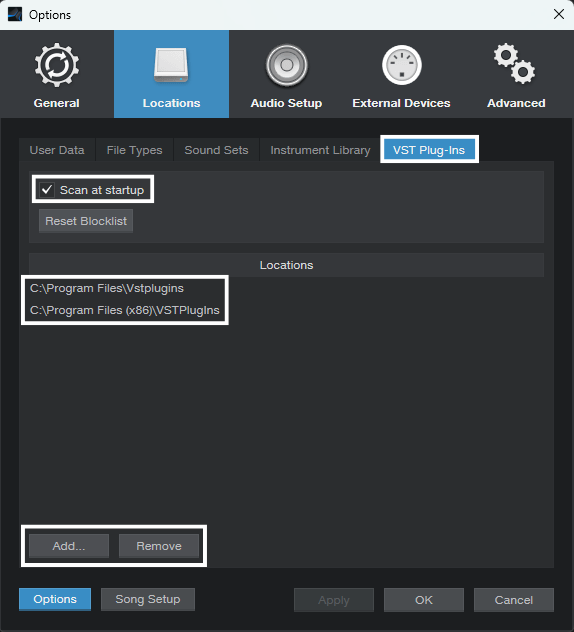
In this window, click on the “Locations” main tab, and then the “VST Plug-Ins” sub-tab. In here you can see what folders Studio One uses to get the plugins, and you can choose to “Scan at startup”. Then restart Studio One and it will scan for changes.
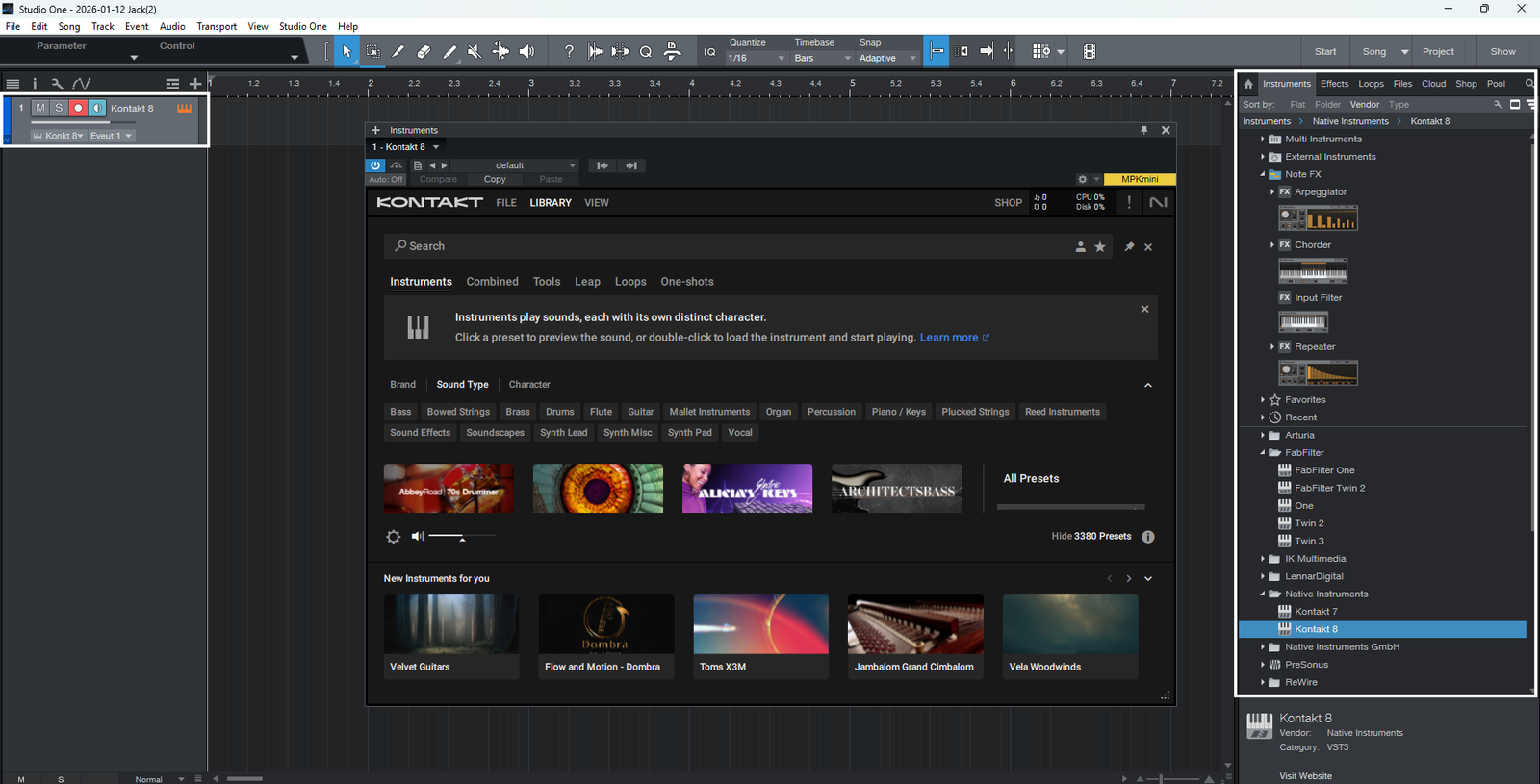
To actually load the plugin, just go to the right bar and select the “Instruments” tab. Then locate the “Native Instruments” folder, expand it, and drag it to the left bar.
Libraries
Kontakt uses libraries directly from Native Instruments but also a tonne of 3rd party libraries are created by many companies. There are both paid and free libraries out there, so here are a few of each to get you started. I’ve tried to cover a range of styles, as what you will want and need will vary depending on what kind of music you want to use Kontakt for.
Paid
GGD
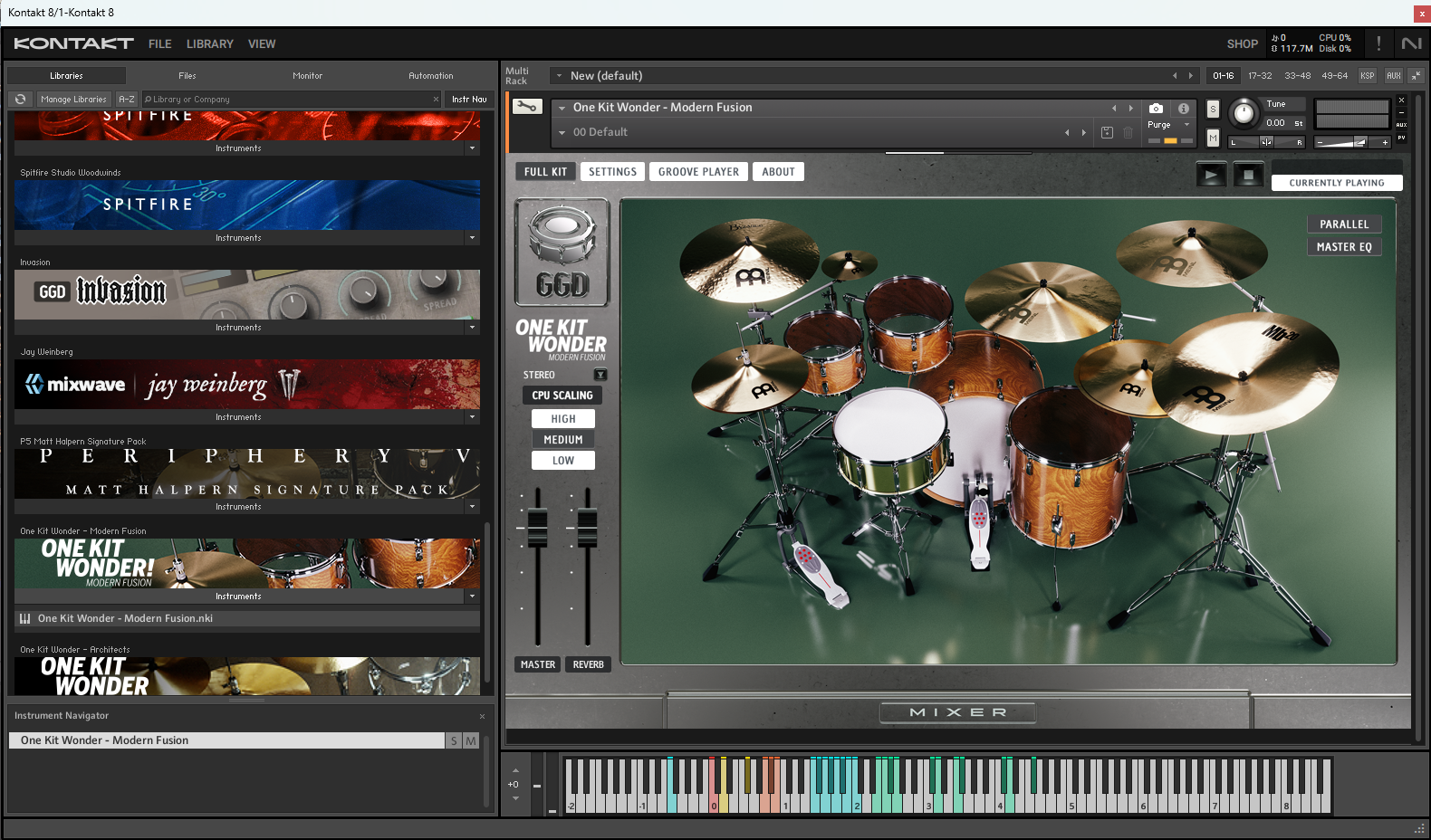
My personal favorite paid libraries for drums come from GGD. They have a wide range of libraries, both for experienced drum programmers and beginners. They have the Modern & Massive library which is an amazing drum library with loads of options for different drums and processing. Then they have their One Kit Wonder kits which have less customization but they just sound great out of the box. They are already processed and mix-ready.
Spitfire Audio
Support Integraudio and purchase here
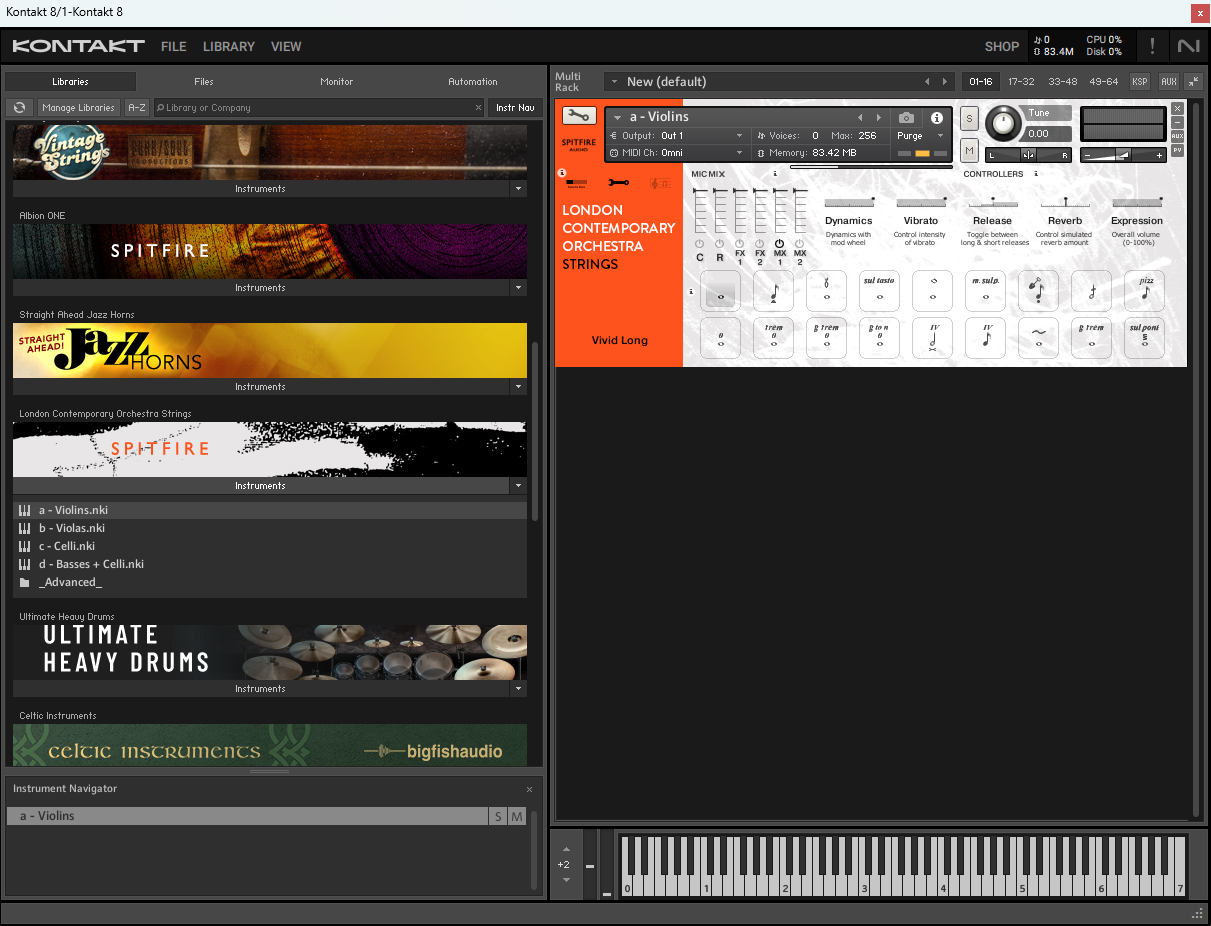
When it comes to re-creating orchestral instruments, there really is no better than Spitfire Audio.
They have a lot of different libraries, some of which aren’t orchestral instruments and sound great, but where they really stand out is for strings, brass, percussion, woodwind and piano.
They have entire orchestra libraries which sound unbelievable.
These are perfect for composing music for games or film, or just adding some orchestration to any song.
https://www.spitfireaudio.com/
Support integraudio here: https://pluginfox.com/collections/spitfire
Output
Support Integraudio and purchase here
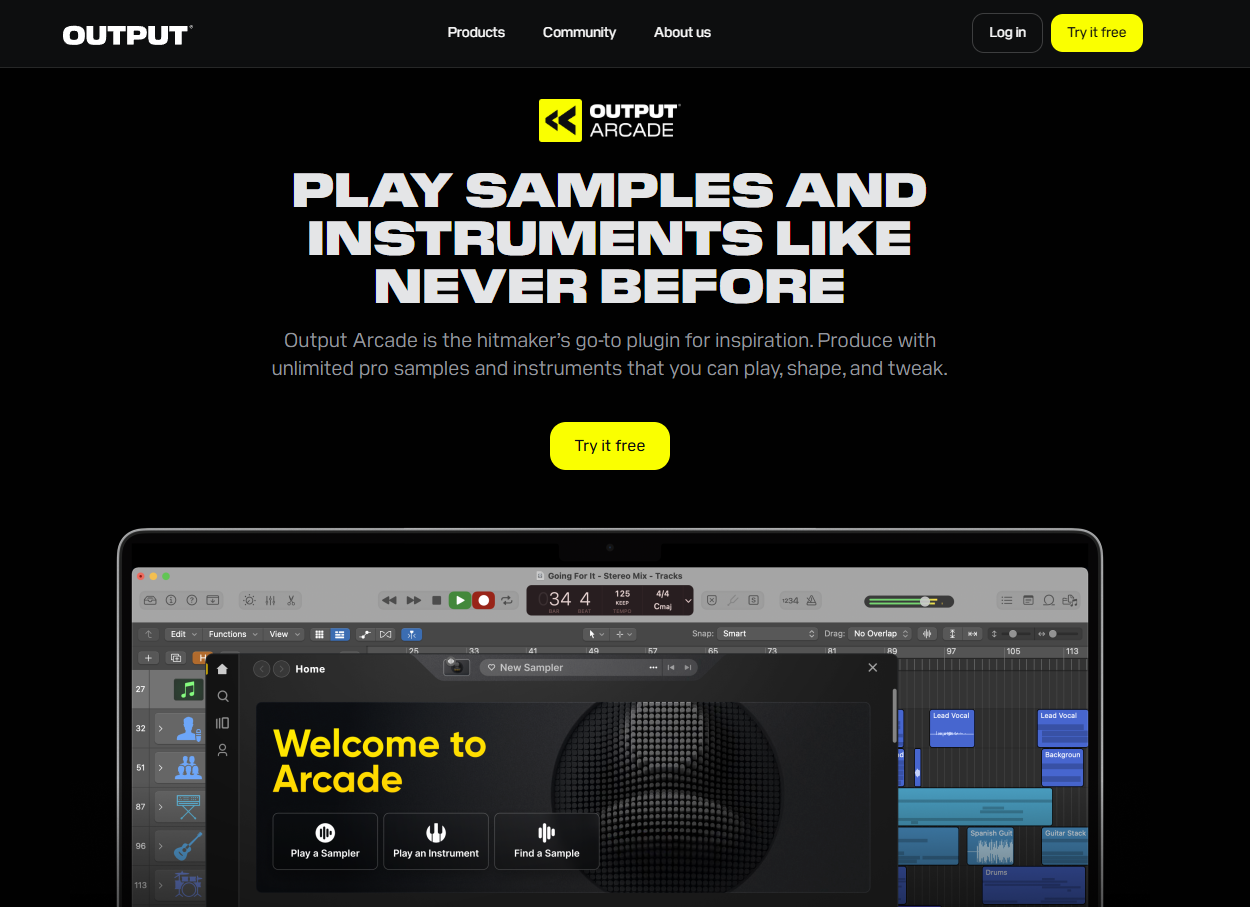
For textures and sample manipulation, Output has some great options. My favourites are Exhale, which is an insane vocal library, and Output, which has a load of different samples in it and allows for endless manipulation of them.
Native Instruments
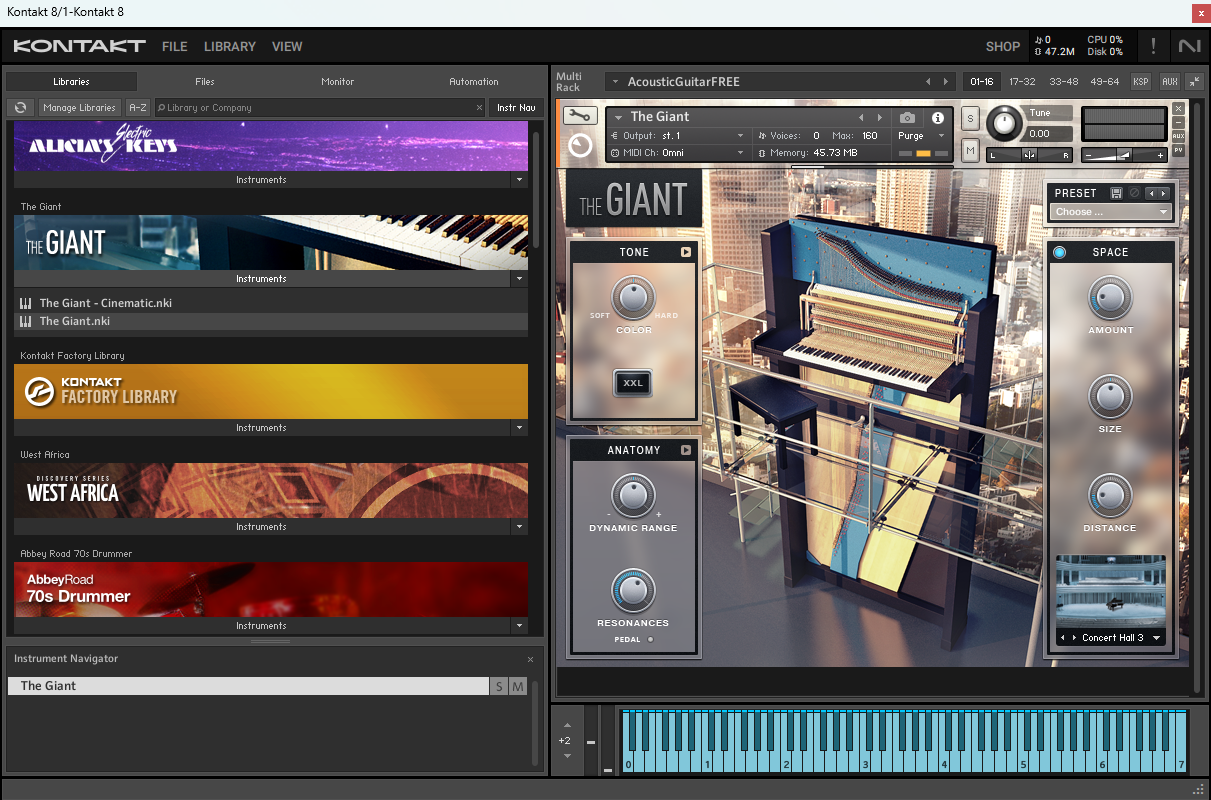
Native Instruments themselves produce amazing libraries.
The Giant is my go to piano library, as it’s simple but versatile. I can always get the sounds I need out of a piano from this library.
https://www.native-instruments.com/en/products/komplete/keys/the-giant
Scarbee
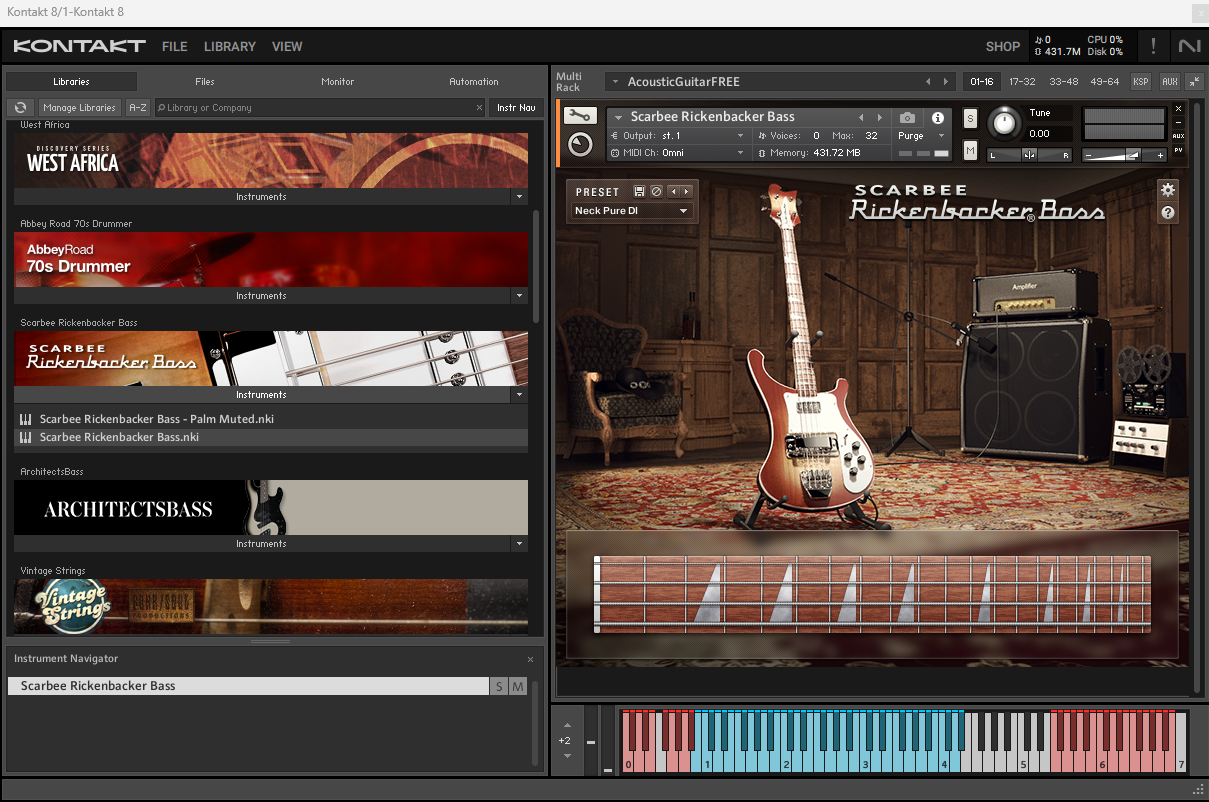
Scarbee has a lot of different libraries to choose from too, but for an amazing bass that fits any genre, their Rickenbacker Bass library is incredible.
A lot of pop songs that you think are a real bass actually use this, such as Attention by Charlie Puth.
https://scarbee.com/products/scarbee-rickenbacker-bass
Free
Fracture Sounds
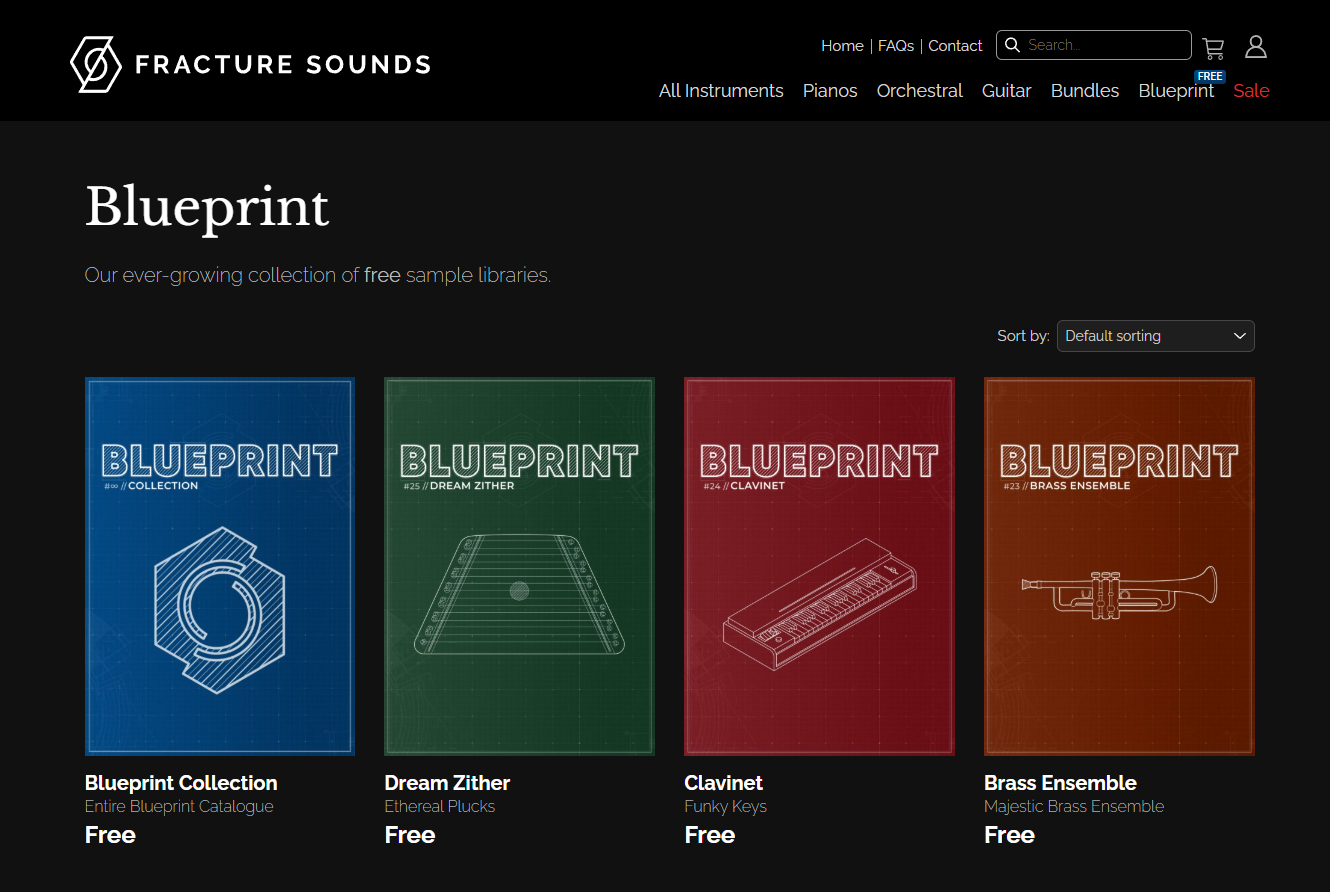
Fracture Sounds have an entire collection of free Kontakt instruments, and they are amazing. I can’t believe that all of them are free.
There’s so many instruments, from drums to strings to brass and so much more. You can even download the entire collection in one.
https://fracturesounds.com/blueprint/
Fine Cut Bodies
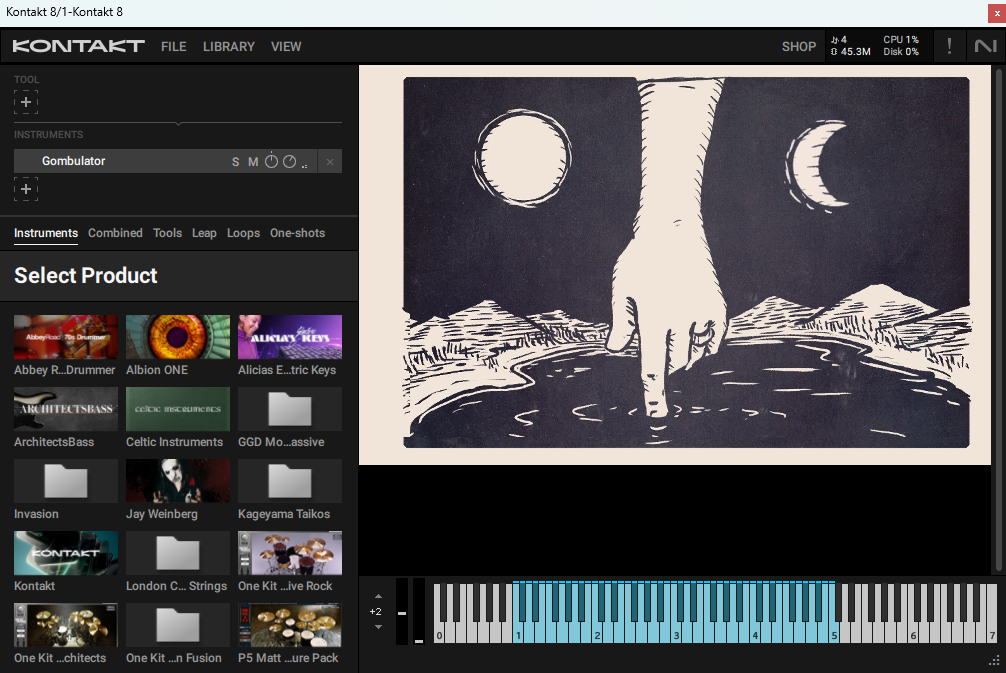
The Gombulator is a fun and interesting library. It’s based on the Yamaha PSR-15 from the 80s.
It kind of sounds like a keyboard you’d get as a child, but it definitely has charm. Running this through spatial and modulation effects can create some really interesting soundscapes. Plus the user interface is so unique. You move the artwork to change the sound.
https://finecutbodies.com/?p=sound_gombulator
Pettin House
Acoustic Guitar Free
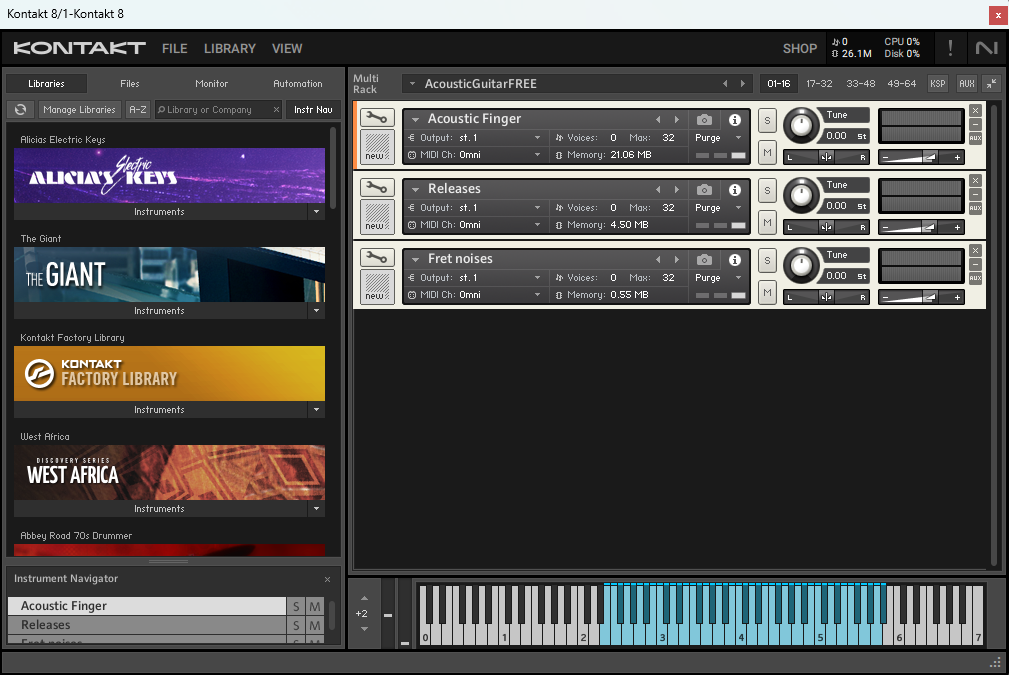
Pettin House also has a lot of free libraries. A favorite of mine is the acoustic guitar library, as it just sounds so realistic.
There’s no artwork or fancy UI. It just sounds great. I’d honestly pay for this one, so the fact that it’s free is insane to me.
https://www.pettinhouse.com/html/download.html
Soniccouture
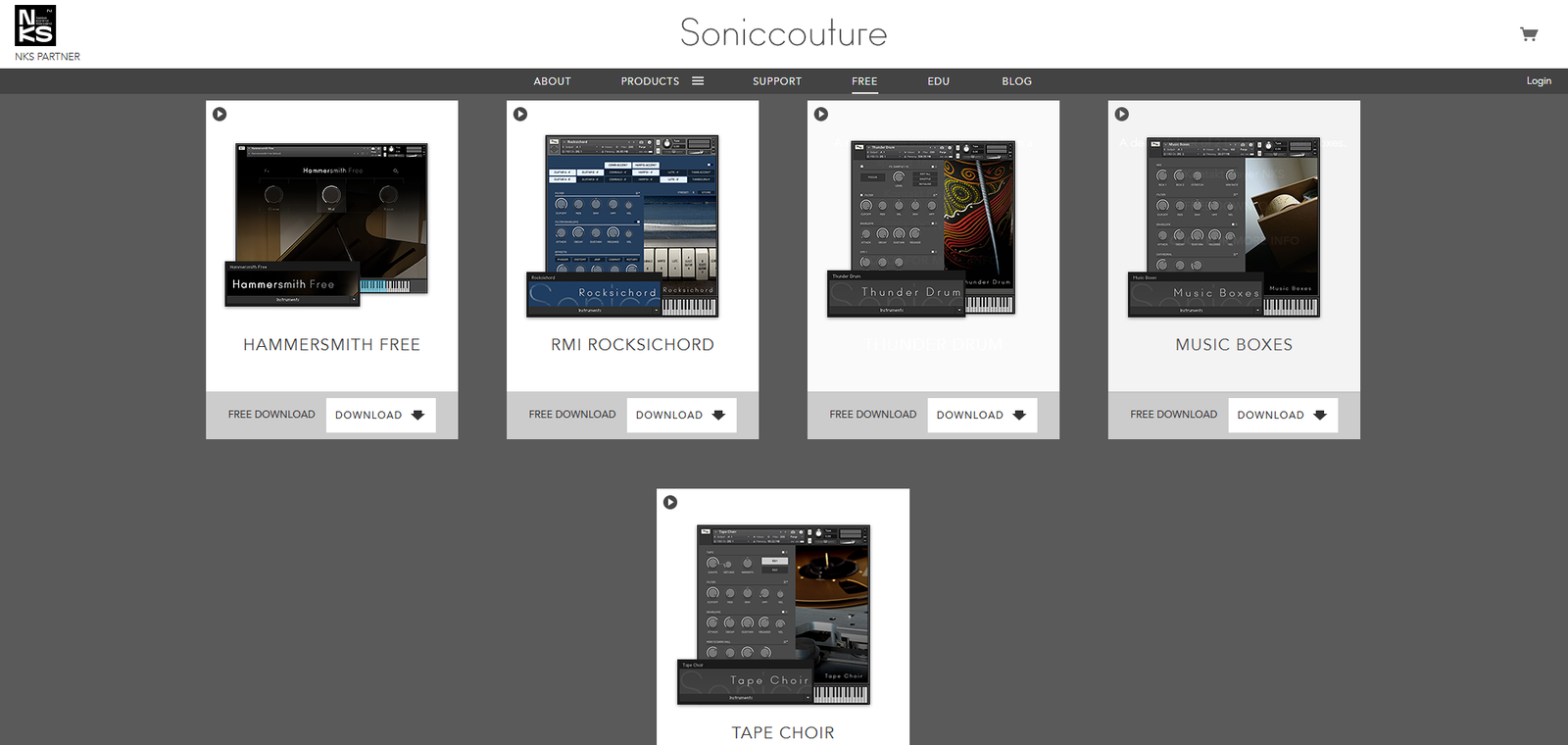
Soniccouture also offers some free libraries. These have some real character to them and can add some unique textures to your productions. My favourites are the Tape Choir and Music Boxes. There’s a real charm to these. They won’t fit every song, but for when you need something specific and nostalgic, they are great.
https://www.soniccouture.com/en/free-stuff

I am a music producer, songwriter, mixing and mastering engineer, sound designer, composer, multi-instrumentalist, vocalist, and musical artist. Yeah, I know, it’s a mouthful. Basically, if it involves music, I am super into it. I recently became a full-time freelancer in the music space, having dabbled in it for around 10 years. I started playing guitar at 7 years old, and I am now almost 30 (almost!). Music has been a main part of my life since I formed memories. I literally cannot remember a time before music. I adore every aspect of creating and working on music, from starting a song to mastering and polishing the final piece. It’s all incredible.
I’ve worked on many projects over the years, including my own. I release pop/indie music where I do everything, from writing to recording to mixing to mastering, and I even create all the content around it. I do this under the name Mauve Shores. A big passion of mine is metal/alternative music, so I release music with my band Midnight Paradise. The band is literally me and my best mates, so it’s super fun. I do everything except for play drums and bass in that. The final project I release under is called Heavy Blink, and I put out LoFi Beats. I’ve even had tracks reach over 250k streams on Spotify.
Outside of my own projects, I have worked in a variety of genres. I’ve written, produced, mixed, and mastered pop songs for the artist No False Feelin’, one of which got in the UK Top 40 Spotify playlist and has almost 1 million streams. I currently create drum and bass remixes for a client, some of which have over 2 million streams. I’ve done mixes for events such as a dance recital and a business event. I’ve also done some audio cleanup and sound design for a live voice over group that do their anime in person. Right now I am working on a mixture of my own stuff, and with clients. For example, I am beginning to produce, mix, and master a death metal album, and also at the same time a teen pop style song. I love the variety that comes with this line of work.
I am also super nerdy about the gear and technology revolving around music. I could talk for days about my favorite plugins for specific things. Don’t even get me started on EQs. I began as just a guitar player, so my gear obsession has definitely been more towards pedals, but the more I got into production, the more this expanded to everything.
Outside of music, I am into a lot of different things. I love to connect with nature, whether this is through hikes or even making terrariums. I really enjoy skateboarding, playing rugby, and running. I’m also into creating things in general, I always have some DIY projects going, whether that is woodwork, or electronics. Before going full-time as a freelancer, I was a software developer for 6 years, so programming is something I still enjoy and do in my free time. Of course, we can’t forget about how much I enjoy spending time with my wife and my friends.