

Spotify friend activity is a feature that allows you to see what your friends are listening to on Spotify in real time. Sometimes, you cannot exercise this feature and may face an error “Spotify Friend Activity Not Showing Up.” This post will list the possible solutions in detail to fix the error.
Spotify friend activity errors can occur due to various reasons. Technical issues on Spotify’s end, network connectivity problems, or account settings can all contribute to the occurrence of these errors. This section provides the best solutions to encounter all the causes and fix them:
How to Fix Spotify Friend Activity Error?
1. Check Your Internet Connection
The Friend Activity feature on Spotify requires a stable internet connection to work properly. You may encounter the Friend Activity Error if you have a weak or unstable internet connection. Let’s see how you can troubleshoot your internet connection:
First, switch to a better internet connection or change the internet-providing server. Most users can fix the internet problem at this step. If you are still unable to fix it, you need to troubleshoot the network connections as follows:
- For Android/iPhone
Open the General Settings from the path, i.e., Settings > General, where you need to scroll down and then choose the option, Reset Network Settings:

A new window appears that contains multiple reset options where you have to choose Reset Network Settings. From the same menu, you can reset all settings, reset the keyboard dictionary, and more:

Then, click on the Reset option to proceed further. After that, you will be asked to enter the passcode of the phone to complete the reset process. Once done, it is recommended to reboot your phone :

- For Desktop
Go to the following path, “System > Troubleshoot > Other troubleshooters,” and click on the Run in front of the Internet Connections:

2. Log Out and Log Back In
Sometimes, the device limit of Spotify is reached, which does not allow you to perform the operations smoothly. In such a case, you must log out and back into the account. This can be carried out as follows:
- For Android/iPhone
Click on the Settings gear in the top-right corner of the Spotify app. Scroll down inside the Settings and choose the Logout option. After that, log back into Spotify again:

- For Desktop
Open Spotify’s desktop application, navigate to the profile’s dropdown menu launcher and then choose the Logout option. After logging out, you can log back in to check if it works:

3. Sign out From All Devices
Spotify allows a limited number of devices per plan. If you exceed the device limit, only the log-out will not work. In that case, you need to sign out from all the devices. First, open the Account option from the drop-down menu of the profile:

Clicking on this will navigate you to the browser’s window, where you have to scroll down, and you will see the Sign out everywhere option. After doing so, you will be logged out of all the devices. Then, you can log back in to maintain the device count limit.

4. Update Spotify
Whenever the developers initiate an update, it offers some bug fixes and performance improvement. If you do not update the application to the latest, your Spotify may malfunction, invoking the Spotify friend activity error. To fix this, you need to update the application to the latest version by following the steps demonstrated below:
- For Android/iPhone
Open your App Store and search for Spotify; if there is any update, you will see an UPDATE button else, there will be an OPEN button. As in our case, it is an UPDATE. If the option is OPEN, this means you already have the latest version:

- For Desktop
Open the App Store from where you downloaded the application, i.e., Microsoft Store, and then check if any update is available. Right now, no update is available on the desktop version of Spotify:

5. Clear Spotify Cache
The cache is the memory that boosts the process of routine operations on the application. If that is corrupted or overflowed, the normal operations on Spotify do not function correctly, which may invoke the friend activity error. Therefore, it is recommended to clear the Spotify cache by following the below-mentioned methods.
- For Android/iPhone
Open Spotify Settings and go to the Storage option. Inside the storage option, you will get the Clear Cache option. Click on it to free up Spotify’s cache:

- For Desktop
Open Settings from the profile’s dropdown menu. Scroll down the menu to locate the Clear Cache option inside the Storage settings:

6. Disable the Firewall
Firewalls and privacy settings on your computer or mobile device may prevent Spotify from accessing the internet, which can cause the Friend Activity Error. To avoid such happenings, you must disable the firewall.
Follow the path “Control Panel > System and Security > Windows Defender Firewall > Turn Windows defender firewall on or off >Customize Settings,” and turn off the windows defender firewall for public and private both networks:

7.Disable VPN
If you are using a VPN while using Spotify, it may cause the Friend Activity Error. Open the VPN settings inside your Network and Connections option to disable your VPN. As in our system, it is as follows:
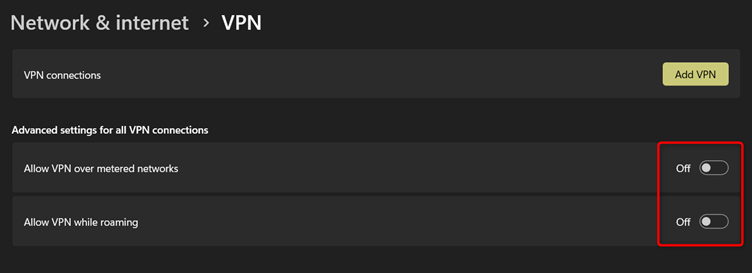
If you have any third-party VPN, you must locate it and then turn it off. Once you’re done with this, restart your system so as Spotify.
8. Check Third-Party Apps and Services
Third-party apps and services integrated with Spotify may cause the Friend Activity Error. To resolve this, disconnect any third-party apps and services integrated with Spotify, such as Last.fm or Facebook. You can remove the social form your Spotify settings. To do so, open profile settings by clicking on your Profile Image and then scroll down to social. Also disable “Publish my new playlist” and “Show my followers and following” options.
Restart Spotify and check if the Friend Activity Error has been resolved. If the error is resolved, reconnect the third-party apps and services individually to identify which is causing the issue.

9. Reinstall Spotify
If none of the previous solutions work, reinstalling Spotify may be your best option. This will remove any corrupted files and settings causing the Friend Activity Error. First, you need to uninstall the currently installed version.
- For Android/iPhone:
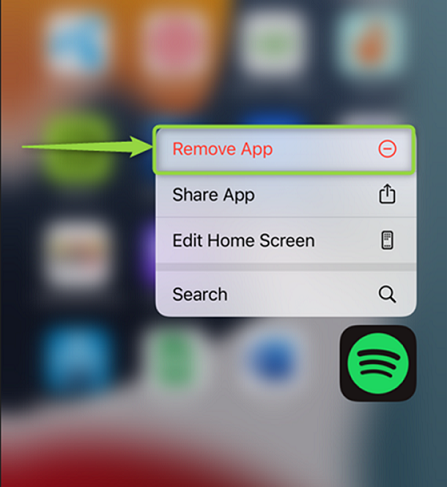
Locate the Spotify app on your applications menu and then long-press on the application. Then, choose the Remove App option:
- For Desktop
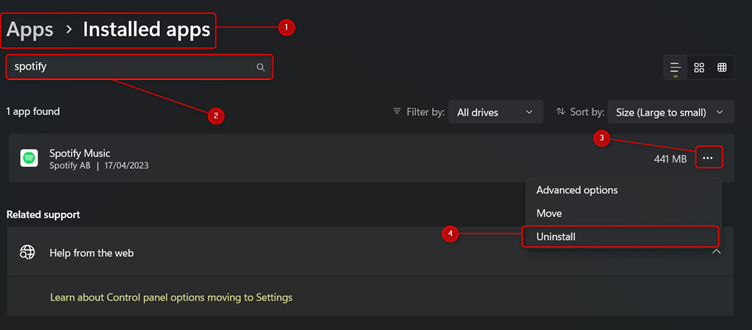
Go to the Add/Remove Programs in the system settings and then search for Spotify, where you will get the Uninstall button to remove it from the system. Once the application is uninstalled, go to the App Store again and get a fresh copy:
10. Contact Spotify Support
Even after uninstallation, if you cannot get rid of the friend activity error, you can contact Spotify support, which is a quick and efficient way to reach out to them and convey your problem. There are multiple ways to contact Spotify support. However, reaching out on Twitter is recommended.
The official support of Spotify is available on Twitter with the name Spotify Cares. Navigate to Spotify Cares on Twitter and initiate a direct message request (alongside the detailed query), and they will get back to you shortly.
Bottom Line
Spotify’s Friend Activity feature is a popular and useful feature that allows users to see what their friends are listening to in real–time. However, like any other feature, it may encounter errors or issues that can prevent it from working properly.
This article has outlined several possible solutions to fix the Friend Activity error on Spotify, including checking the internet connection, logging out and logging back in, signing out from all devices, updating Spotify, clearing Spotify cache, and disabling the firewall.
By following these solutions, users can troubleshoot and resolve the Friend Activity error on Spotify and continue enjoying this feature to connect with friends and discover new music.

Integraudio is a audio-focused blog that explores everything from VST plugins and studio hardware to practical guides, tips, and tutorials on Spotify, AirPods, podcasting, Discord, and beyond.