

Picture this: You’re eager to listen to your favorite playlist, but your AirPods won’t show up on Bluetooth. Frustrating, right? Don’t worry – we’ve got you covered.
AirPods not showing up in Bluetooth? Try these 9 fixes: check battery life, restart devices, confirm compatibility, reset AirPods, forget & reconnect, update device software, check AirPods firmware, reset network settings, or seek professional help. One of these solutions should get you connected.
Before diving into the solutions, let’s take a moment to understand the issue at hand. Your AirPods rely on Bluetooth technology to connect to your devices, and while it’s generally reliable, hiccups can occur.
Connection issues can stem from various factors, such as low battery life, outdated software, or even just a temporary glitch in the system.
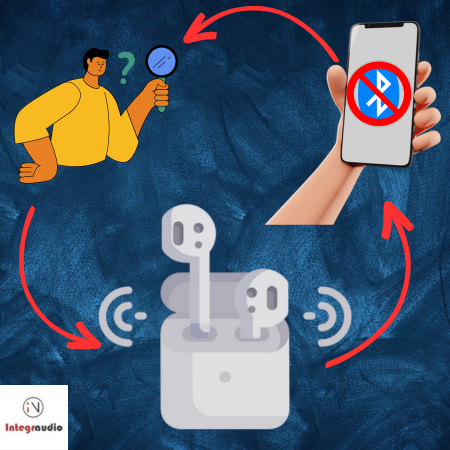
So, what’s the best way to tackle these Bluetooth woes? The key is to remain patient and work through potential solutions one step at a time. In this guide, we’ll explore nine ways to fix the problem and get your AirPods connected again.
9 Ways To Fix AirPods Won’t Show Up on Bluetooth
- Check Your AirPods’ Battery Life
- Restart Your Devices
- Make Sure Your Devices Are Compatible
- Reset Your AirPods
- Forget Your AirPods and Reconnect
- Update Your Device’s Software
- Check for AirPods Firmware Updates
- Reset Network Settings
- Seek Professional Help
1. Check Your AirPods’ Battery Life
Let’s start with the basics. Are your AirPods charged? If they’re out of juice, they won’t show up in your Bluetooth menu. To make sure your AirPods have enough battery life to connect, follow these steps:
- Inspect the charging case: Place your AirPods in their charging case and close the lid. The LED light on the case will give you an indication of their charging status. If it’s amber, they’re charging; if it’s green, they’re fully charged.
- Wait and check: If your AirPods are charging, give them a few minutes to gain some power. You don’t need to wait for a full charge, but make sure they have enough battery life to function.
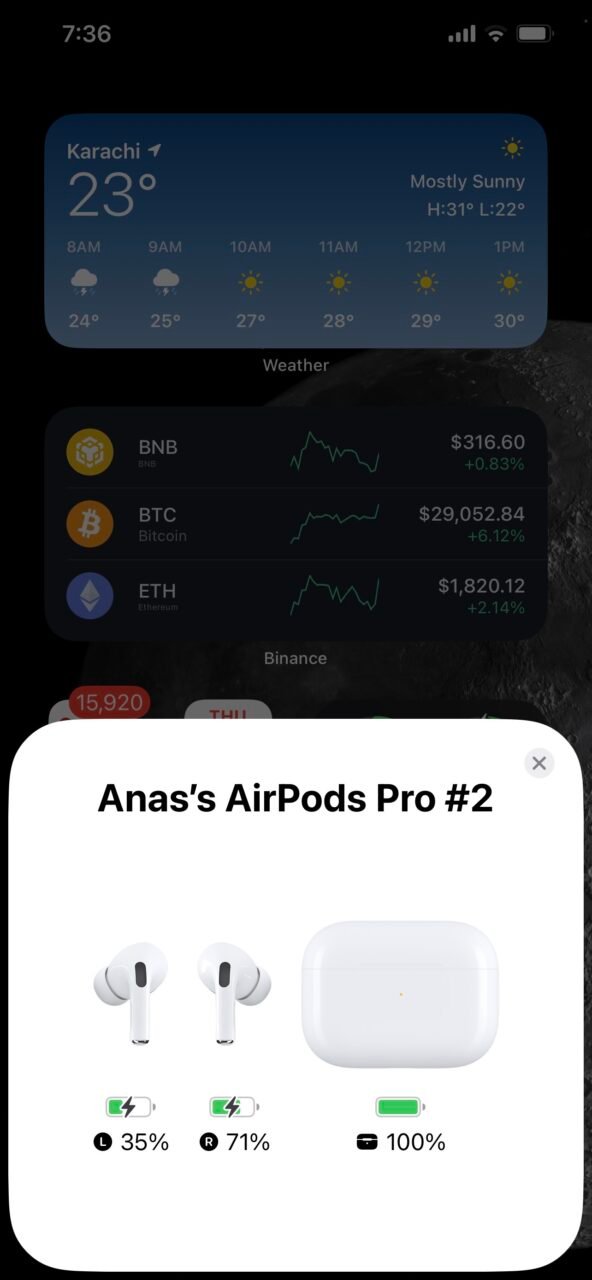
- Check battery life on your device: If you’re using an iOS device, you can quickly check your AirPods’ battery life by opening the case near your device. A pop-up will appear, showing the battery percentage for both the AirPods and the case.
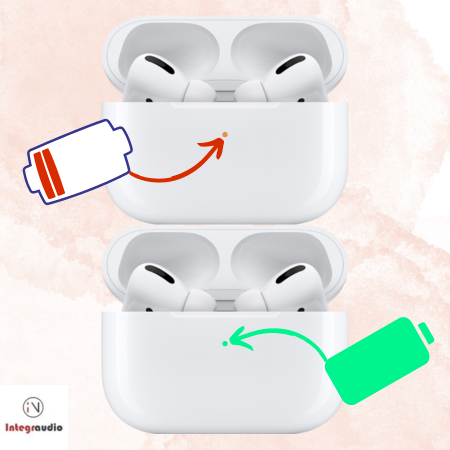
After ensuring your AirPods have sufficient battery life, try connecting them to your device again.
Still not showing up? Let’s move on to the next step.
2. Restart Your Devices
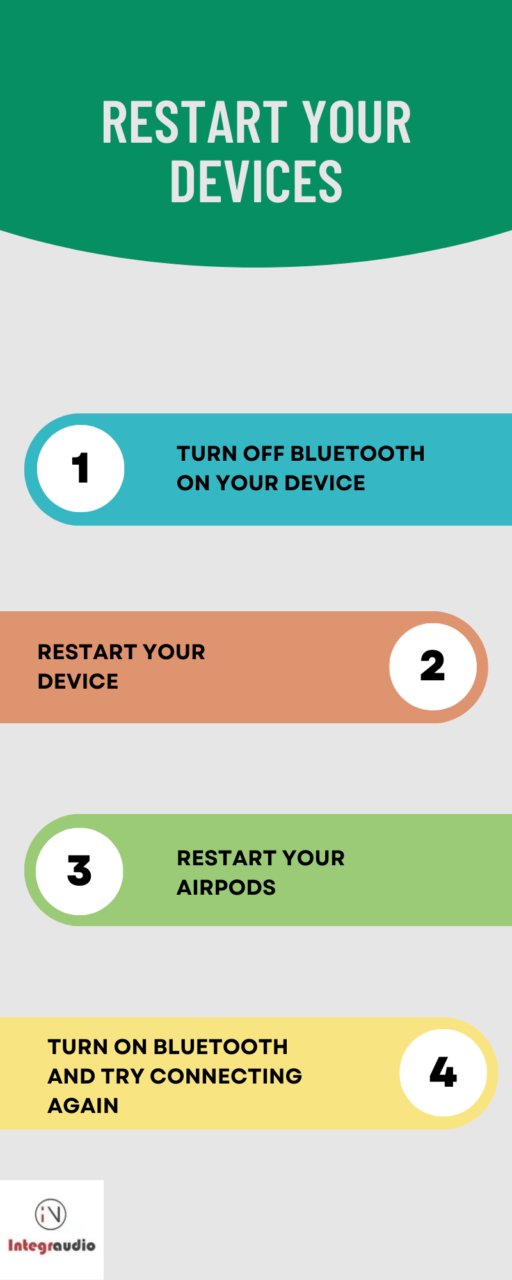
It might sound cliché, but sometimes turning your devices off and on again can work wonders. Restarting your devices can help clear temporary glitches or conflicts that might prevent your AirPods from showing up in Bluetooth. Here’s a detailed breakdown of the process:
- Turn off Bluetooth on your device: Disable Bluetooth temporarily to ensure a clean slate when you try reconnecting.
- Restart your device: Power off your phone, tablet, or computer, wait for a minute, then power it back on. This allows your device to reset its internal systems and potentially resolve any issues.
- Restart your AirPods: Place your AirPods in their charging case, close the lid, and wait for 30 seconds. This short break can help them reset their connection status. After 30 seconds, open the lid and remove your AirPods.
- Turn on Bluetooth and try connecting again: Enable Bluetooth on your device, then attempt to connect your AirPods once more. With any luck, this restart process will have resolved the connection issue.
No luck? Keep reading.
3. Make Sure Your Devices Are Compatible
Compatibility is the cornerstone of a successful Bluetooth connection. While AirPods work seamlessly with Apple devices, they can also connect to non-Apple gadgets, such as Android phones and Windows PCs. However, it’s essential to verify whether your specific AirPod model is compatible with your device.
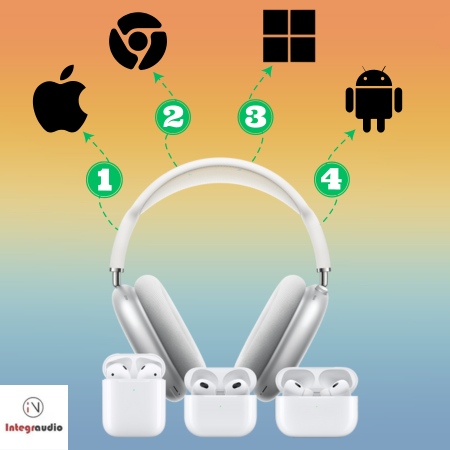
First, check out Apple’s compatibility guide to see if your AirPods and device are a match made in tech heaven. If you’re using non-Apple devices, consult the manufacturer’s documentation or support pages for Bluetooth compatibility information.
Remember, certain features may be limited or unavailable when connecting your AirPods to non-Apple devices. For instance, you might not be able to use Siri or customize touch controls. Be prepared for these differences when connecting to a non-Apple device.
All good on compatibility? Let’s try another fix.
4. Reset Your AirPods
If compatibility isn’t the issue, resetting your AirPods might do the trick. This process clears any connection hiccups and essentially gives your AirPods a fresh start. Follow these steps to reset your AirPods:
- Make sure your AirPods are in their charging case, with the lid closed.
- Close the lid, wait 30 seconds, then open it again.
- Press and hold the button on the back of the case until the LED light flashes amber, then white. This process may take up to 15 seconds.
- Release the button when the light flashes white. Your AirPods are now reset and ready to be reconnected to your device.
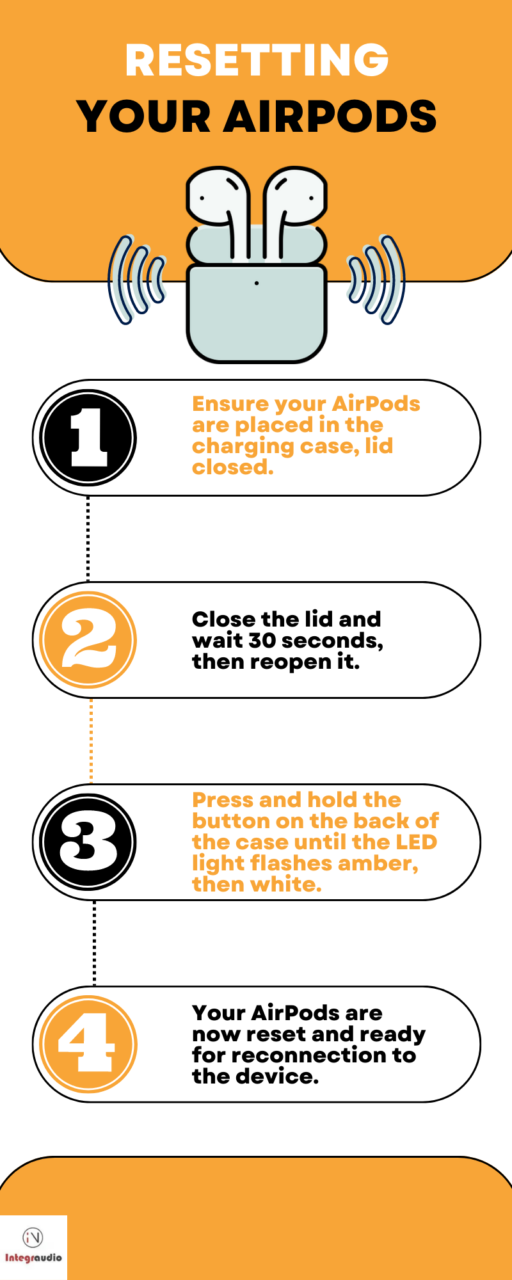
Once you’ve reset your AirPods, open the lid near your device and follow the on-screen prompts to reconnect. If you’re using a non-Apple device, head to your Bluetooth settings to pair your AirPods manually.
Did that do the trick? If not, let’s keep going.
5. Forget Your AirPods and Reconnect
Sometimes, we all need a fresh start. So does your device with your AirPods. Occasionally, previous Bluetooth connections can interfere with your AirPods’ ability to connect properly. In such cases, it’s best to make your device forget the AirPods and start fresh.
Here’s a more detailed look at how to forget and reconnect your AirPods:
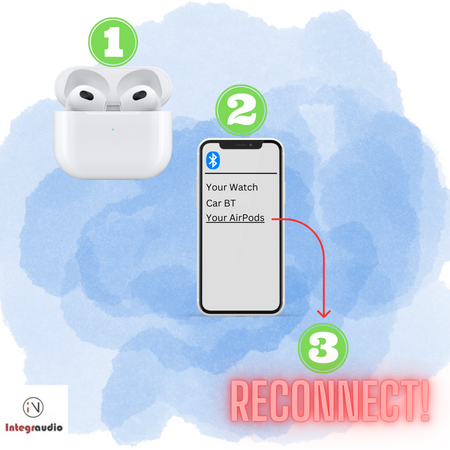
Step #1 – Access Bluetooth settings: On your device, navigate to the “Bluetooth” settings menu.
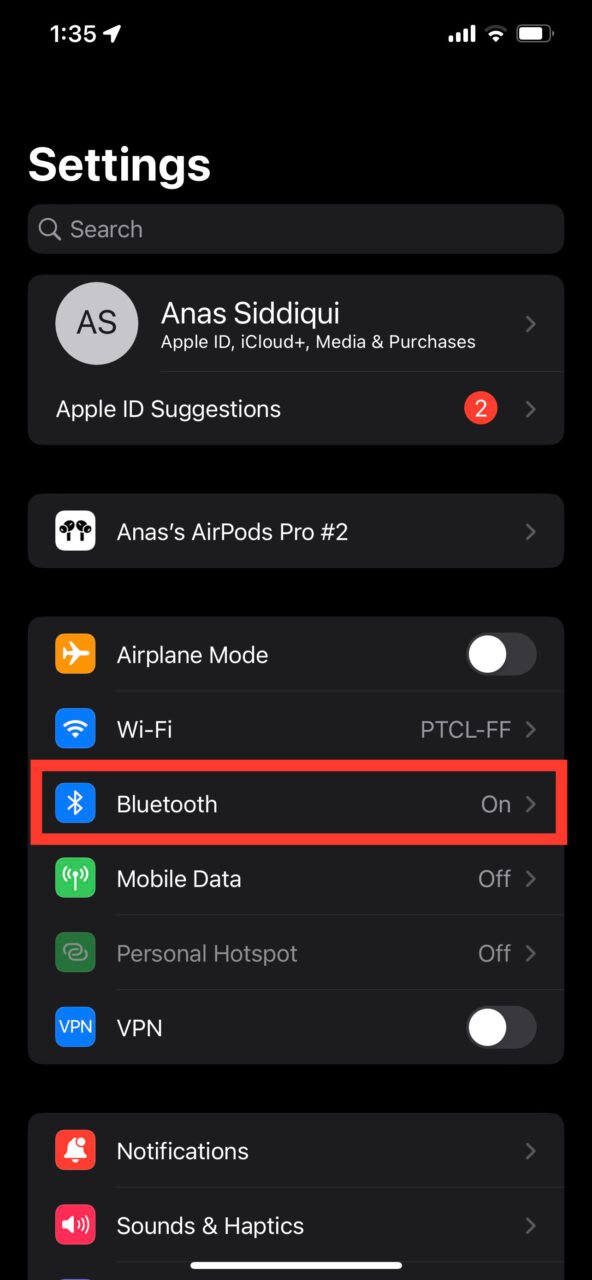
Step #2 – Find your AirPods: Locate your AirPods in the list of connected devices.
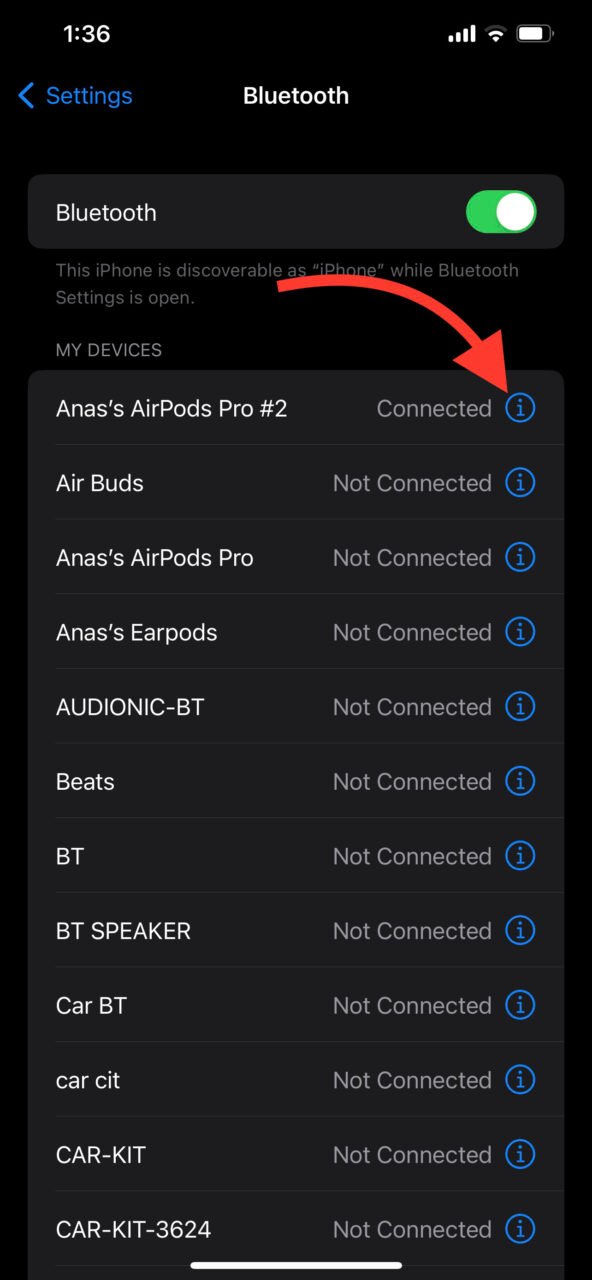
Step #3 – Forget the device: Select your AirPods and choose “Forget This Device” or “Unpair.” This will remove the existing connection between your device and AirPods.
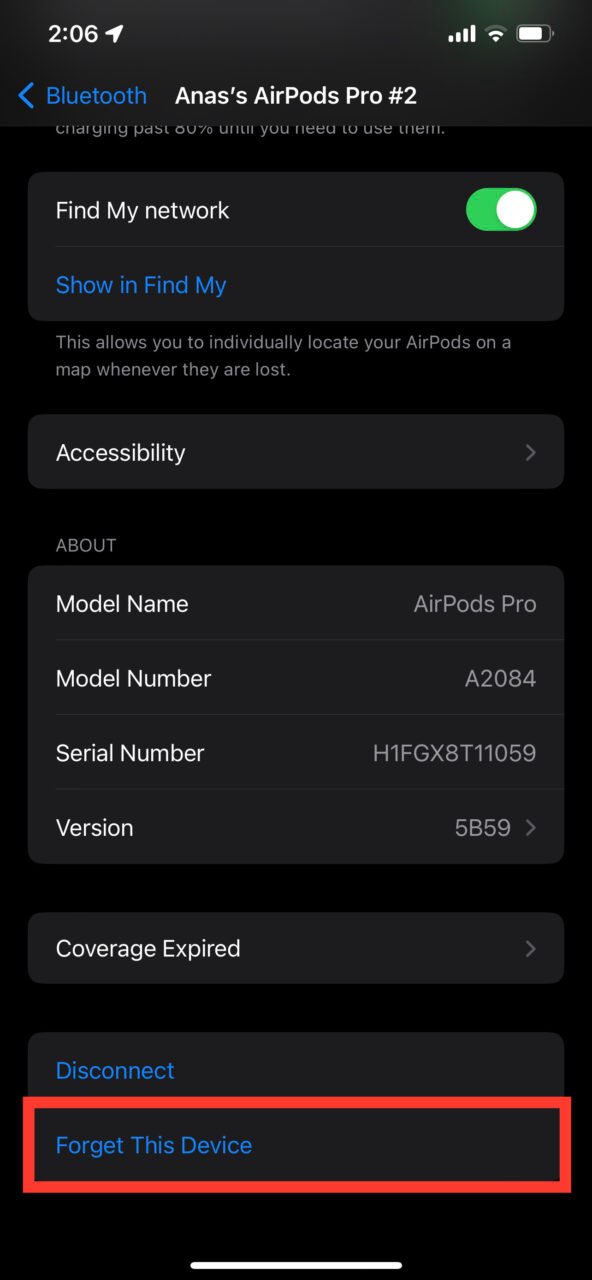
Step #4 – Reset your AirPods: Follow the steps outlined in section 4 to reset your AirPods. This ensures a clean start for the reconnection process.
Step #5 – Reconnect your AirPods: Place your AirPods in discovery mode by opening the case lid with the AirPods inside. On your device, turn on “Bluetooth”, find your AirPods in the list of available devices, and tap to reconnect.
Still no connection? Stay with us – we’ve got more fixes to try.
6. Update Your Device’s Software
Outdated software can lead to various issues, including Bluetooth connectivity problems. Ensuring your device is running the latest software can help eliminate potential glitches. Here’s how to check for updates and install them if necessary:
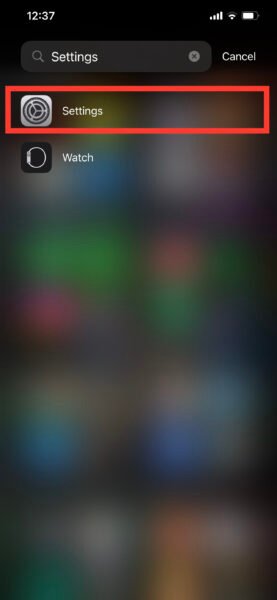
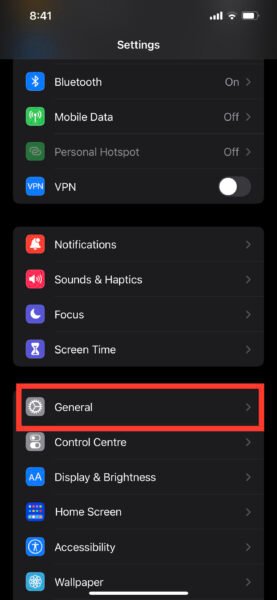
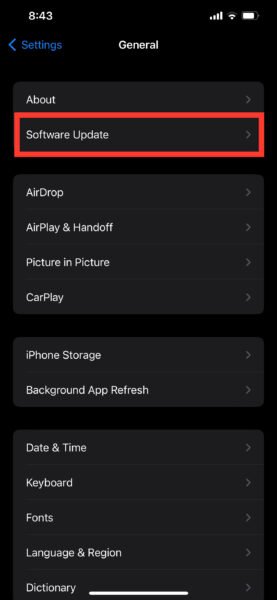
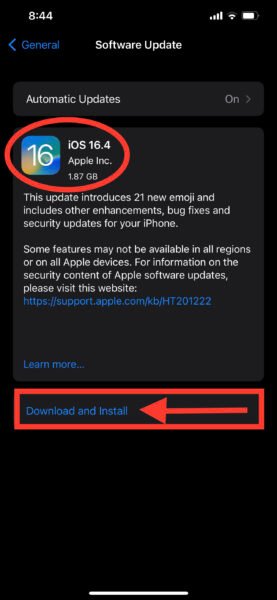
- iOS devices: Open the “Settings” app, tap “General,” and then tap “Software Update.” If an update is available, follow the on-screen instructions to download and install it.
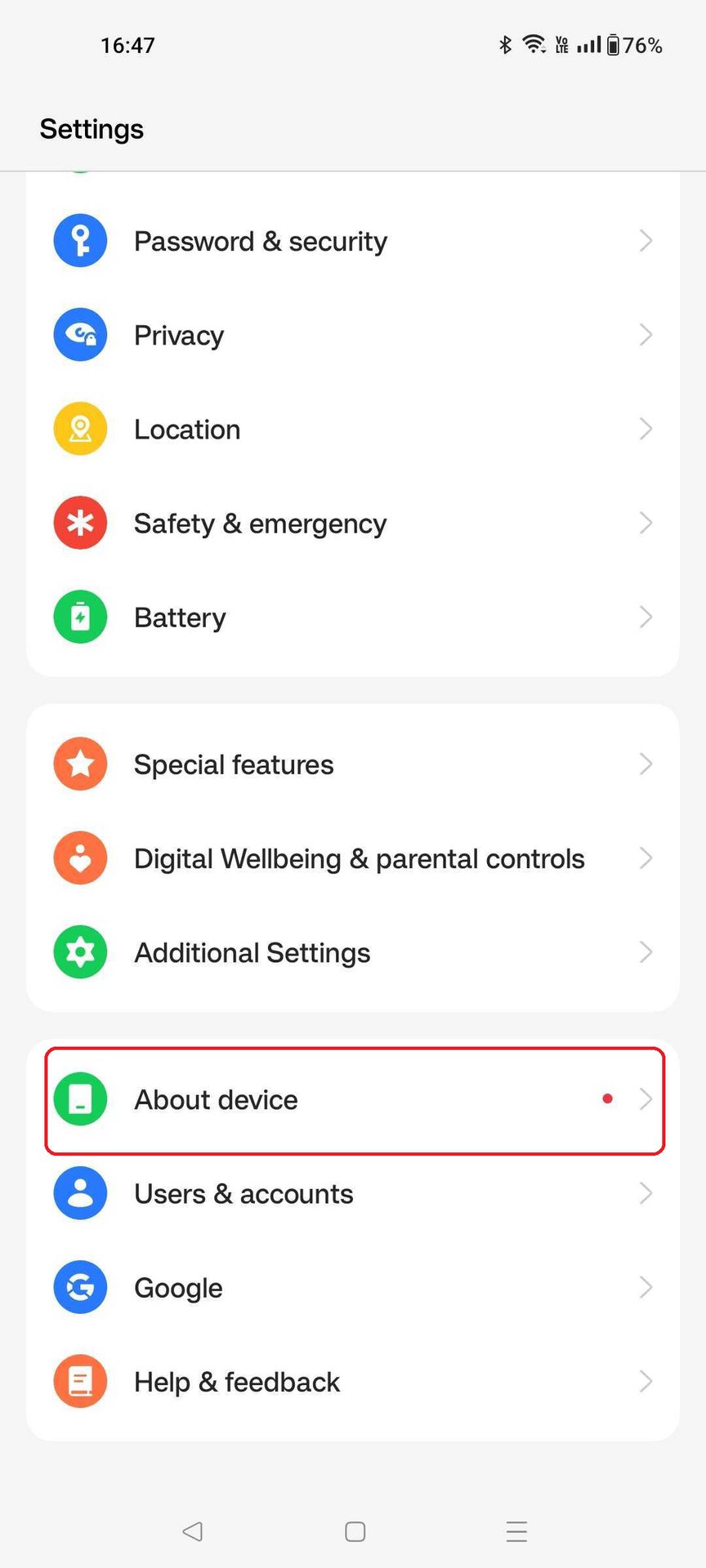
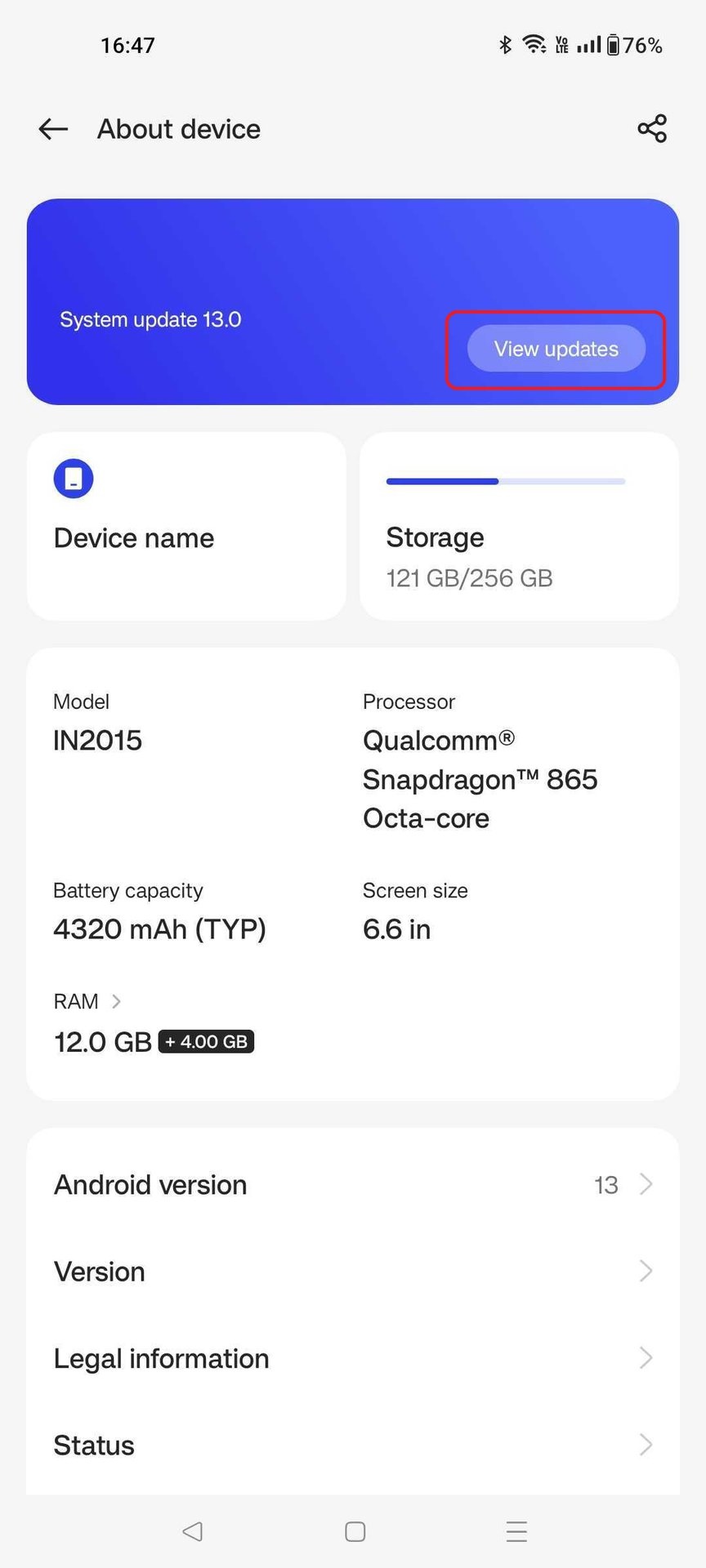
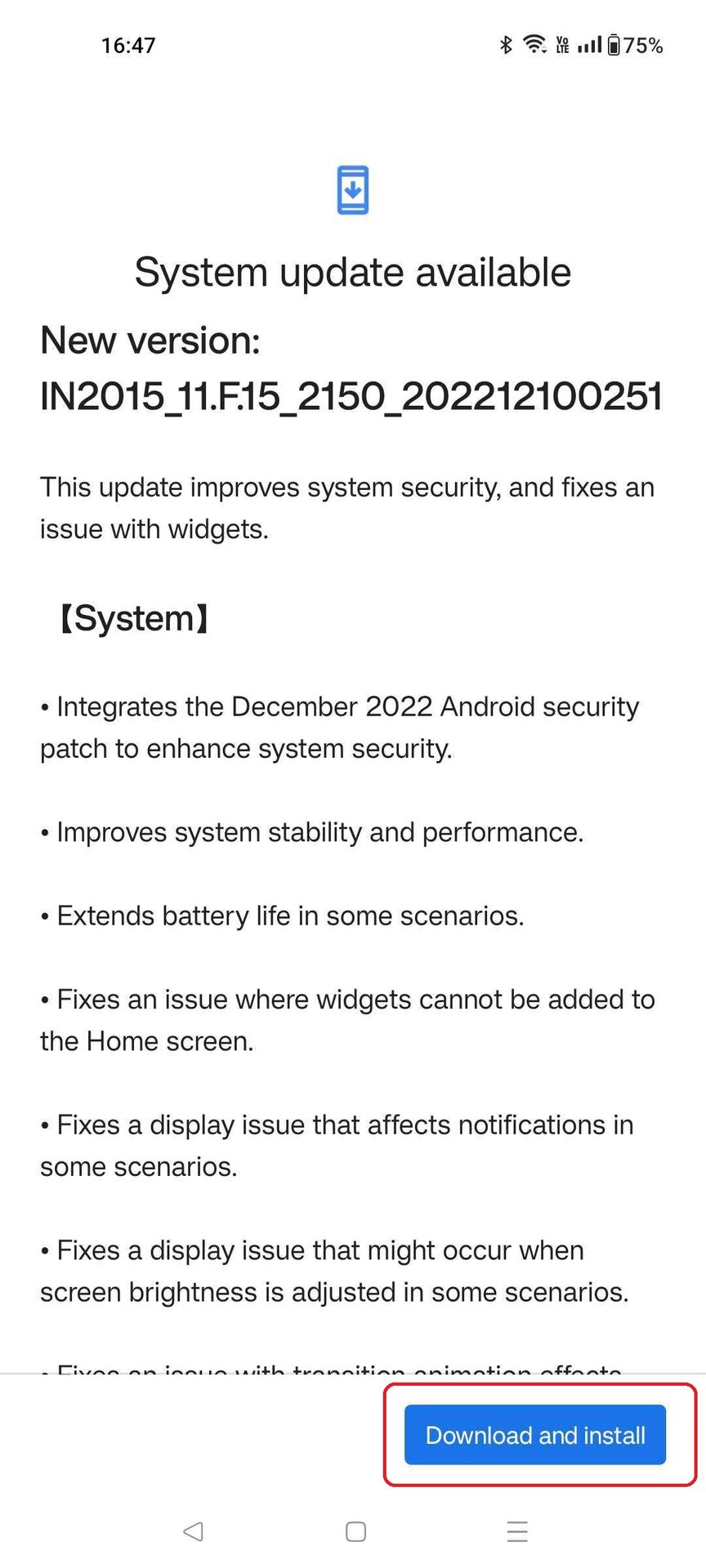
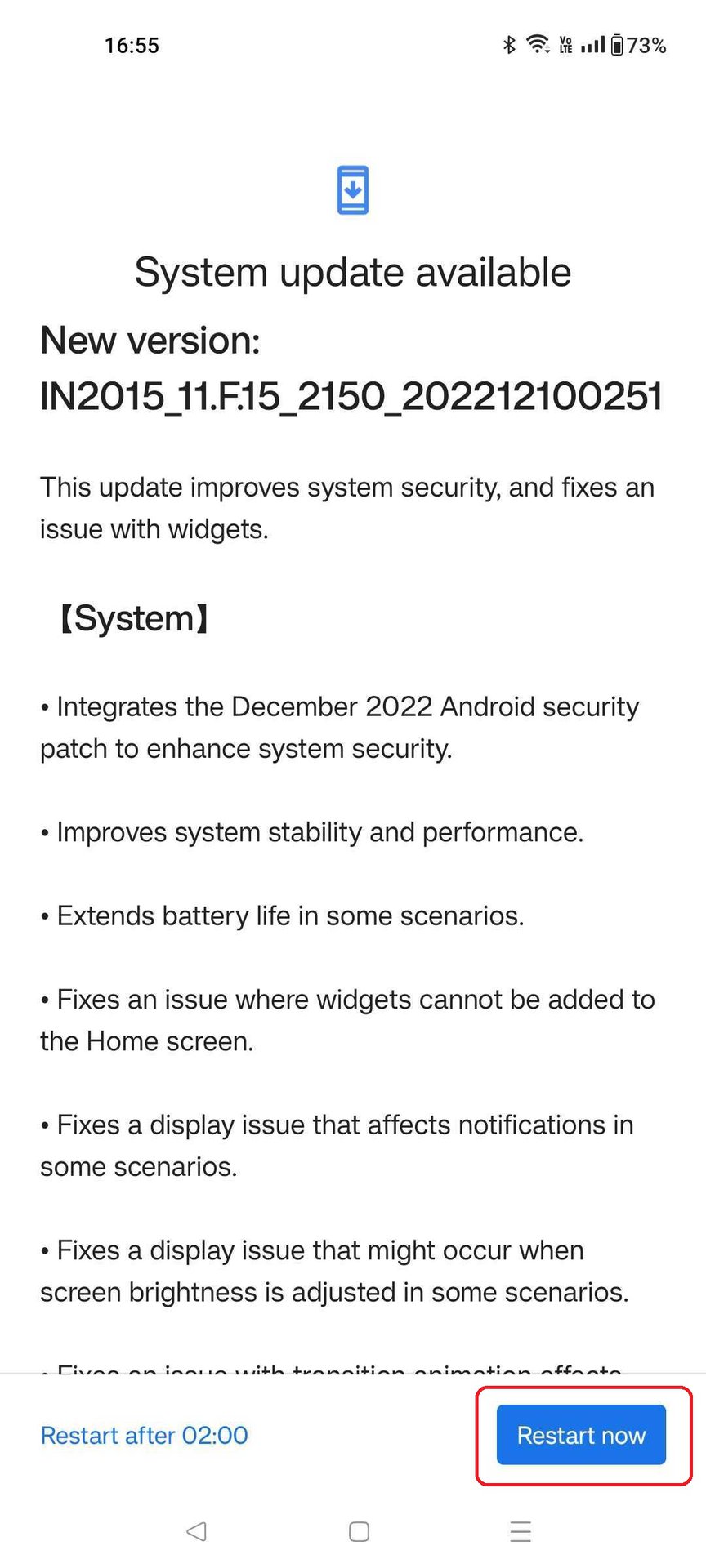
- Android devices: Open the Settings app, scroll down to “About phone,” or “System” tap “Software information,” or “Check updates.” If an update is available, follow the on-screen instructions to download and install it.
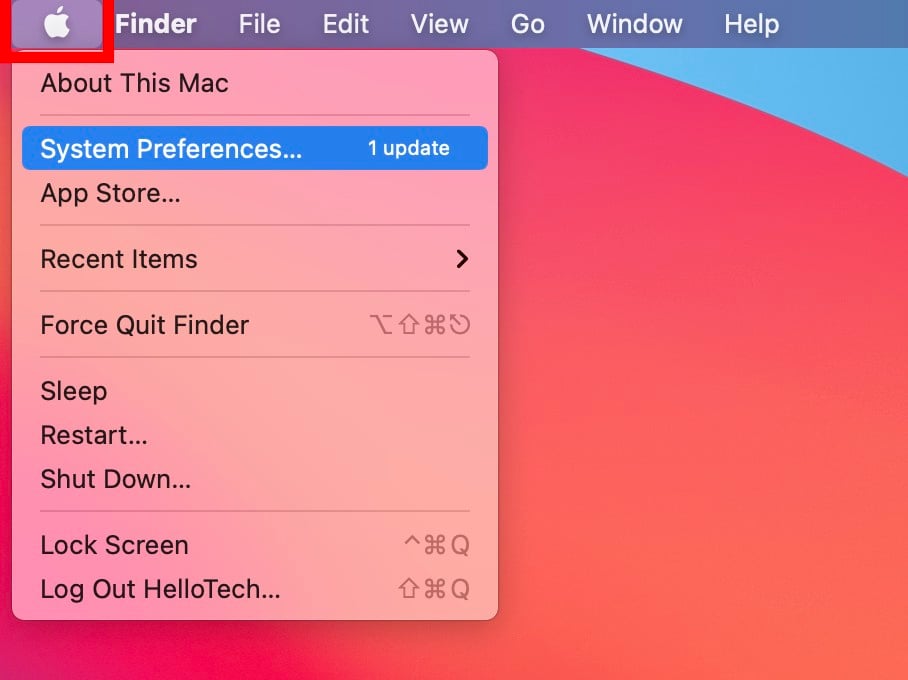
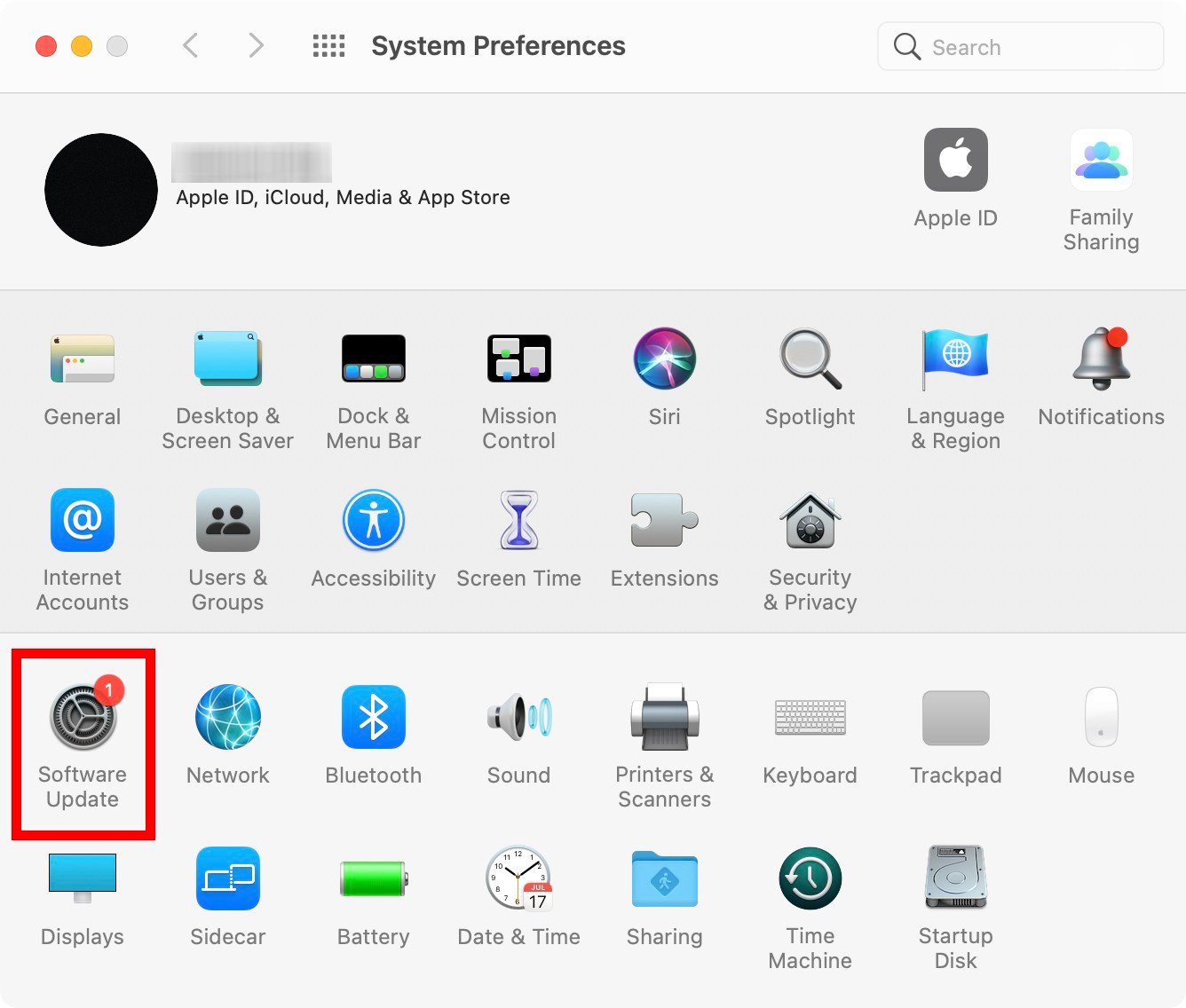
- macOS devices: Click the Apple menu in the top-left corner, select “System Preferences,” and then click “Software Update.” If an update is available, follow the on-screen instructions to download and install it.
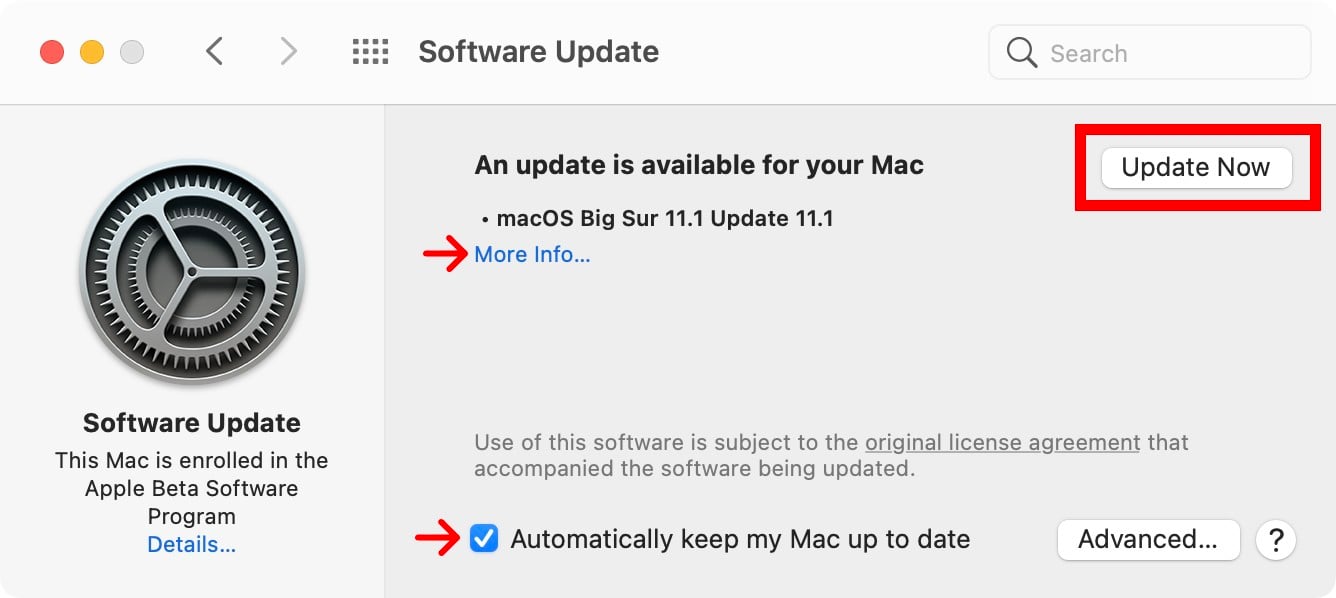
Remember, updating your device’s software not only addresses Bluetooth issues but also ensures optimal performance and security. So, it’s always a good idea to keep your software up to date.
Updated and still not connecting? Let’s continue.
7. Check for AirPods Firmware Updates
AirPods, like many other electronic devices, run on firmware – specialized software that controls their functions and features. Sometimes, outdated firmware can lead to connection issues or other glitches.
To ensure your AirPods are running at peak performance, it’s essential to keep their firmware up to date. Here’s a more detailed look at how to check for firmware updates:
Step #1: Connect your AirPods to your iOS device by placing them in your ears.
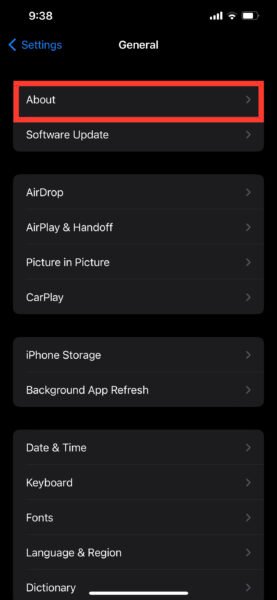
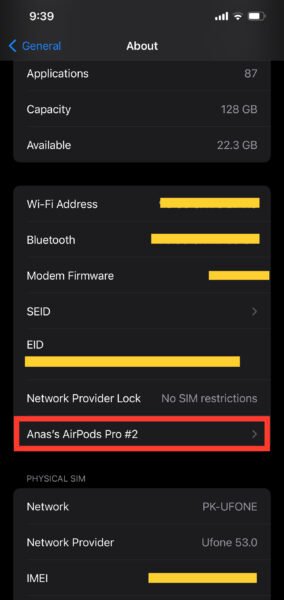
Step #2: On your iOS device, go to “Settings” > “General” > “About” > “AirPods.”
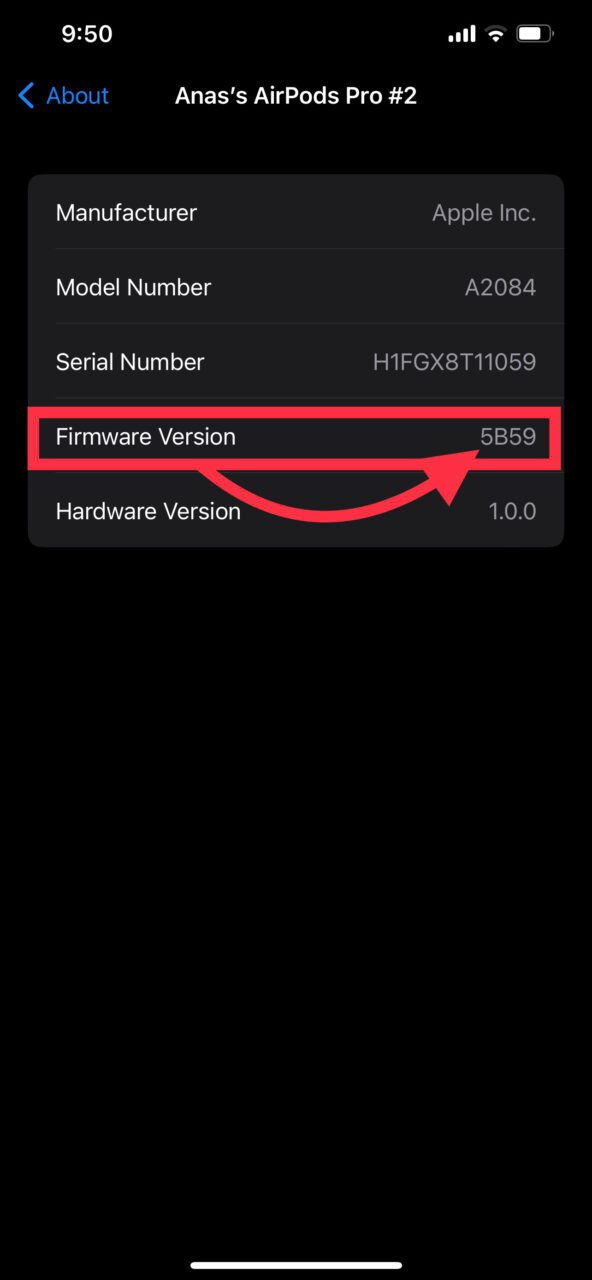
Step #3: Note the firmware version displayed. Mine’s updated, like always. To find the latest firmware version, search online or visit Apple’s support website.
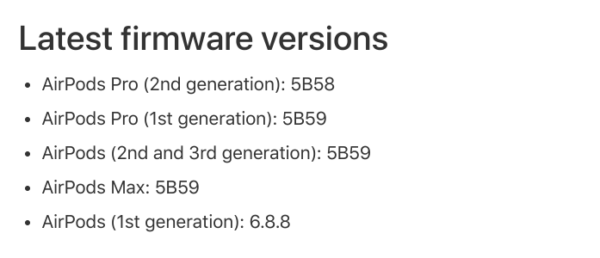
Step #4: If your AirPods’ firmware is outdated, they should update automatically when connected to your iOS device and placed in the charging case. Ensure the case is connected to a power source and your iOS device is connected to the internet via Wi-Fi.
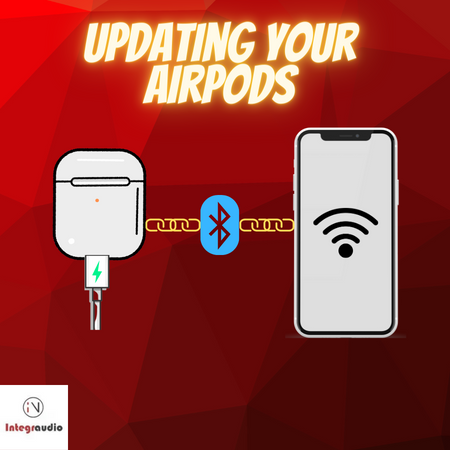
Please note: Firmware updates for AirPods are only available through iOS devices.
No dice? On to the next solution.
8. Reset Network Settings
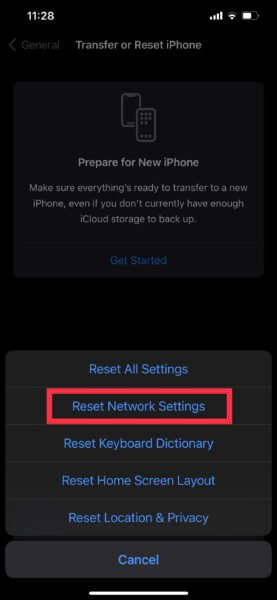
Network settings on your device play a crucial role in Bluetooth connections. If these settings are causing issues, resetting them may resolve the problem. However, keep in mind that this process will also reset your Wi-Fi networks and passwords, cellular settings, and VPN settings. Here’s how to reset network settings on iOS and Android devices:
- For iOS devices:
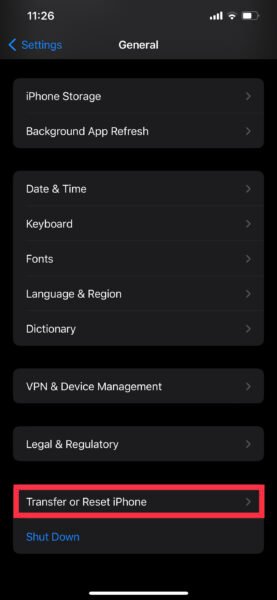
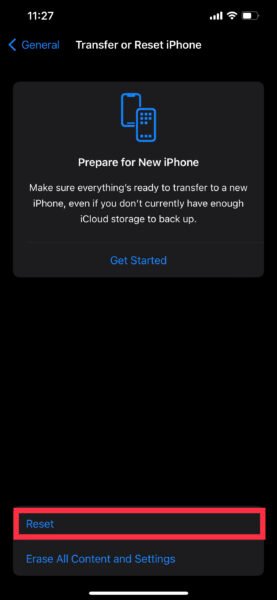
- Go to “Settings” > “General” > “Transfer or Reset iPhone” > “Reset.”
- Tap “Reset Network Settings” and confirm your action.
- Your device will restart, and network settings will be restored to default.
- For Android devices:
- Go to “Settings” > “System” > “Reset Options.”
- Tap “Reset Wi-Fi, mobile, & Bluetooth” and confirm your action.
- Your device will restart, and network settings will be restored to default.


After resetting network settings, you’ll need to reconnect to your Wi-Fi network and reconfigure any custom cellular or VPN settings. Then, try connecting your AirPods to your device via Bluetooth once more.
Still struggling? We’ve got one more trick up our sleeve.
9. Seek Professional Help
If all else fails and you’ve exhausted the other solutions, it’s time to consult the experts. Don’t be discouraged – sometimes, complex issues require professional insight. Here are a few options for seeking help:
- Apple Support: Reach out to Apple Support through chat, phone, or email. Their knowledgeable team can help diagnose the issue and guide you through potential fixes or direct you to the next steps.
- Apple Store’s Genius Bar: Make an appointment at your local Apple Store’s Genius Bar. Their skilled technicians can assess your AirPods in person, troubleshoot the problem, and provide hands-on assistance or even a repair if necessary.
- Authorized Apple Service Provider: If you don’t have an Apple Store nearby, visit an authorized Apple service provider. They offer certified repairs and support for Apple products, ensuring you receive top-notch help.
After all, seeking professional help is not an admission of defeat – it’s a smart move when you need expert advice. With their guidance, you’ll be on your way to enjoying your AirPods once again.
Wrapping It Up: You Got This!
Bluetooth issues can be downright infuriating, but don’t lose hope. With these nine solutions, you’re well on your way to fixing the problem and getting back to enjoying your AirPods. So, what are you waiting for? Give these fixes a try, and soon enough, you’ll be jamming out to your favorite tunes once again.
FAQ
How do I get my AirPods to show up in Bluetooth?
To get your AirPods to show up in Bluetooth, follow these steps:
- Ensure your AirPods are charged and not in the charging case.
- Open the lid of the charging case, but keep the AirPods inside.
- Turn on Bluetooth on your device.
- Place your device near the open charging case.
- Wait for your AirPods to appear in the list of available Bluetooth devices.
- Select your AirPods from the list to connect.
How do I reset my AirPods Bluetooth?
To reset your AirPods Bluetooth connection, perform the following steps:
- Place your AirPods in their charging case.
- Close the lid, wait 30 seconds, then open it.
- Press and hold the button on the back of the case until the LED light flashes amber, then white.
- Reconnect your AirPods to your device through the Bluetooth menu.
Why are my AirPods flashing white but not connecting?
If your AirPods are flashing white but not connecting, it could be due to a few reasons:
- The AirPods are in pairing mode but your device’s Bluetooth isn’t turned on.
- Your device is too far away from the AirPods.
- The AirPods’ battery is low.
- There’s a temporary glitch in the connection.
Try the following steps to resolve the issue:
- Turn on Bluetooth on your device.
- Move your device closer to the AirPods.
- Charge your AirPods in their case.
- Restart both your device and your AirPods.
- If the issue persists, reset your AirPods and try connecting again.

Integraudio is a audio-focused blog that explores everything from VST plugins and studio hardware to practical guides, tips, and tutorials on Spotify, AirPods, podcasting, Discord, and beyond.